First-time login & account setup
This short guide walks you through your very first sign-in to Karelics Cloud from an invitation email. Total time: ~2 minutes.
What you’ll need
- The invitation email sent to your work address.
- A browser where you’re not already signed in to another Karelics account (or use a private/incognito window).
Steps
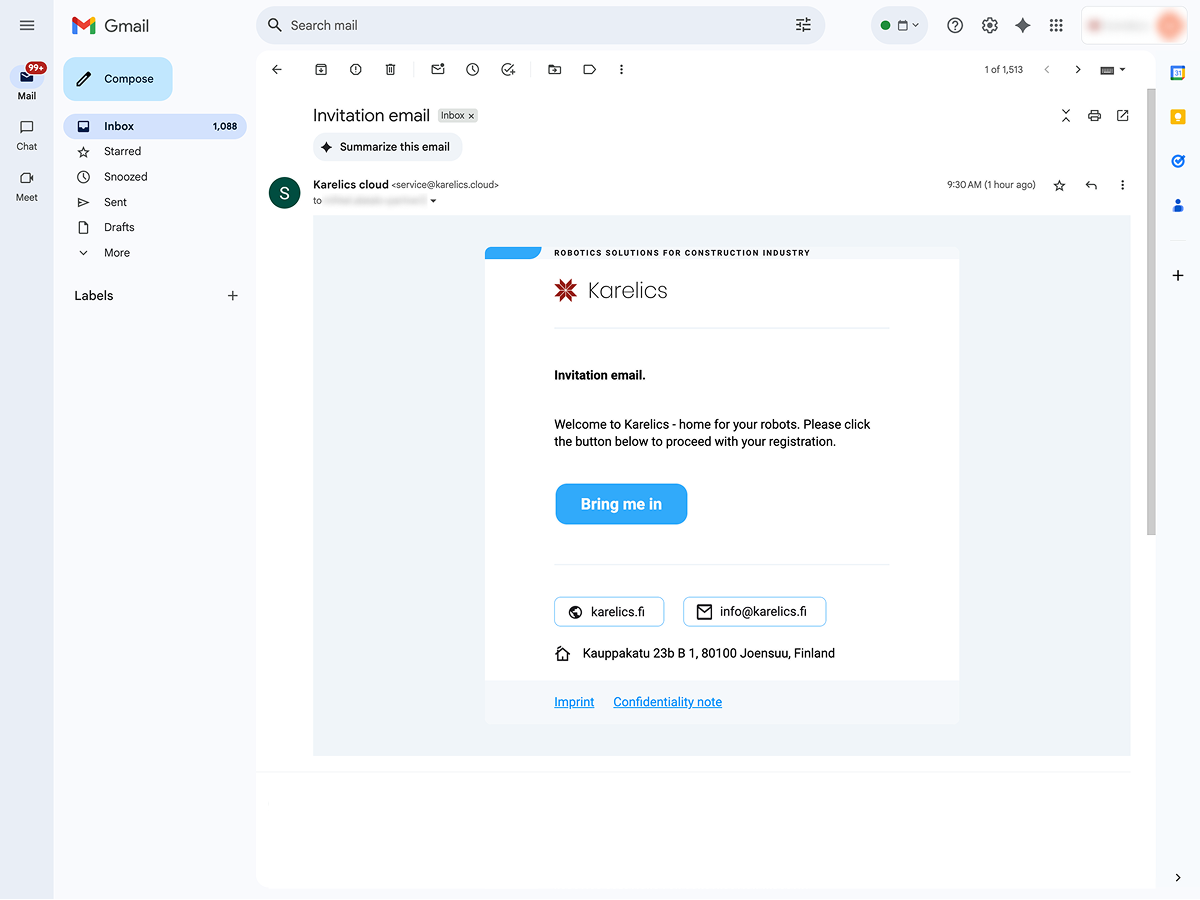
1) Open the invitation email — Click Bring me in to start registration.
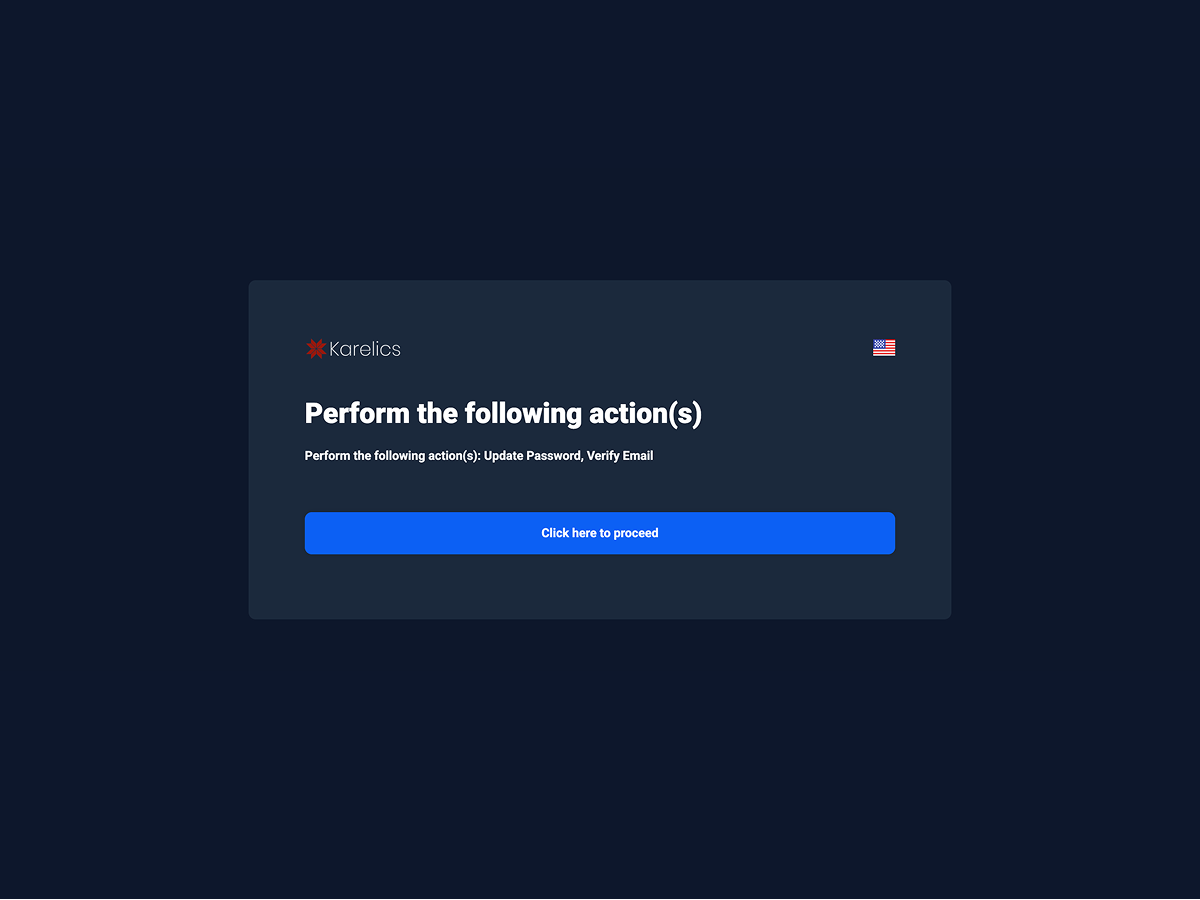
2) Confirm required actions — On Perform the following action(s), press Continue to start verification and password setup.
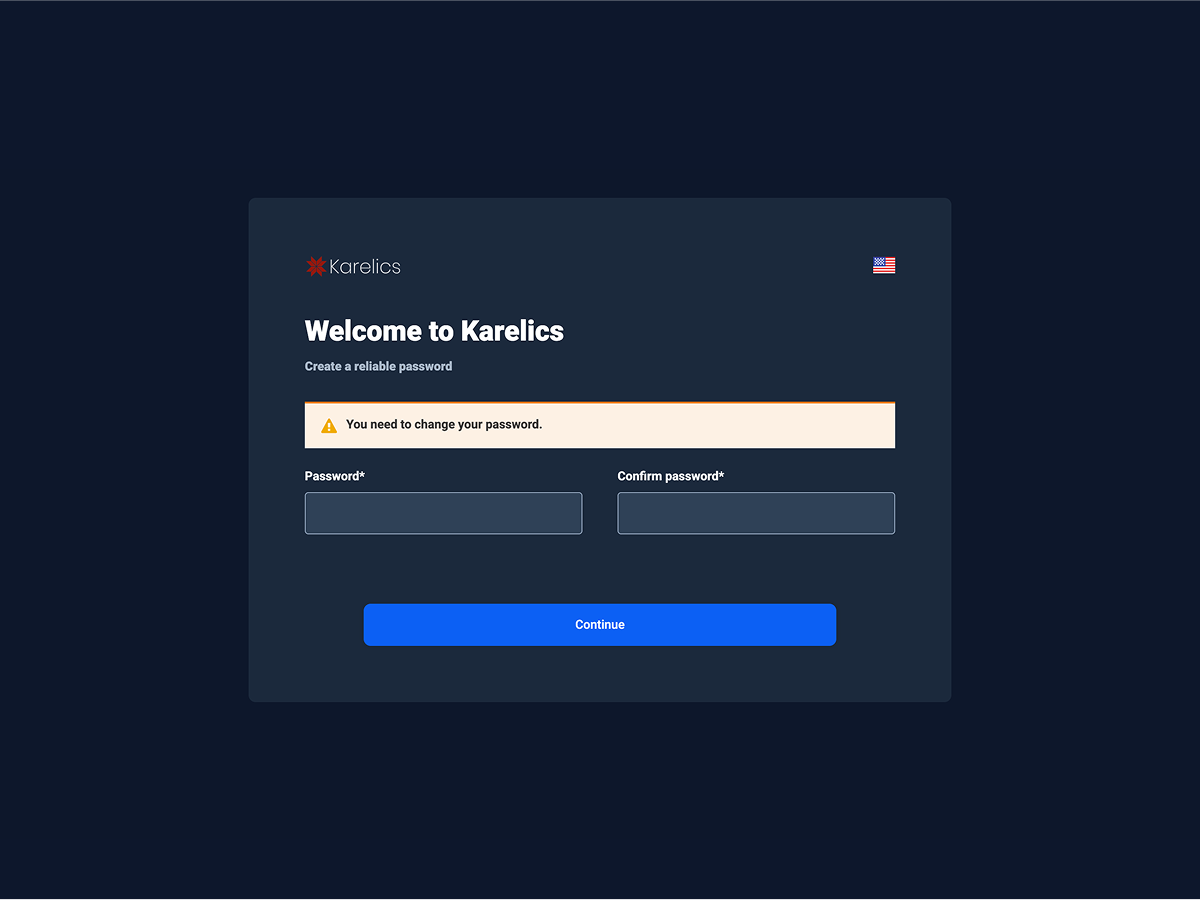
3) Create a secure password — Enter and confirm a new password, then press Continue.
Password tips
Use at least 8 characters. Combine letters, numbers, and symbols. Avoid reusing passwords from other services.
4) Account updated — When you see Your account has been updated, click Back to Application.

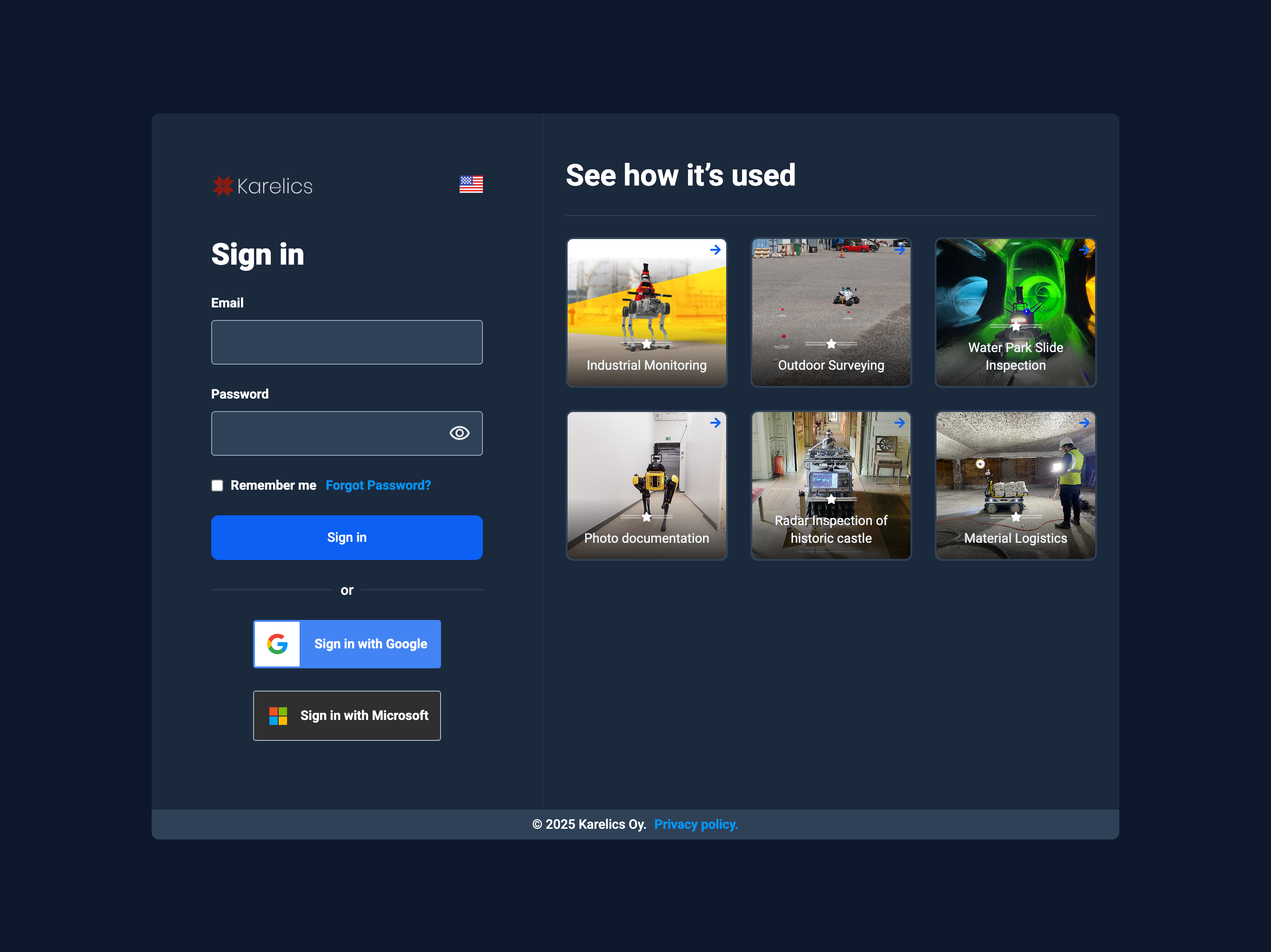
5) Sign in — Enter your email and password, or choose Sign in with Google / Sign in with Microsoft. Optional: enable Remember me.
SSO
If your organization uses Single Sign-On (SSO), simply click Sign in with Google or Sign in with Microsoft—no password needed here.
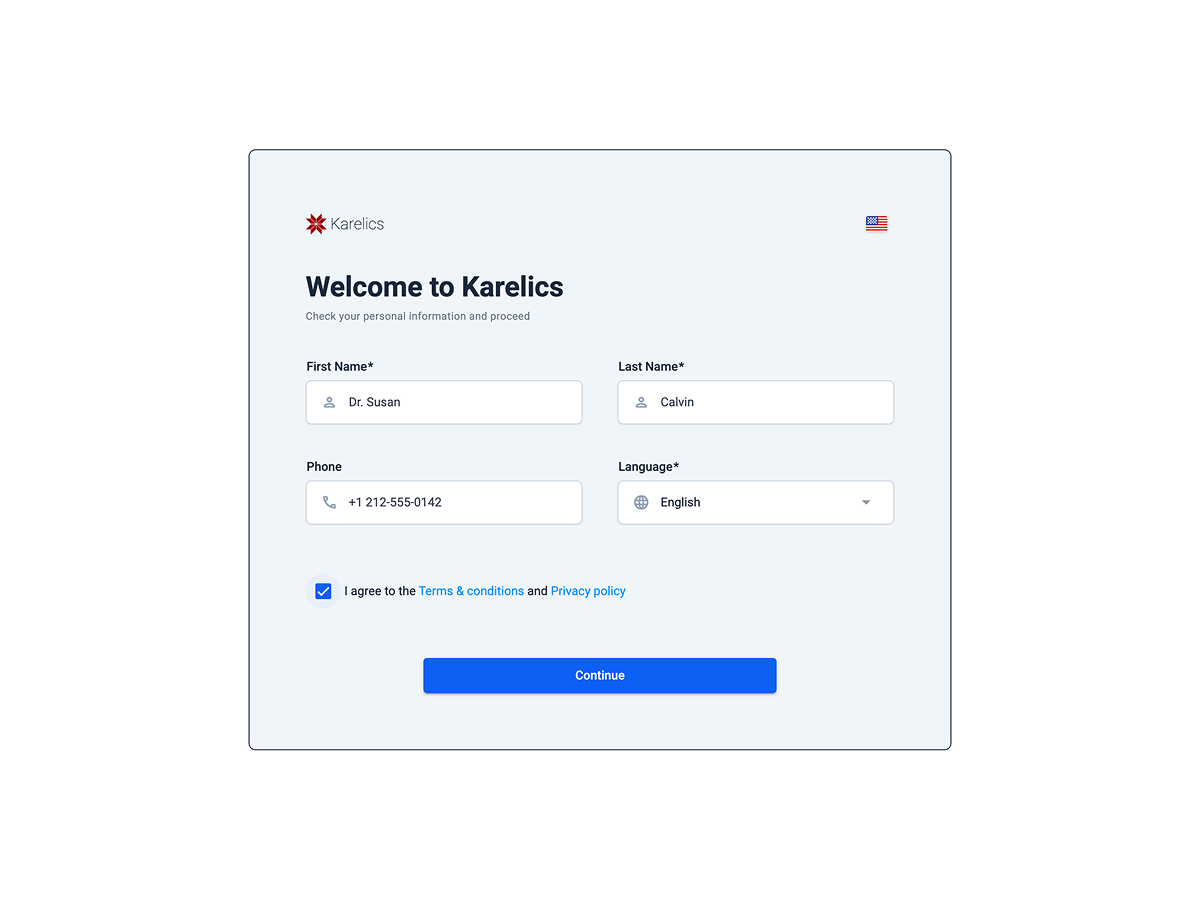
6) Complete your profile — Fill in First name, Last name, Phone, and choose your Language. Accept the Terms & Privacy, then click Continue.
Troubleshooting
Didn’t get the invitation email? — Check Spam/Junk and search for “Invitation email” from service@karelics.cloud.
If you still can’t find it, ask your administrator to resend the invitation.
Invitation link expired or doesn’t work? — Ask your inviter to send a new invitation.
Links have a limited lifetime for security reasons.
Forgot your password? — Use Forgot Password? on the sign-in screen.
You’ll receive a reset link at your registered email address.
Already signed in as a different user? — If you see “We are sorry…”, sign out of the current account or open the link in a private/incognito window.

Need help? — Contact support@karelics.fi.
Provide a brief description of the problem and a screenshot if possible.