Last detections
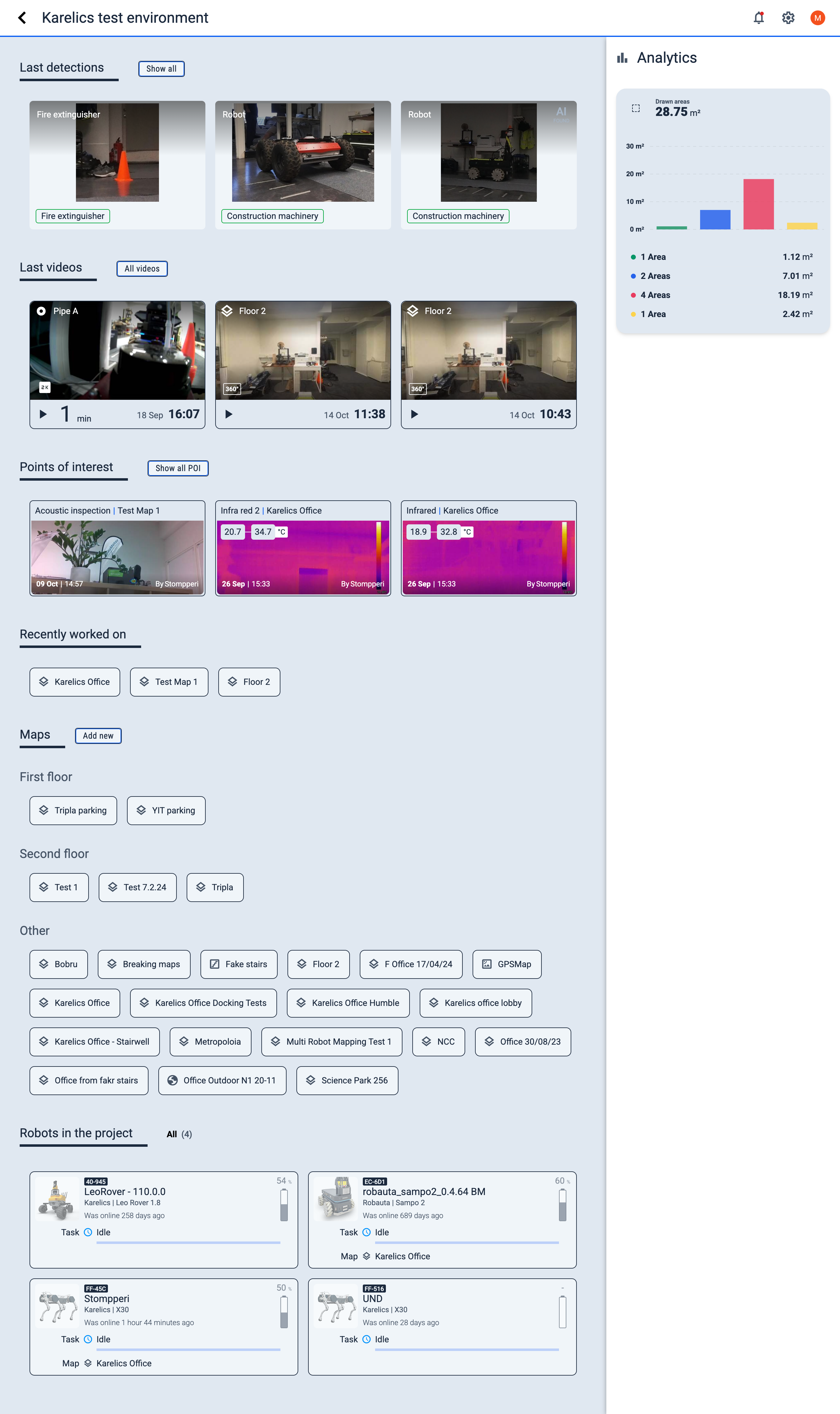
View the latest detection events in the project workspace for monitoring and verification.
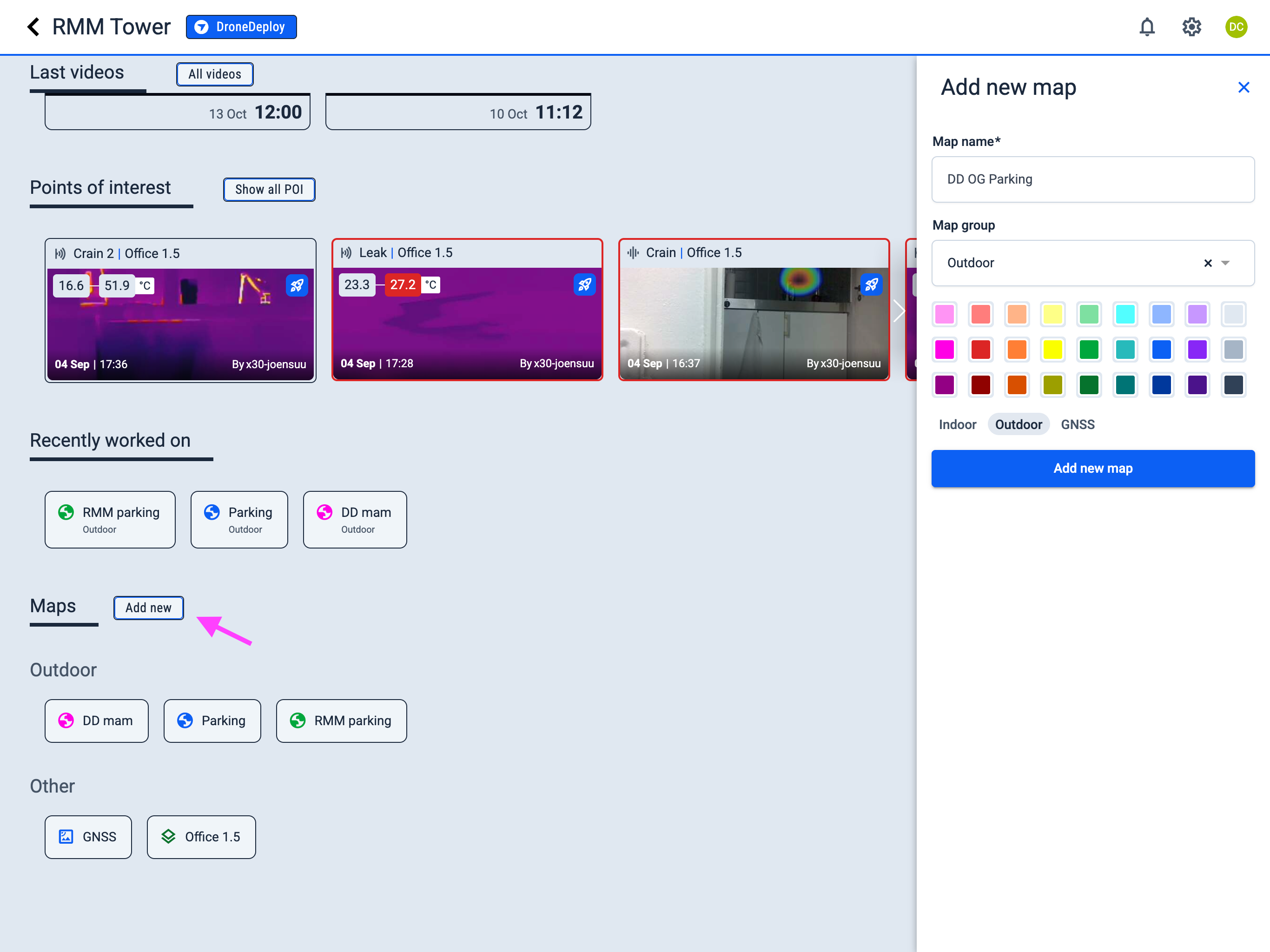
By clicking the Show all button, you will be redirected to the detections page where you can view and manage all detections.
Last videos
Review recent video recordings related to the project for monitoring and verification.
By clicking the All videos button, you will be redirected to the videos page where you can view all videos from the project.
Points of interest
View inspection results for different types of points of interest (POI) within the project:
infrared Infrared
readiness_score Gauge
valve Valve
fire_extinguisher Object Detection
graphic_eq Acoustic inspection
By clicking the Show all POI button, you will be redirected to the POI page, where you can view all points of interest (POI) for the project.
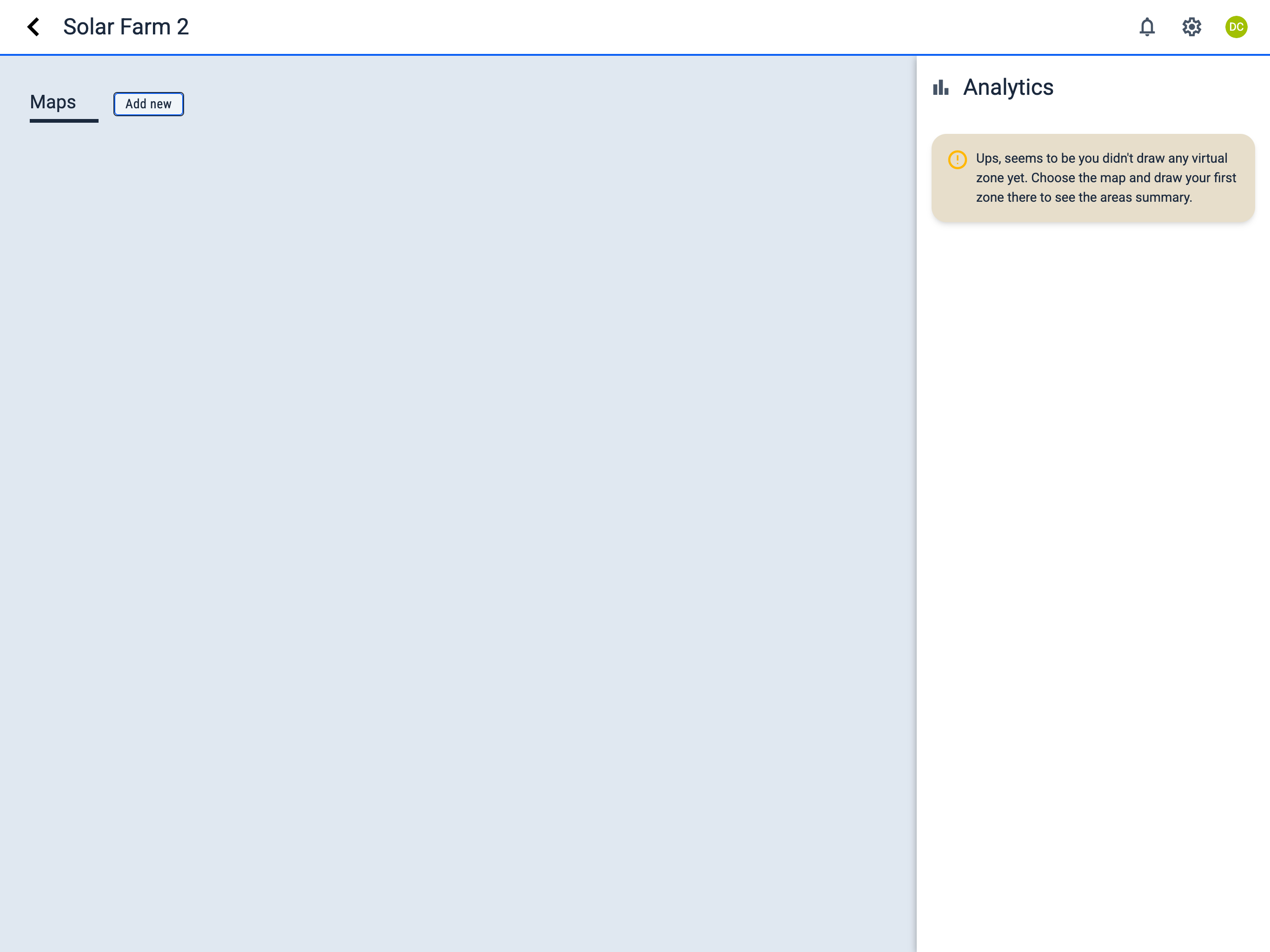
Maps
Within the Maps section, the Recently worked on tab is displayed first, showing the most recent maps you have interacted with.
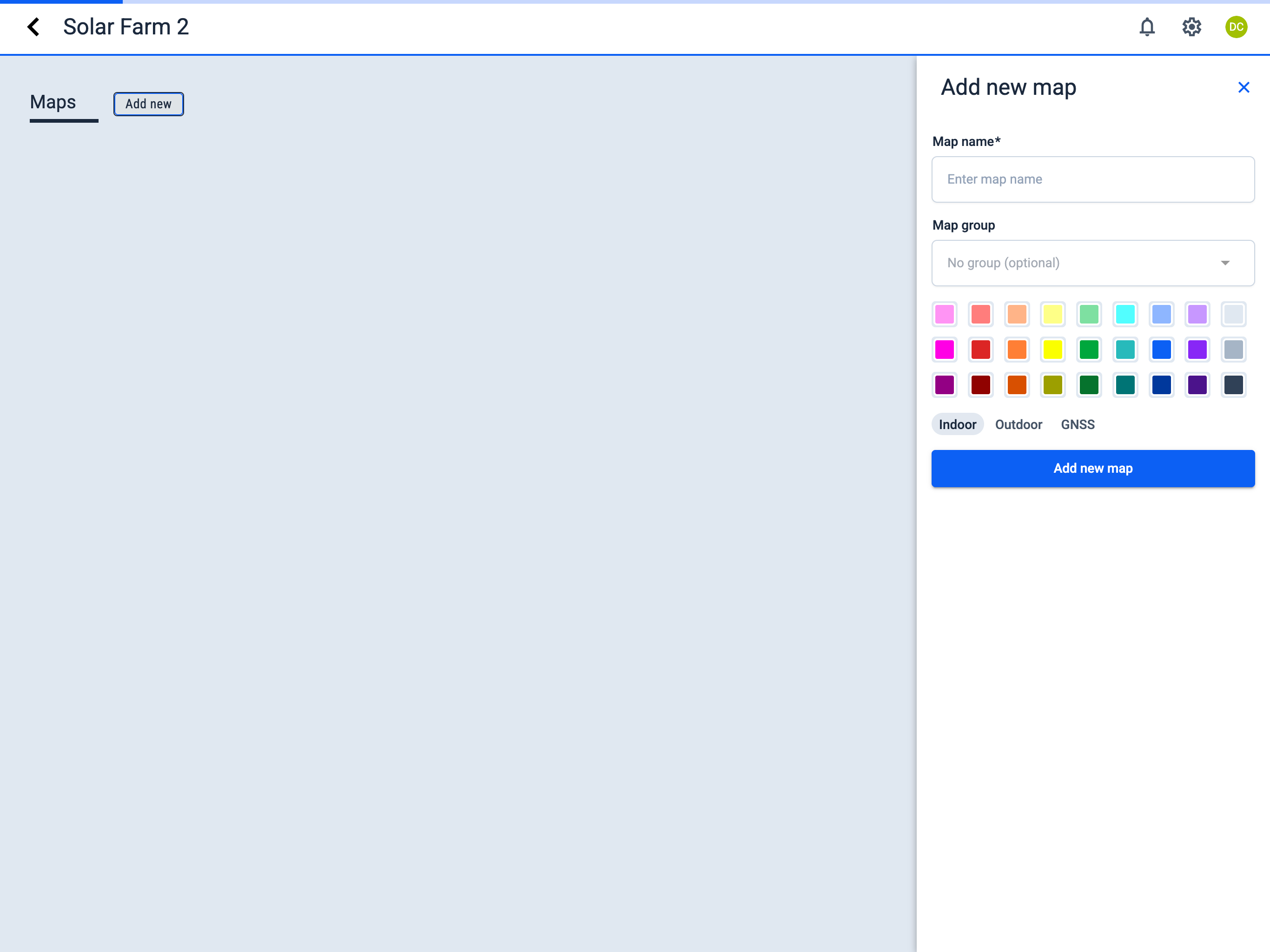
Maps are organized into groups (if such groups exist) for easier navigation. You can assign a group to a map either during its creation or while editing an existing map.
Click the Add new button to create a new map.
Each map entry displays an icon before the map name. The icon color can be changed, and the icon indicates the map type, represented by the corresponding Google icon:
layers Indoor
globe Outdoor
satellite GNSS
circle Pipe
Robots in the project
See the list of all robots assigned to this project, monitor their statuses, and access detailed robot-related information.
Analytics
Access the main performance metrics and analytics for the current project from this section in the sidebar.