Insta360 Camera
Camera Not Starting
If your Insta360 camera is not starting or not responding, follow these troubleshooting steps:
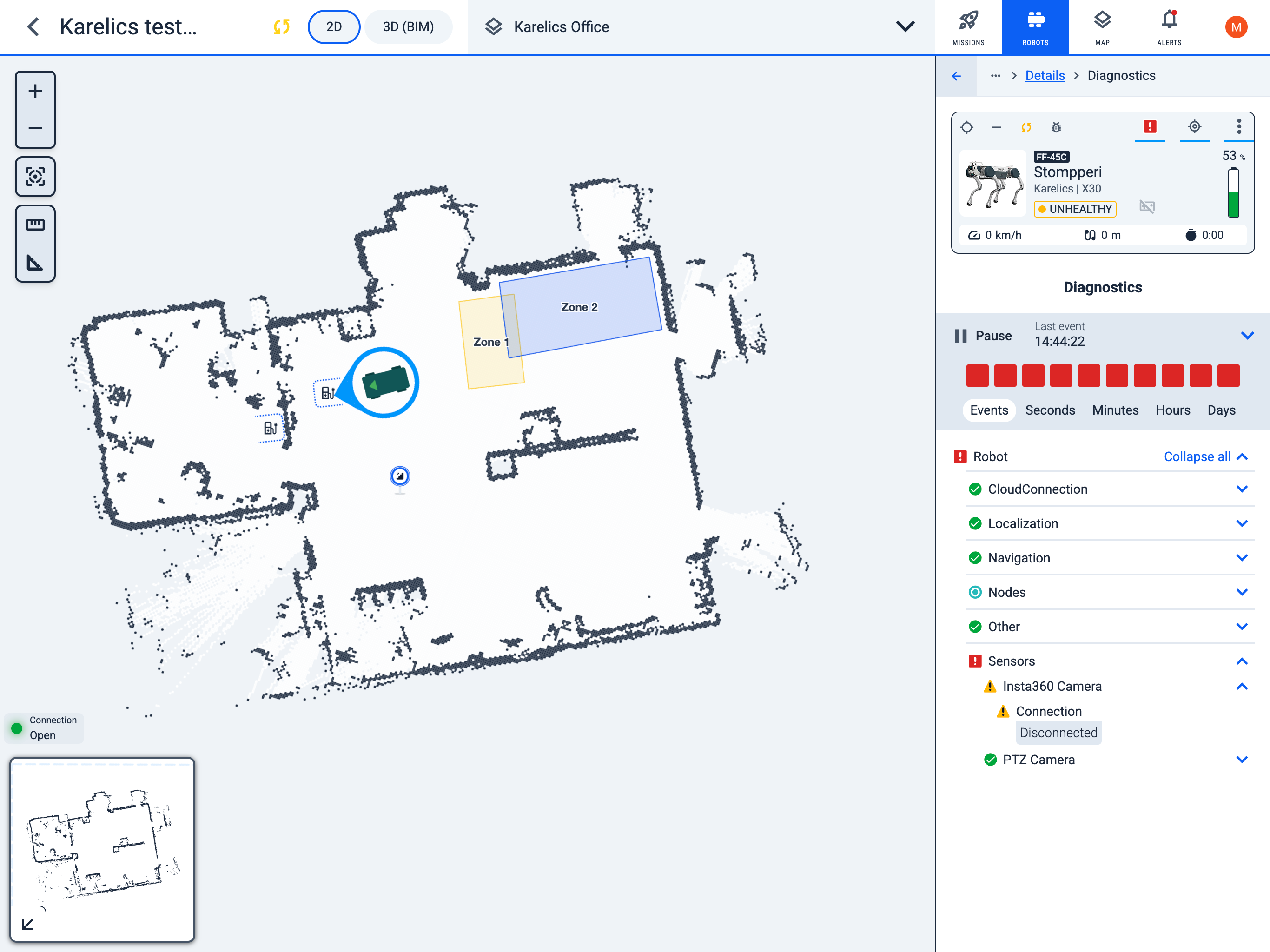
1. Check Health Monitoring
- Navigate to the Health Monitoring section
- Go to the Sensors tab
- Look for the Insta360 Camera entry
- Check if the Connection status shows as "Disconnected"
2. Verify Camera Power
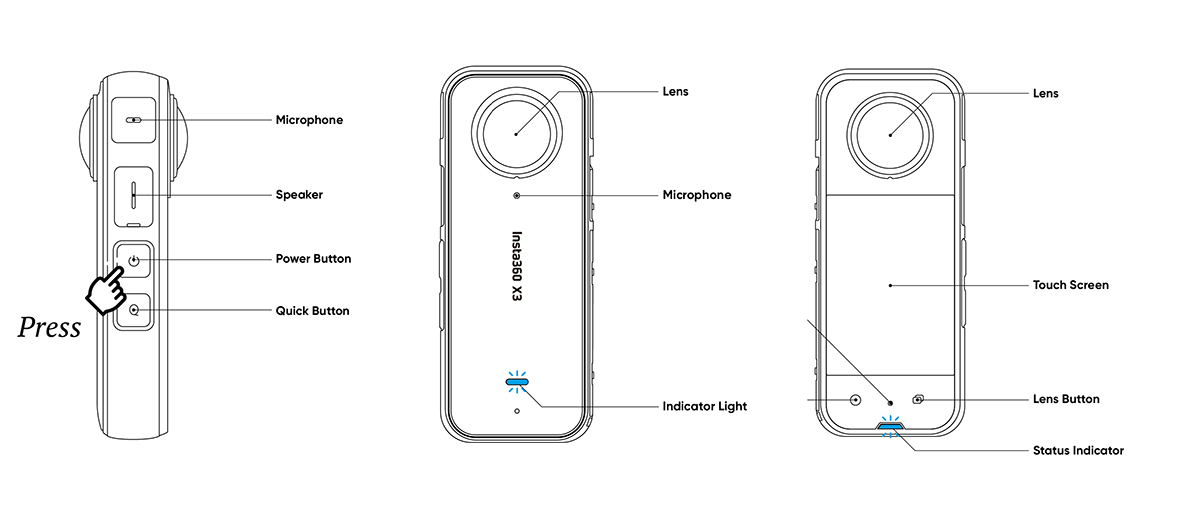
- Check that the Insta360 camera is turned on; when powered on, the indicator should be blue
- If the camera appears to be off, press and hold the power button
3. Check USB Connection
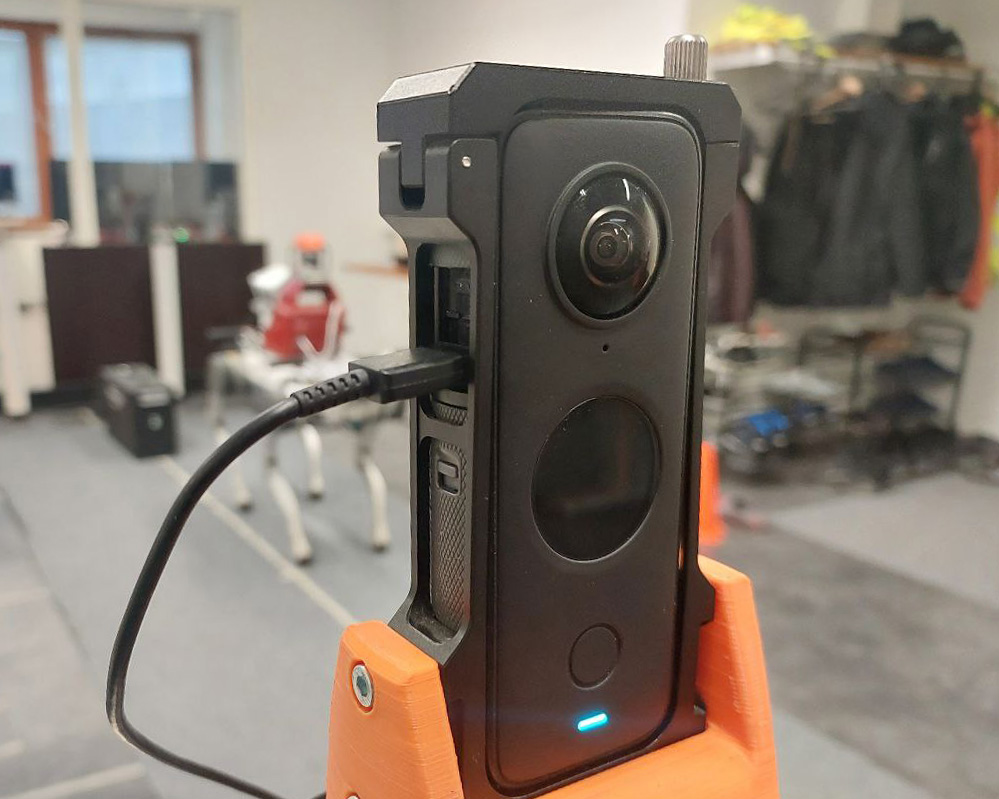
- Ensure the USB Type-C cable is securely connected to the camera
- Check that the cable is not damaged or loose
- Try using a different USB Type-C cable if available
4. Check SD Card
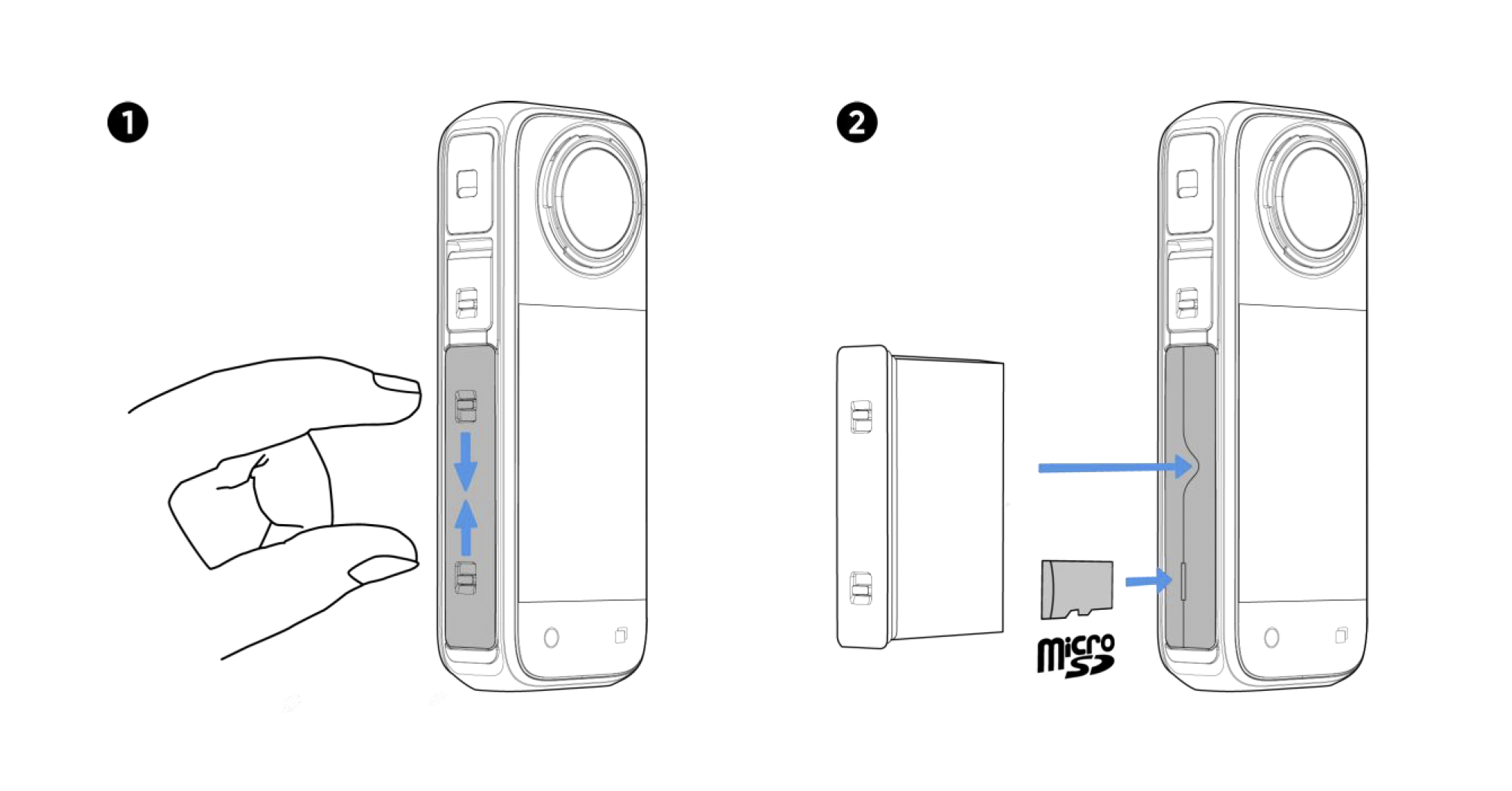
- Ensure an MicroSD card is inserted in the camera
- Check that the MicroSD card is not completely full
- Check that the MicroSD card is properly formatted
- To format the card: Swipe down on the touchscreen to enter the Shortcut Menu, tap (Settings) > Camera Storage > Format Storage
- Try using a different MicroSD card if issues persist
5. Check USB Mode Configuration
- Access the camera settings menu
- Navigate to USB settings
- Set USB Mode to "Control with Android"
- Save the settings and restart the camera if necessary
Additional Troubleshooting
If the above steps don't resolve the issue:
- Restart the camera: Power off the camera completely, disconnect the USB Type-C cable, wait 10 seconds, then reconnect the cable and power it back on
- Restart the robot: You can also restart the robot while turning off the camera simultaneously