Add new project
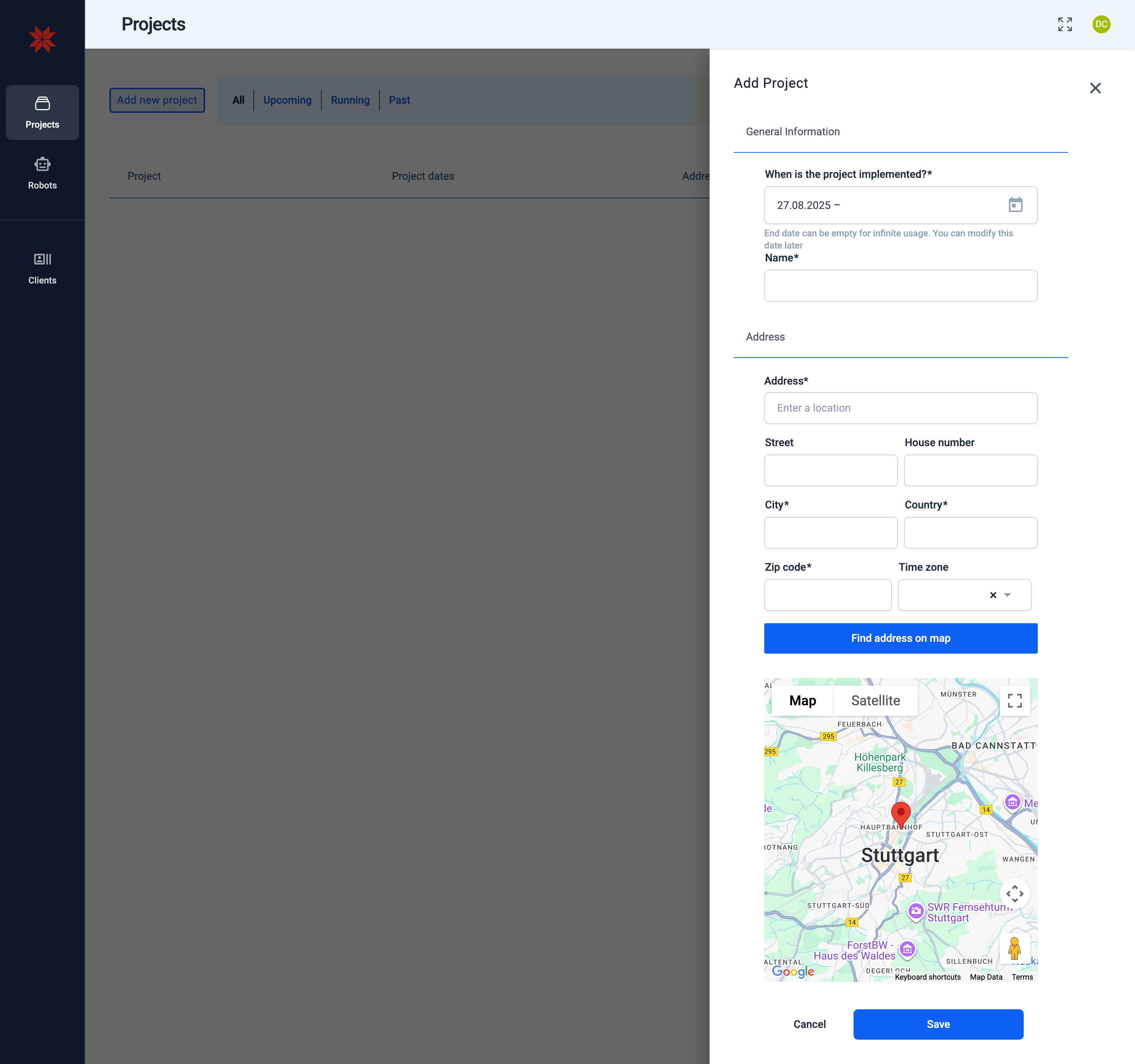
Fill in General Information
When you add a new project, you can fill in the following fields:
- When is the project implemented?
- Select the project start date from the calendar.
- The end date can be left empty for continuous usage.
- You can modify these dates later if needed.
- Name
- Enter a descriptive name for your project (e.g., Stuttgart Inspection 2025).
- Fill in the address details:
- Address (location name)
- Street and House number
- City and Country
- Zip code
- Time zone
- Use the Find address on map button to automatically locate the project on the map.
- Verify the red pin is correctly placed on the map.
Save the Project
- Click Save to create the project.
- The new project will now appear in the project list under Upcoming, Running, or Past, depending on the selected dates.
Multi‑Project Support
Karelics Cloud allows you to manage multiple projects at the same time.
This helps you organize operations across different sites, clients, or time periods without mixing data.
Learn more on the Multi‑Project Support page.