Manual robot control
Learn how to control the X30 robot using controller, teleoperation, and quick actions.
Via Controller
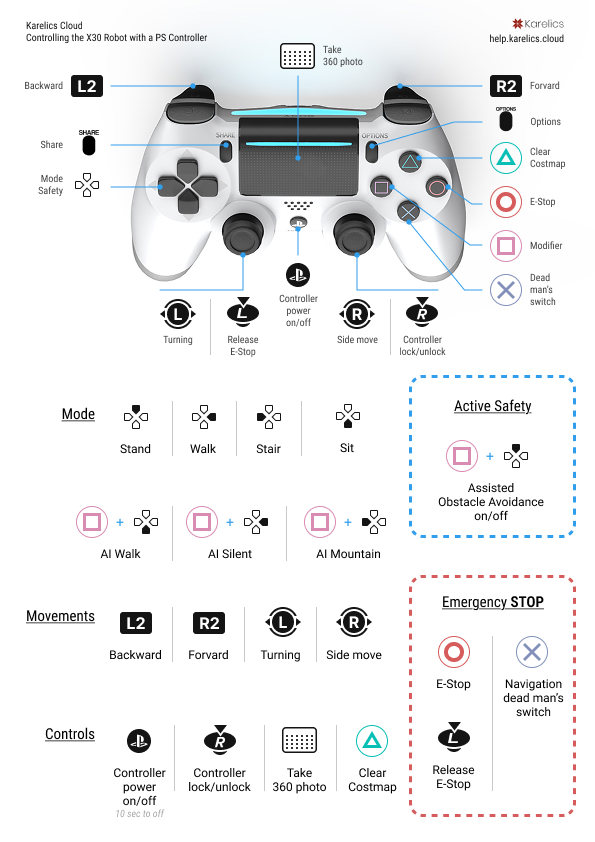
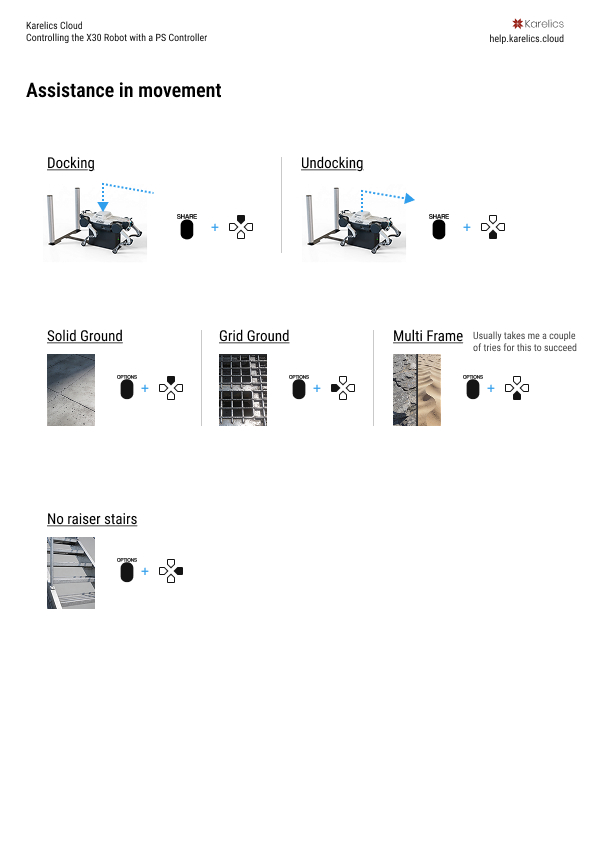
This diagram explains how to operate the X30 robot using the PS3 controller.
📥 Download Printable Controller Diagram (PDF)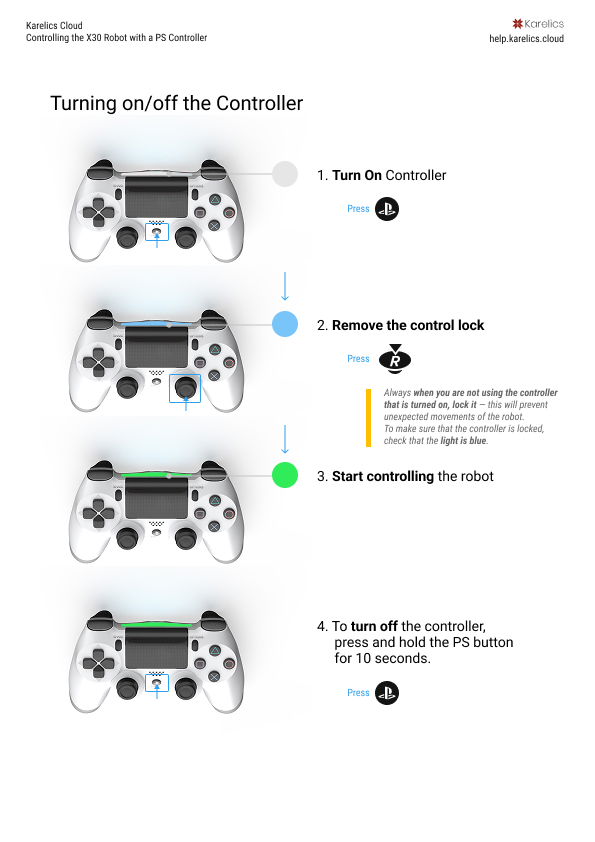
Via Teleoperation
Operator Hub → Current Project → Workspace → Robots → Current Robot → Configuration → Control Robot Remotely
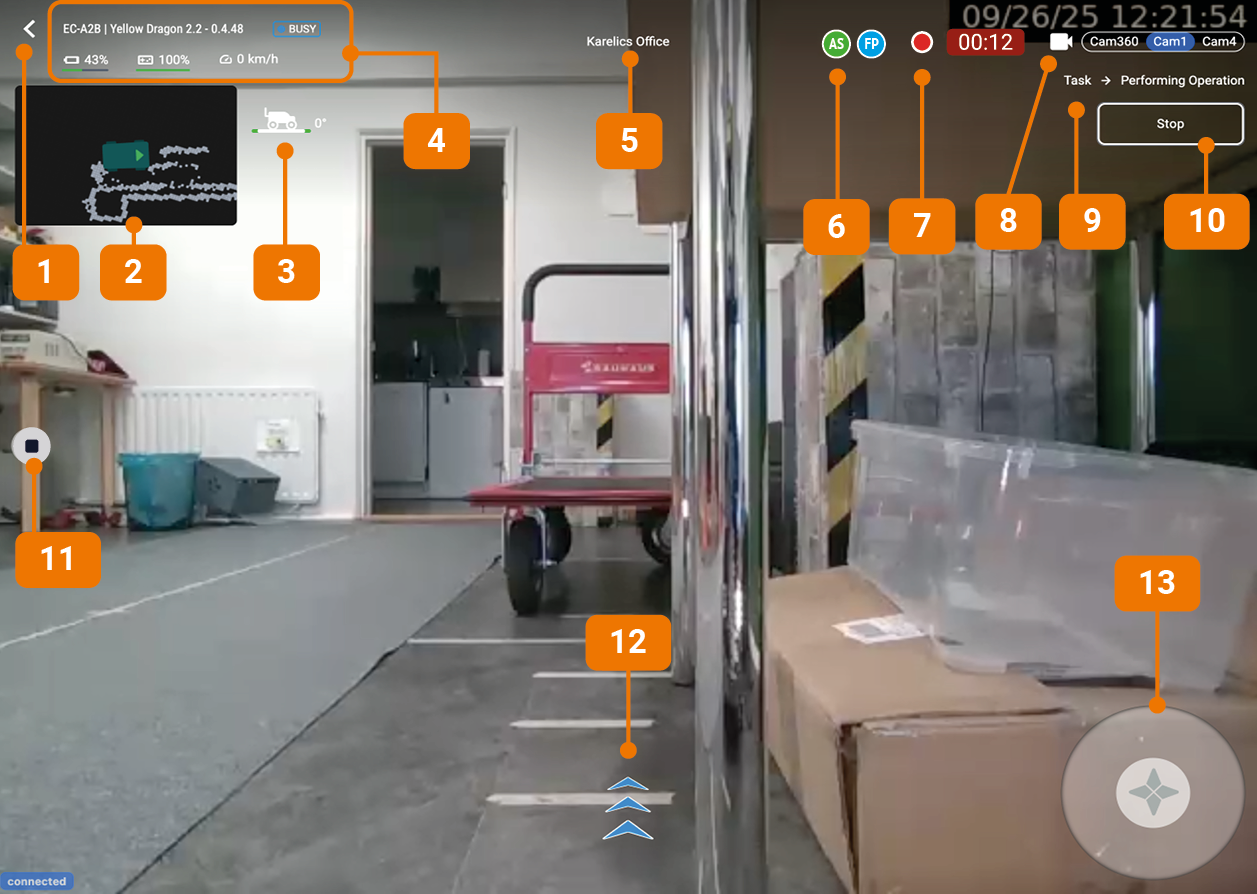
This mode provides robot monitoring, remote control, and video recording.
Interface
- Back button - Return to previous screen
- Mini-map - Shows robot location
- Robot tilt indicator - Shows forward/backward tilt in degrees
- Robot status:
- Robot ID
- Robot name
- Health status: Online / Offline (shows how long ago it was online) / Busy / Unhealthy
- Robot battery charge
- Controller charge
- Speed
- Map - The map where the robot is located
- Connected users - Users connected to remote control
- Recording status and duration - Video recording status and duration
- Camera switcher - Switch between available cameras
- Highlights streaming camera with blue background
- Marks recording camera with red dot
- Active Tasks - Shows what tasks the robot is currently working on
- Emergency stop - Pressing the red Stop button will immediately interrupt all current tasks and bring the robot to a halt
- Video recording button - Start/stop video recording
- Artificial Horizon indicator - Shows robot tilt left/right
- Robot controller - Virtual controller for robot operation
How to operate
- Make sure you have selected the Correct map [5]. Recorded video will be attached to the selected map.
- Press the Video Recording [9] button. The Status and Duration [7] of the recording will appear.
- Conrol the Robot remotely using virtual Controller [11] on the screen.
- After driving through the map press the Stop Video Recording [9] button.
- If necessary, Change the map [5] and start a new recording.
Via Quick Actions
Operator Hub → Current Project → Workspace → Robots → Current Robot → Configuration → Robot actions
You can switch the robot to different states and modes.
Different robots may have different available states and modes depending on their type and configuration.
- X30 RHINO
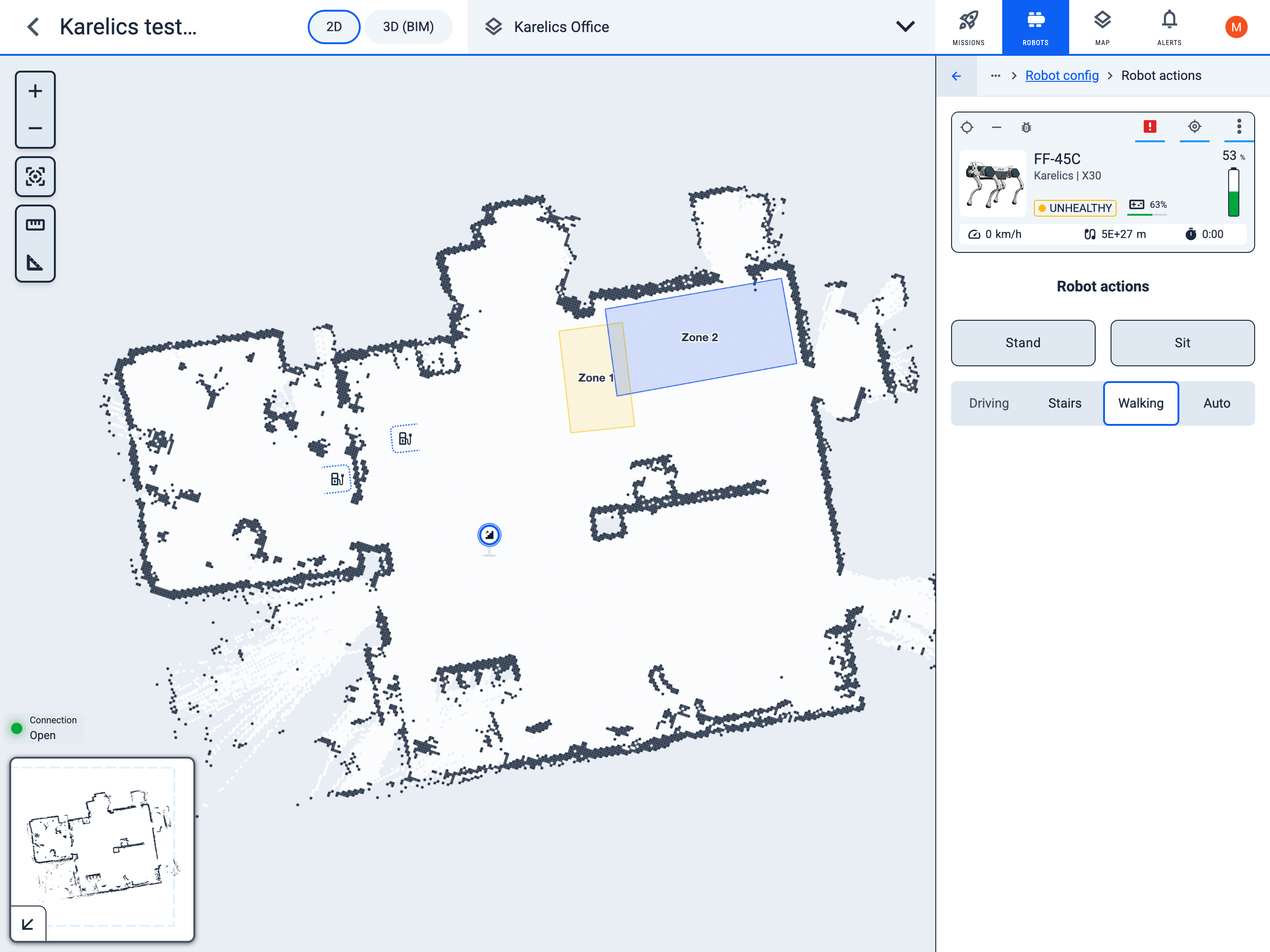
Available Actions
The following actions are available for the X30 RHINO robot:
- Stand - Makes the robot stand up
- Sit - Makes the robot sit down
- Stairs - Switches to Stairs mode
- Walking - Switches to Walking mode
- Auto - Switches to AI walking mode