Dahua alarm hub
Device-side setup for a Dahua wireless alarm hub (ARC series), configured through DoLynk Care. The hub keeps reporting to its usual alarm receiving centre; Karelics Cloud is added as an extra SIA DC-09 receiver, so no existing alarm service is disturbed.
The Karelics-side setup — plugin, alarm hub, SIA account, zones, sensors, alarm triggers, monitoring — is described in Alarm systems.
Before you start
- Dahua alarm hub with firmware that supports SIA DC-09 (SIA-DCS) reporting with AES encryption.
- Hub online with an internet connection (Ethernet, Wi-Fi, or cellular) that allows outbound traffic to
karelics.cloud:5066. - Admin access to the hub in DoLynk Care.
- An alarm hub with an enabled SIA DC-09 account in the Karelics project — you need its Account ID and Encryption key. See Configure an alarm hub.
Open the hub settings
In DoLynk Care, go to Sites and open the site the hub belongs to.
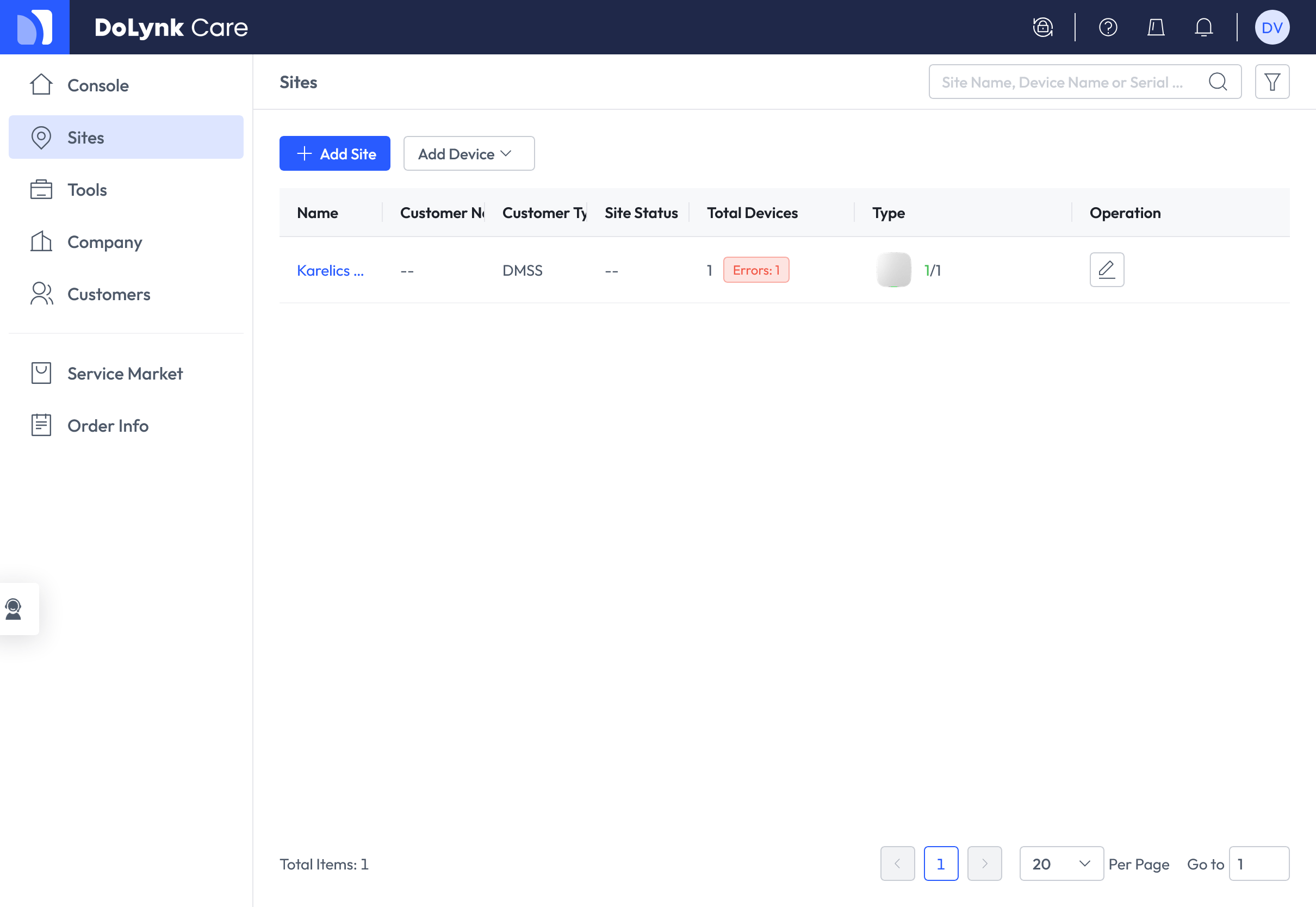
On the Devices tab, find the alarm hub — type Alarm — and open its settings.
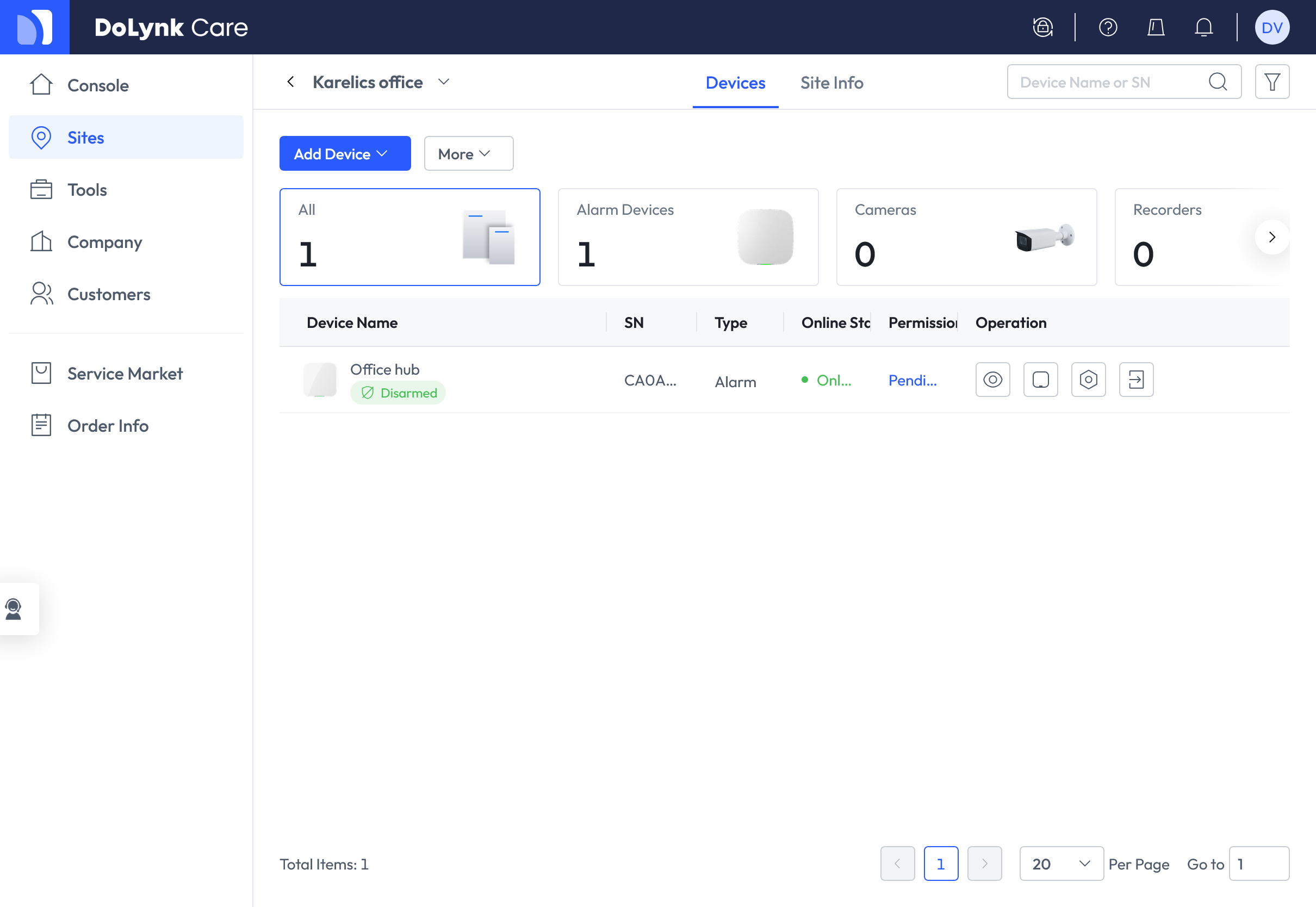
Hub Setting carries the tabs of the hub: Device Settings, User Management, Arming/Disarming Settings, Alarm Settings, Network Settings, Security Service.
Point the hub at the Karelics receiver
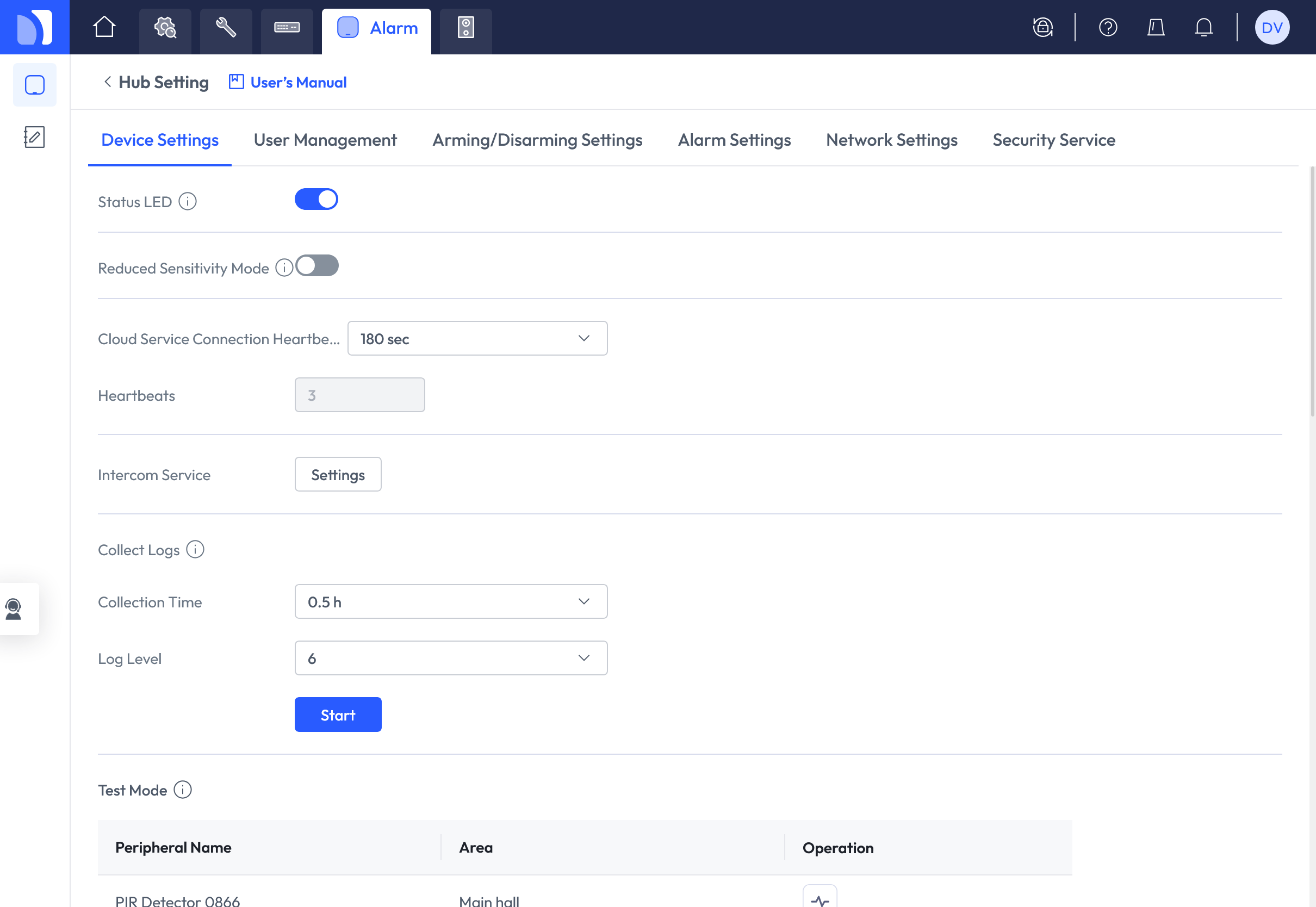
Open the Security Service tab. Under Monitoring Station the hub offers two slots,
Alarm Receiving Center 1 and 2. Keep an existing alarm receiving centre where it is and take the free
slot for Karelics. Karelics has a single listener, so filling both slots with karelics.cloud:5066 gains
nothing.
Open the slot and fill it in:
| Field | Value |
|---|---|
| Enable | On |
| Communication Protocol | SIA DC-09(SIA-DCS) |
| Preferred IP Address | On |
| IP Address/Domain | karelics.cloud |
| Port No. | 5066 |
| IP Protocol | TCP |
| Heartbeat Interval | 00:01:00 |
| Central Account | Account ID from the Karelics SIA account |
| Encryption | On |
| Key | Encryption key from the Karelics SIA account |
| Upload Events | All four: Alarm, Error, Operation, Arming/Disarming |
| Extended Field | On |
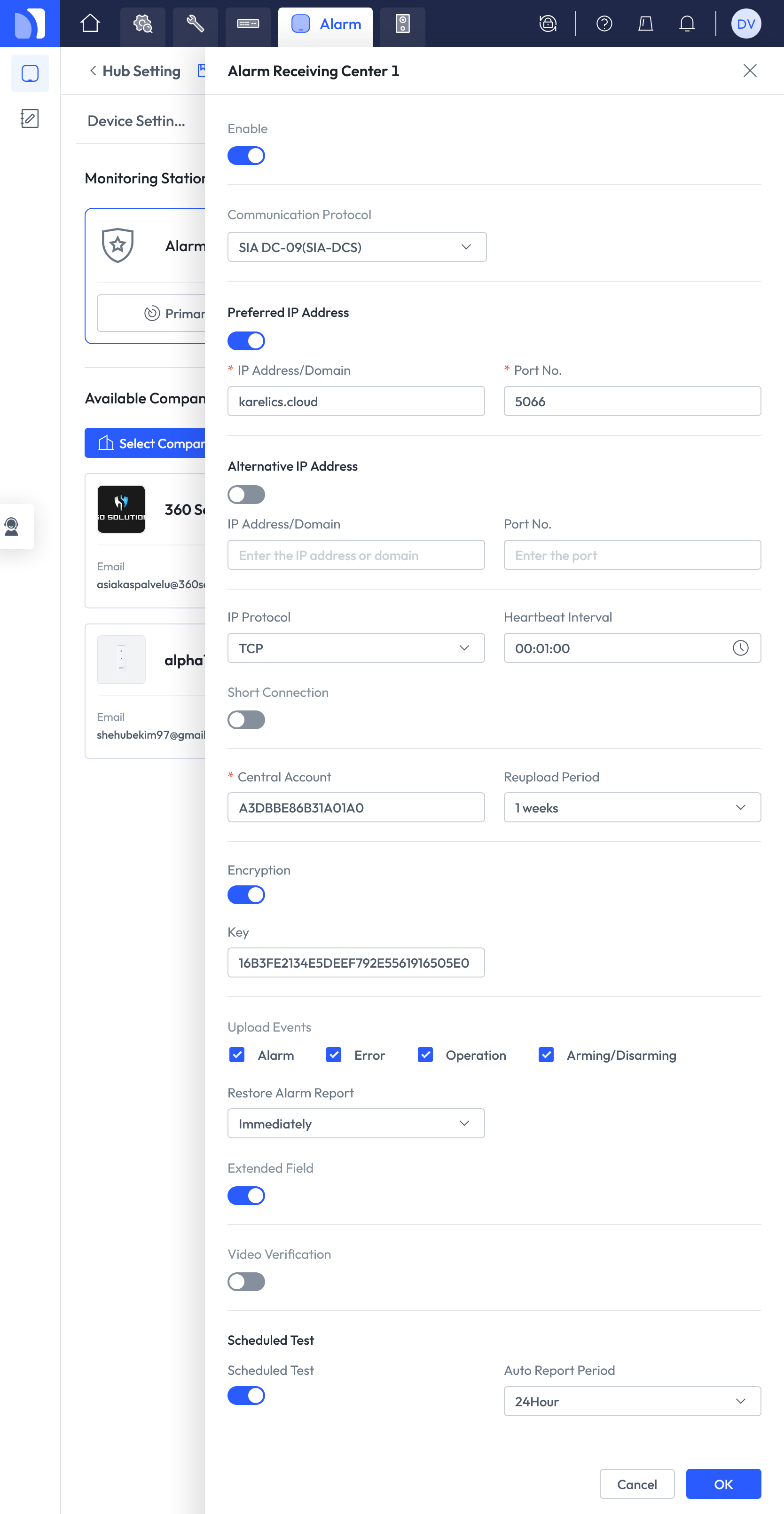
The remaining fields can stay at their defaults. Alternative IP Address is a fallback receiver address — leave it off, Karelics has only the one. Short Connection off keeps the link open instead of dialling per event. Restore Alarm Report on Immediately makes restore events arrive without delay, and Scheduled Test adds a periodic test report on top of the heartbeat.
Confirm with OK, then click Primary Test on the Alarm Receiving Center 1 card. The hub must answer Successfully tested — that confirms it reached the Karelics receiver and the account was accepted. Fix the settings before continuing if the test fails.
Keep Extended Field on and all four Upload Events selected. The extended field carries the additional event data that Karelics uses to identify the area and detector behind an alarm; with a reduced event selection, some alarms never reach the project at all.
Verify the connection
Open the Alarm events page of the project in Operator Hub. With a one-minute heartbeat interval the status card for the hub turns Online within a couple of minutes and shows a Last event timestamp.
Still Offline, or Primary Test failed? Check, in order:
- The hub can reach
karelics.cloudon port5066— a firewall on site is the usual cause. - Central Account and Key on the hub match the Karelics SIA account exactly: uppercase hexadecimal, no spaces.
- Enable and Encryption are checked on the hub, and the SIA account is Enabled in Karelics.
- Communication Protocol is
SIA DC-09(SIA-DCS), not Contact ID (ADM-CID).
Map areas and peripherals
Dahua areas map to Karelics alarm zones, and Dahua peripherals (PIR detectors, door contacts, panic buttons) map to Karelics alarm sensors. Both are matched by the number the hub reports, stored in Karelics as External ID.
Records appear on the Alarm zones and Alarm sensors tabs of the Karelics alarm hub as the hub reports
them, flagged Auto created. Give them names that match the Dahua configuration and the site:
Main hall, PIR Detector 0866.
To populate the lists in one pass instead of waiting for real alarms, trigger each detector once. The Test Mode table at the bottom of the Device Settings tab lists every peripheral with its name and area, which is the naming to copy into Karelics.
Test alarms are ordinary alarm events. Disable the alarm triggers first, or expect missions to launch.