Drone inspection
Operator Hub → Current Project → Workspace → Missions → Drone inspection missions
After the FlightHub integration is configured, missions synchronised from FlightHub appear here for review, scheduling, and launch.
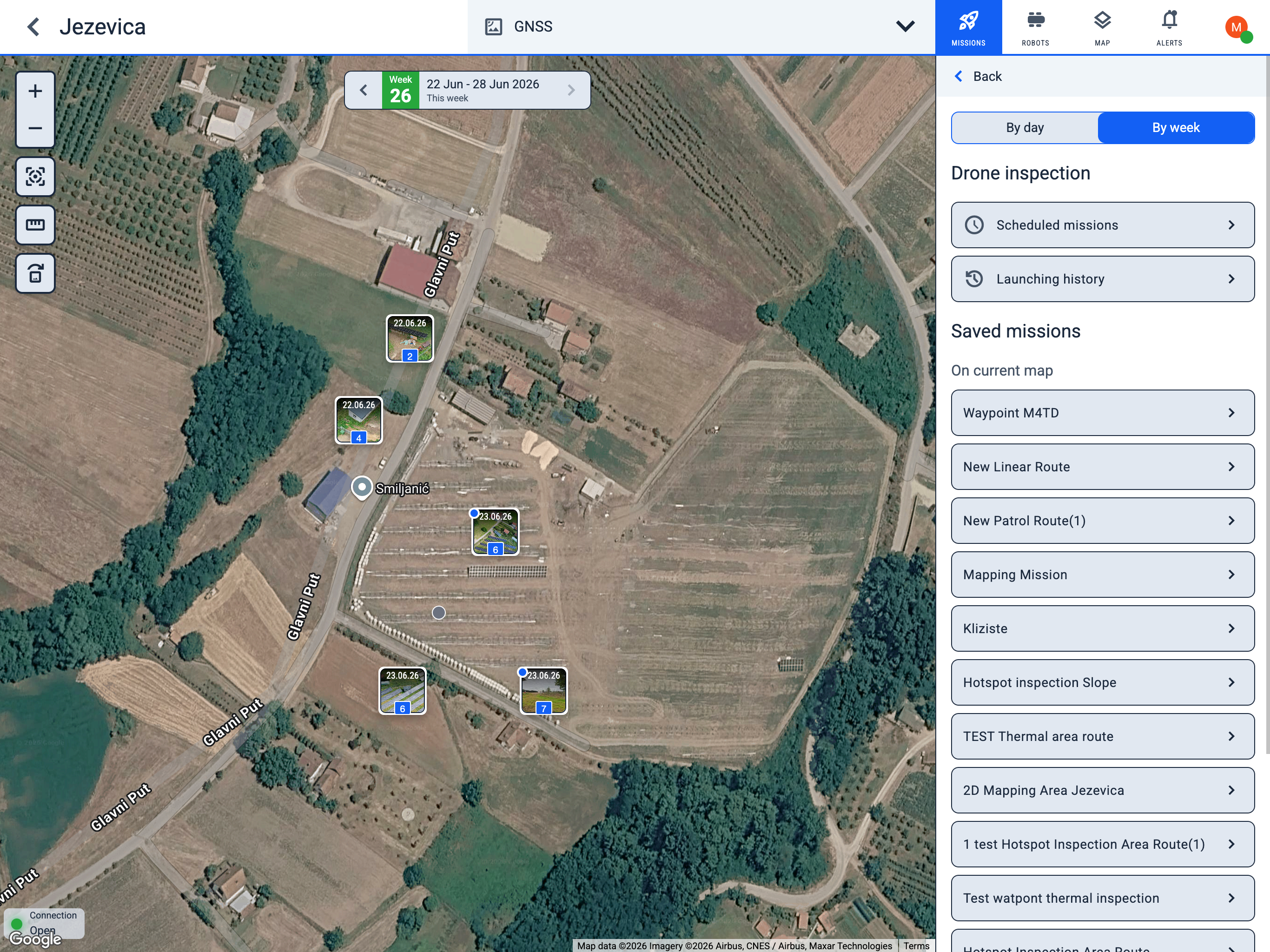
Map
Date selector (top centre) — shows the day or week for photo previews on the map. Navigate with chevron_left and chevron_right.
Toolbar (left):
- zoom_in Zoom in
- zoom_out Zoom out
- motion_sensor_active Fit map to screen
- straighten Ruler
- replace_image Move photo previews — drag thumbnails to reposition them on the map
Sidebar
View mode — By day or By week; also controls how the map date selector steps through time.
- schedule Scheduled missions — create and manage schedules
- history Launching history — past launches and results
Saved missions — mission templates on the current map. Open any entry to launch or schedule it.
Launch from saved missions
Saved missions are mission templates synchronised from FlightHub. Open any entry from the Saved missions list to review its waypoints on the map, manage schedules, or launch it on demand.
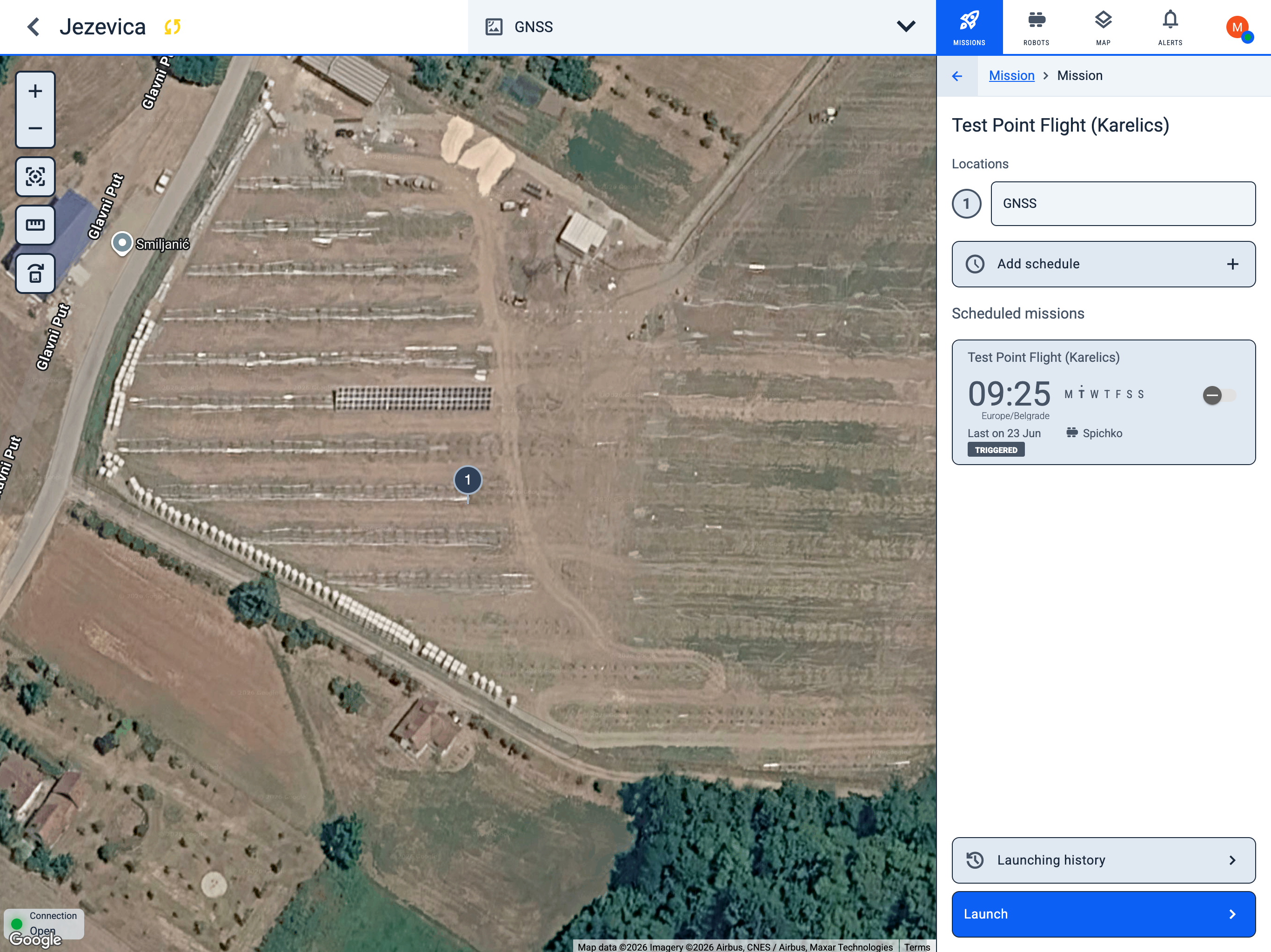
Mission detail
When you open a saved mission, the map centres on its waypoints and the detail panel shows:
- Locations — numbered waypoints in the mission route (for example, GNSS).
- Add schedule — create a recurring schedule for this mission.
- Scheduled missions — existing schedules linked to this mission, with time, weekdays, and last execution status.
- Launching history — opens the launch history filtered to this mission, so you can review past runs, statuses, and execution details.
Launch a saved mission
- Open the mission from Saved missions in the sidebar.
- Click Launch at the bottom of the detail panel.
- Select the robot that will execute the mission. Only drones configured for the project are shown.
- Click Launch again to send the mission.
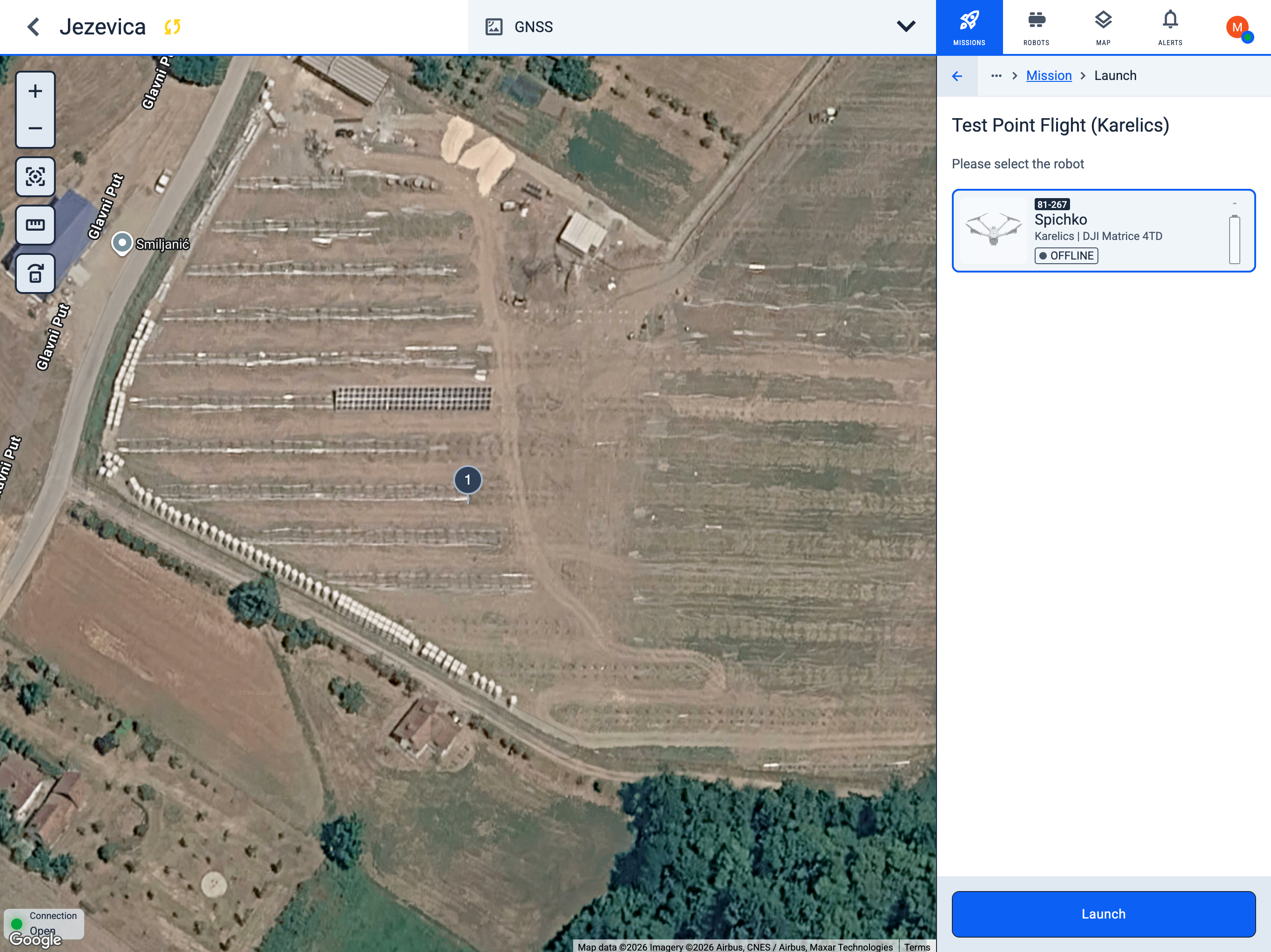
After launch, track progress from the global Launching history sidebar or from the mission's Launching history button.
Scheduled missions
The list shows all schedules for this map. Each card displays the mission name, run time, selected weekdays, assigned robot, and last execution status.
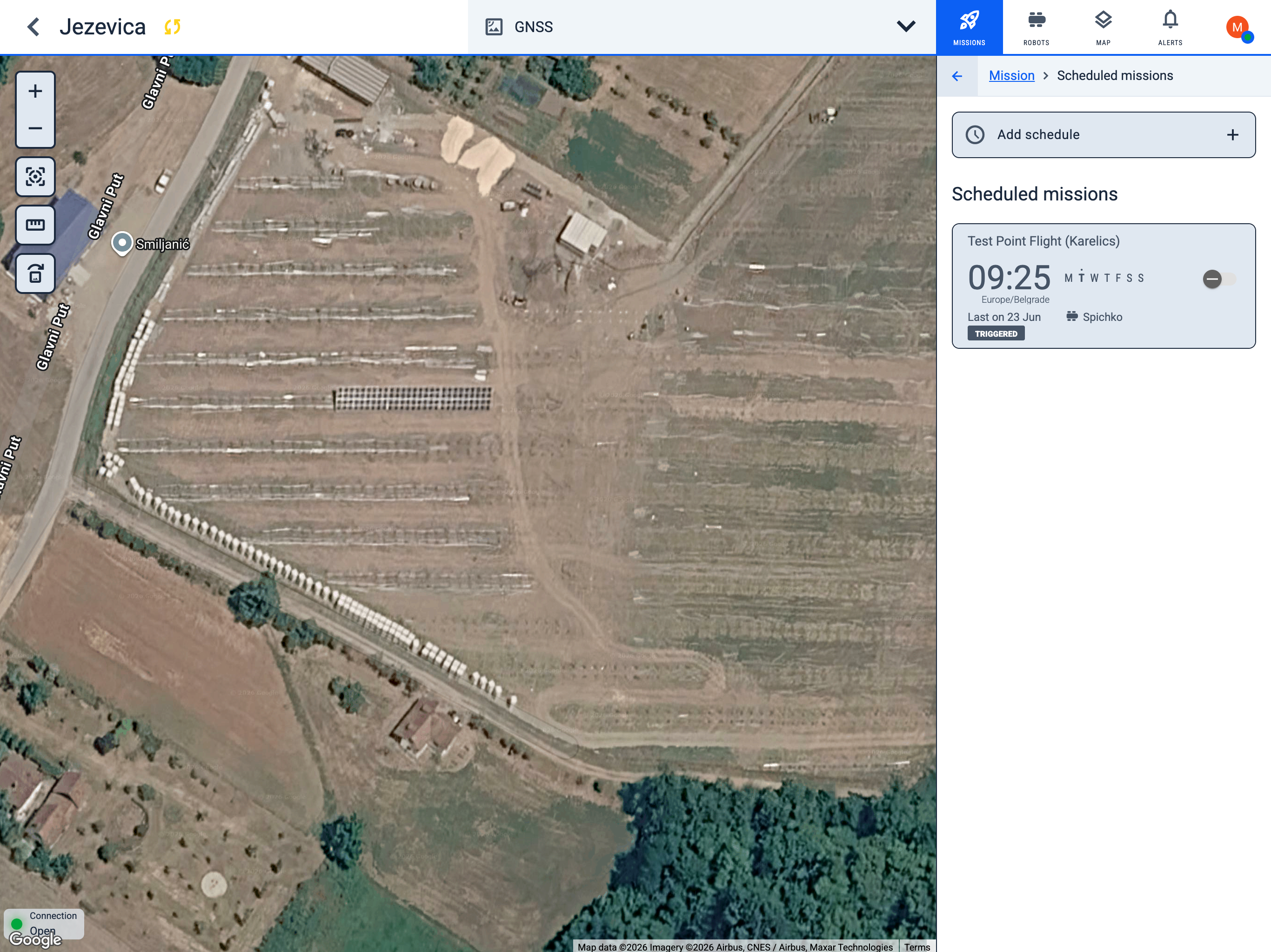
Create a schedule
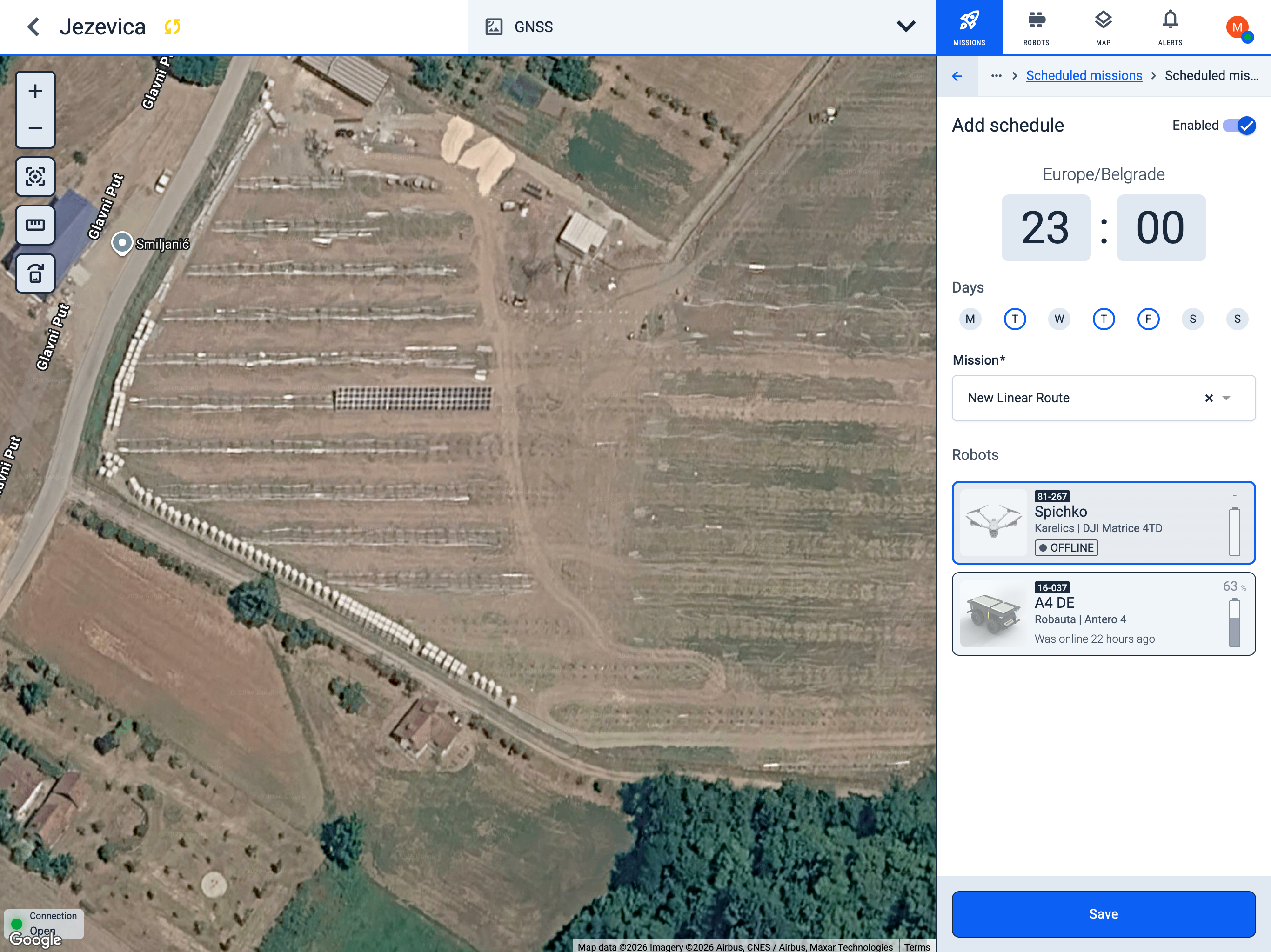
- Click + Add schedule.
- Set Enabled if the schedule should run immediately after saving.
- Choose the time and confirm the timezone.
- Select the days of the week when the mission should run.
- Pick a Mission from the dropdown.
- Select one or more Robots that will execute the mission.
- Click Save.
View schedule details
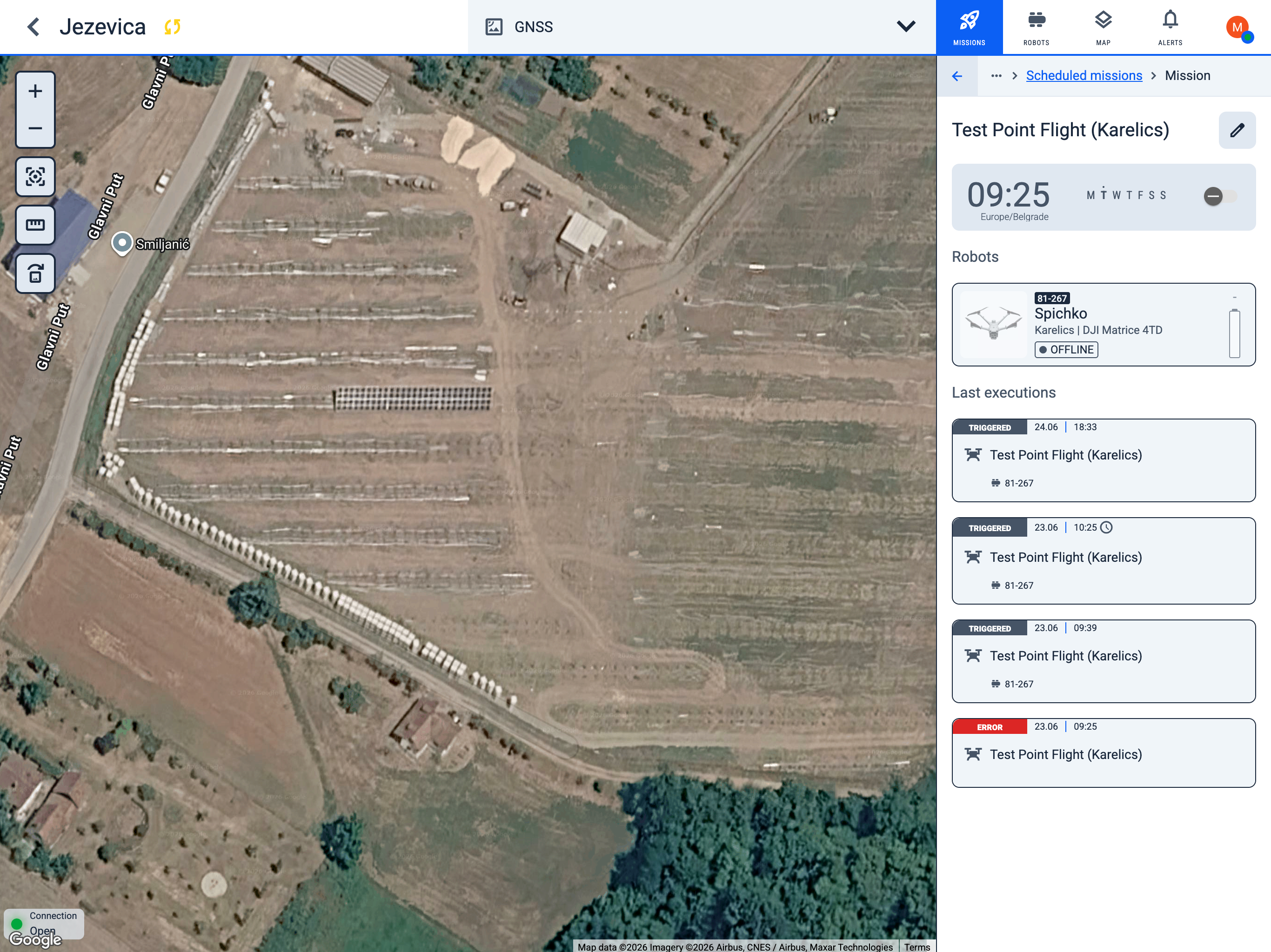
Click a schedule in the list to open its details:
- Time and recurrence — when the mission runs and on which days.
- Robots — which robot is assigned.
- Last executions — recent trigger results (TRIGGERED, ERROR, and other statuses).
Edit or delete a schedule
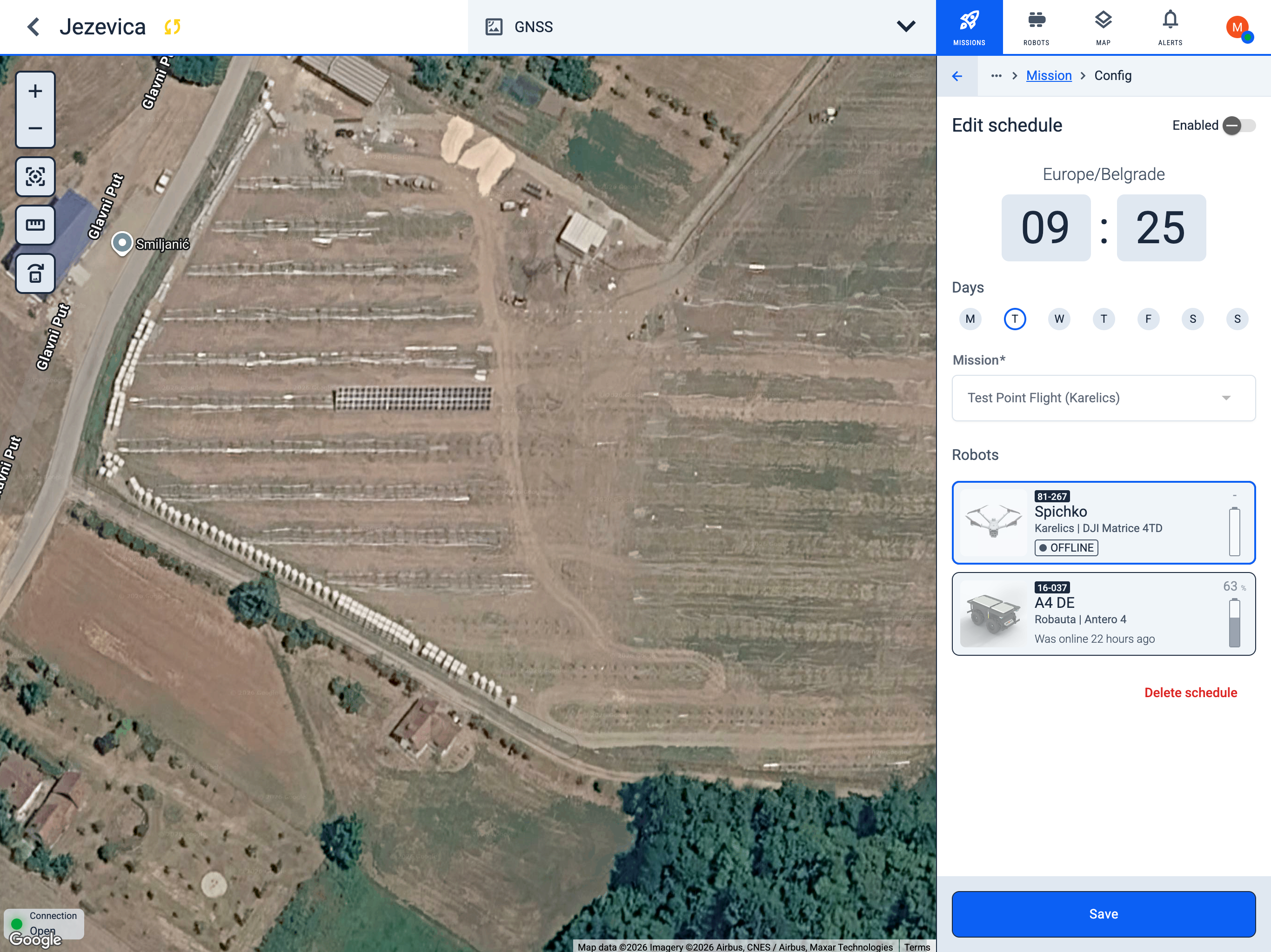
- Open the schedule from the list.
- Click the Edit icon (pencil) next to the mission name.
- Update time, days, mission, or robot assignment.
- Toggle Enabled to pause or resume the schedule.
- Click Save, or Delete schedule to remove it permanently.
Launching history
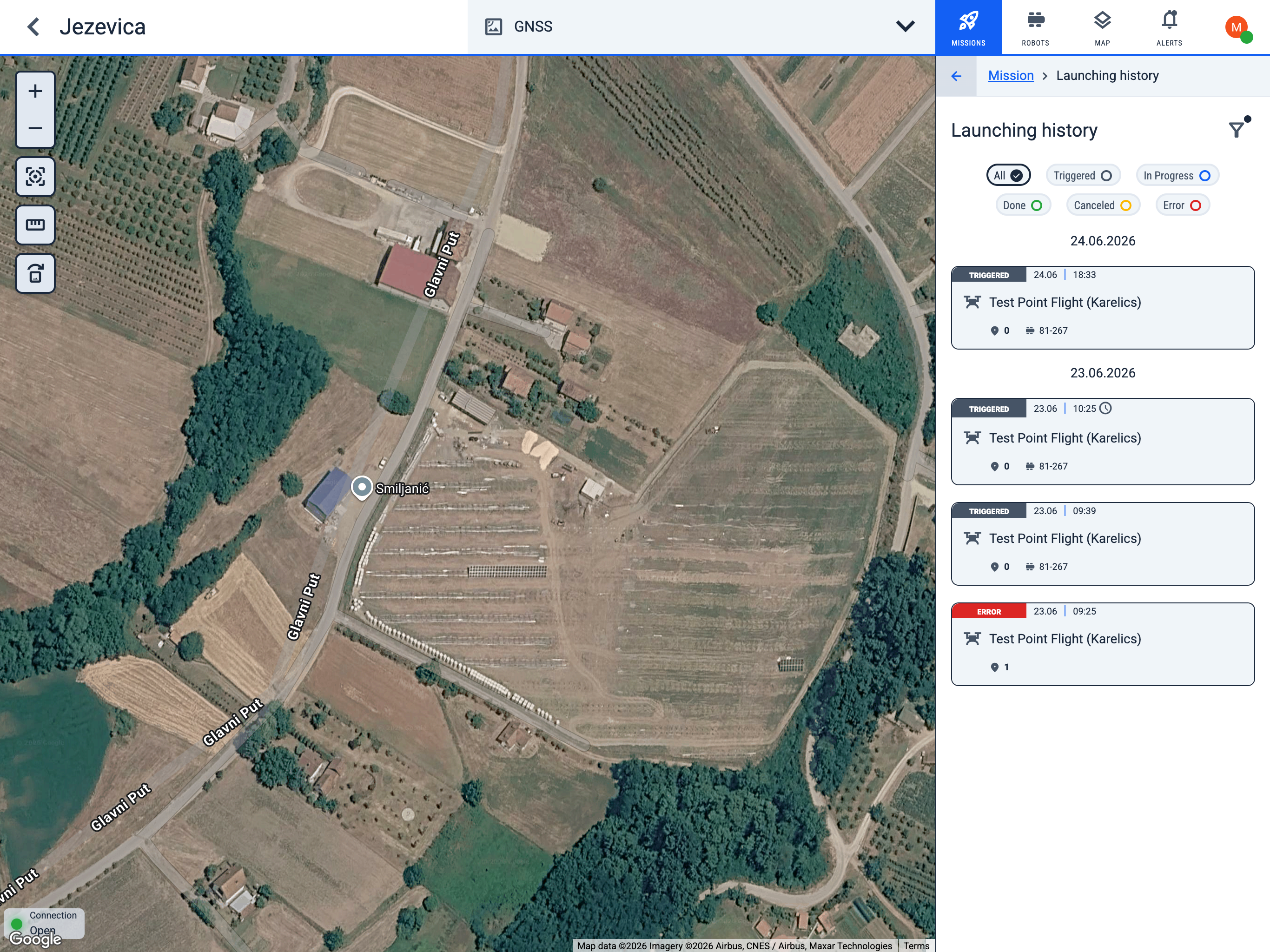
Launching history shows every mission launch for the current map — manual runs, scheduled triggers, and retries — grouped by date with the latest status of each attempt.
Filter by status
Use the status chips at the top of the list to narrow results:
- All — every launch (default).
- Triggered — the mission was sent to the robot or drone and is waiting to start.
- In Progress — the mission is currently running.
- Done — the mission finished successfully.
- Canceled — the mission was stopped before completion.
- Error — the launch or execution failed.
Additional filters
Click the filter icon filter_alt in the top-right corner of the sidebar to open the filter menu. A blue dot on the icon indicates that at least one filter is active.
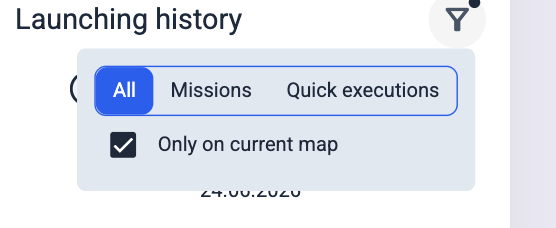
- Launch type — choose which launches to show:
- All — saved missions and quick executions.
- Missions — launches from saved mission templates only.
- Quick executions — ad-hoc launches created directly on the map.
- Only on current map — when enabled, the list includes only launches tied to the map you are viewing. Disable to see launches across all maps in the project.
History entries
Launches are grouped under date headers (for example, 24.06.2026). Each card shows:
- Status badge — the current state of the launch (TRIGGERED, ERROR, and other statuses).
- Timestamp — date and time the launch was created or last updated.
- Mission name — the saved mission that was launched (for example, Test Point Flight (Karelics)).
- Waypoint count — number of waypoints in the mission route.
- Robot — the robot or drone assigned to the launch (for example, 81-267).
Click a card to open launch details and review execution progress or error information.