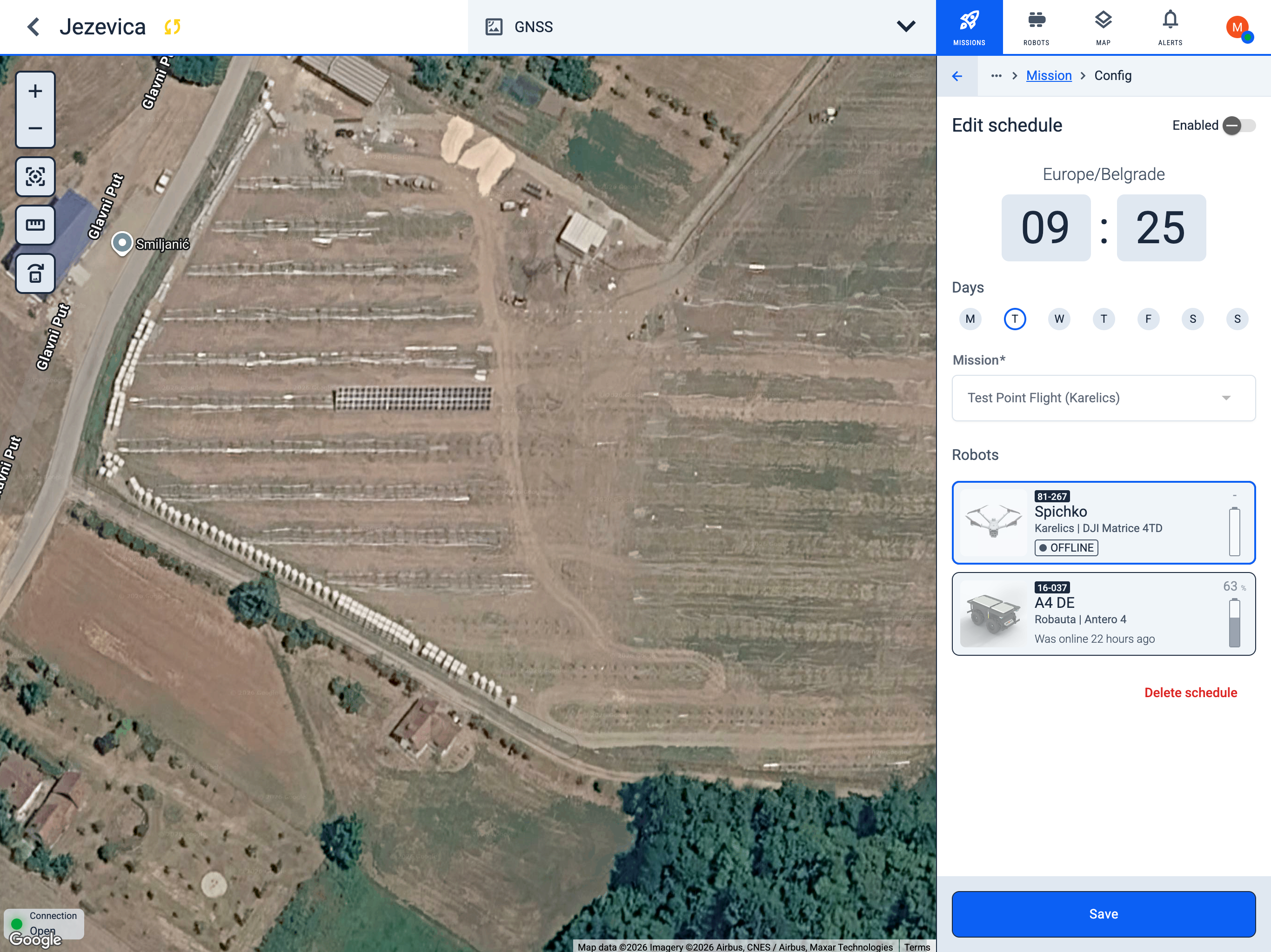
Scheduled missions
The list shows all schedules for this map. Each card displays the mission name, run time, selected weekdays, assigned robot, and last execution status.
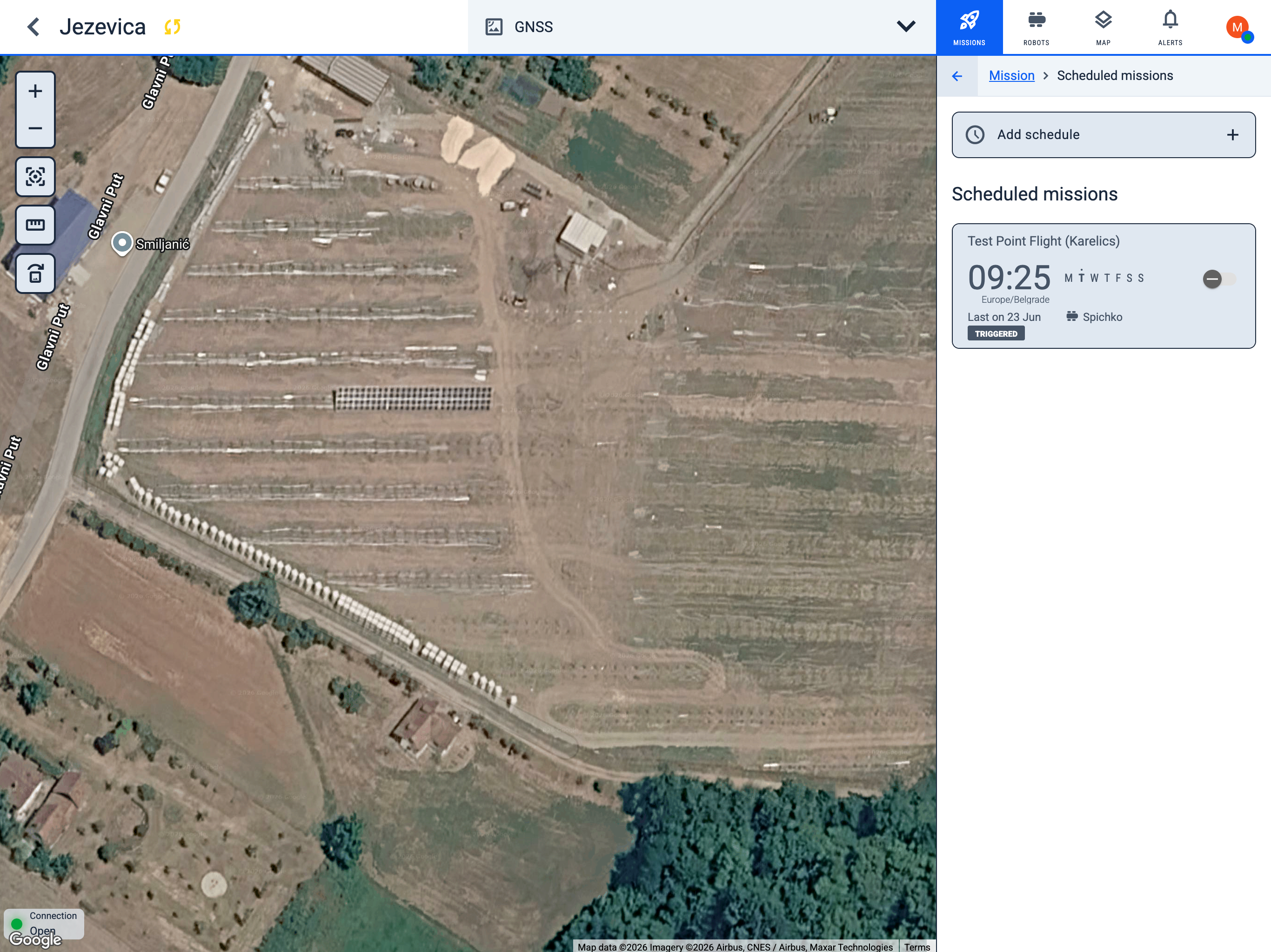
Create a schedule
- Click + Add schedule.
- Set Enabled if the schedule should run immediately after saving.
- Choose the time and confirm the timezone.
- Select the days of the week when the mission should run.
- Pick a Mission from the dropdown.
- Select one or more Robots that will execute the mission.
- Click Save.
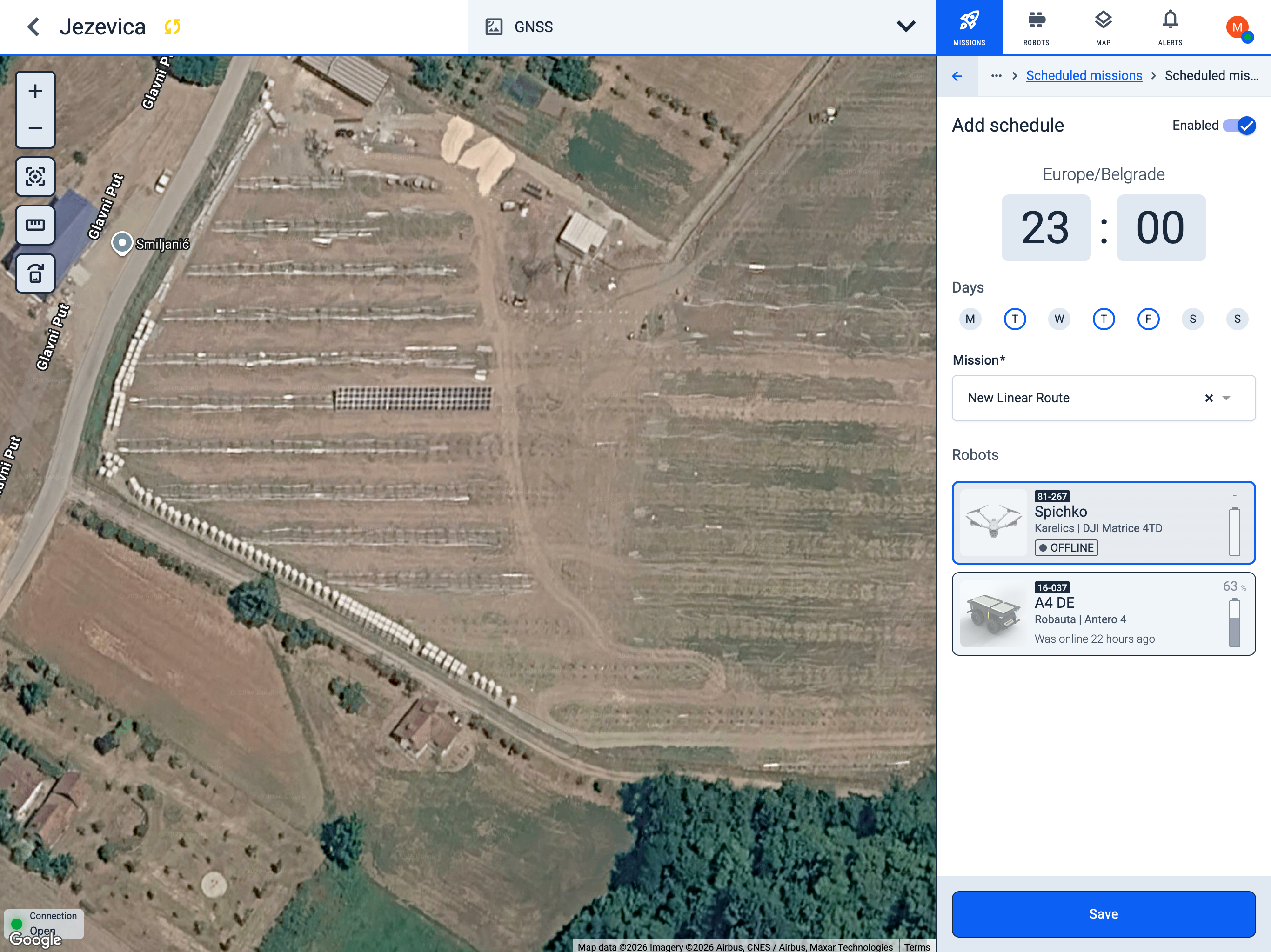
View schedule details
Click a schedule in the list to open its details:
- Time and recurrence — when the mission runs and on which days.
- Robots — which robot is assigned.
- Last executions — recent trigger results (TRIGGERED, ERROR, and other statuses).
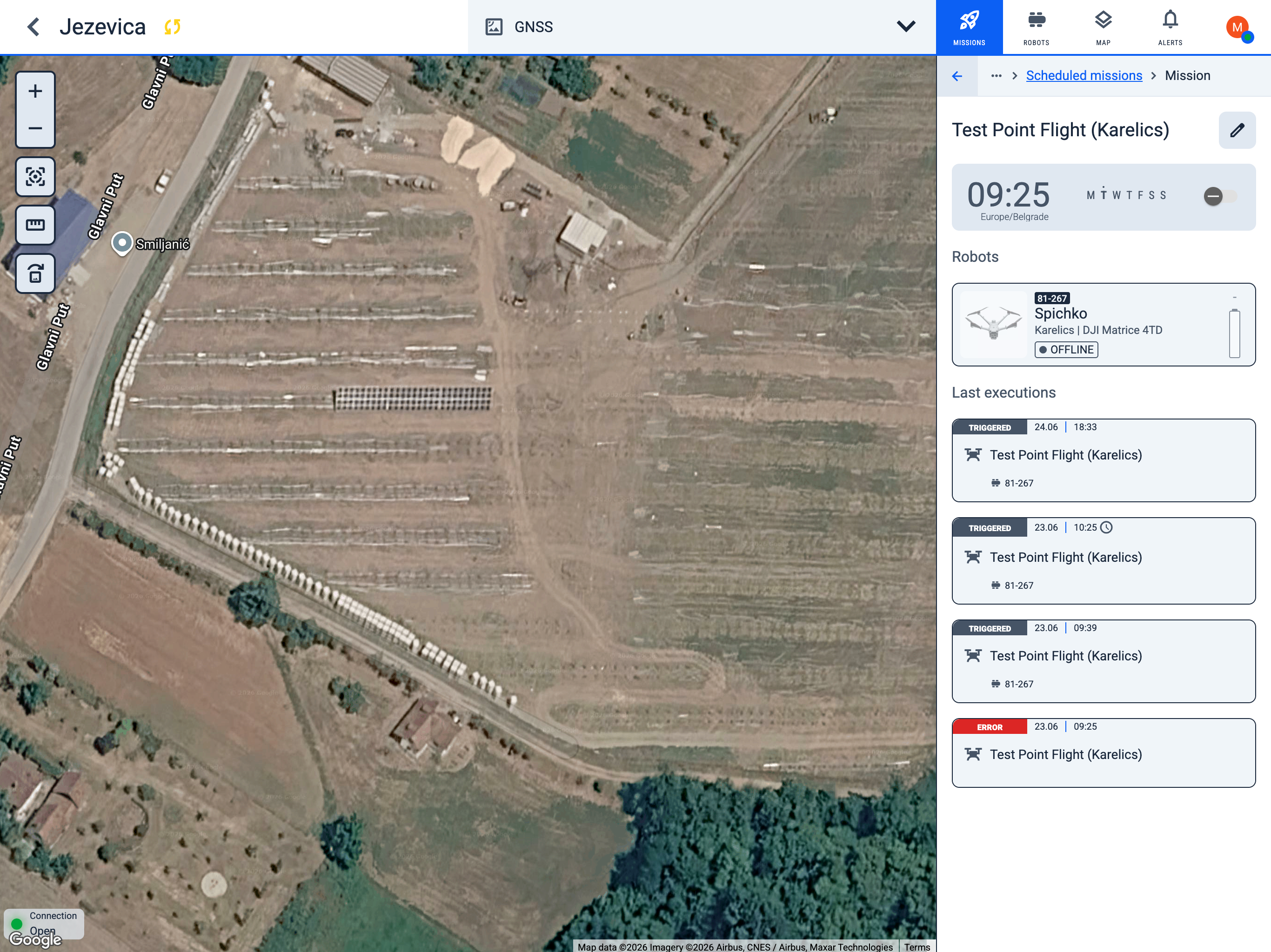
Edit or delete a schedule
- Open the schedule from the list.
- Click the Edit icon (pencil) next to the mission name.
- Update time, days, mission, or robot assignment.
- Toggle Enabled to pause or resume the schedule.
- Click Save, or Delete schedule to remove it permanently.