Control robot remotely
Operator Hub → Current Project → Workspace → Robots → Current Robot → Configuration → Control Robot Remotely
This mode provides robot monitoring, remote control, and video recording.
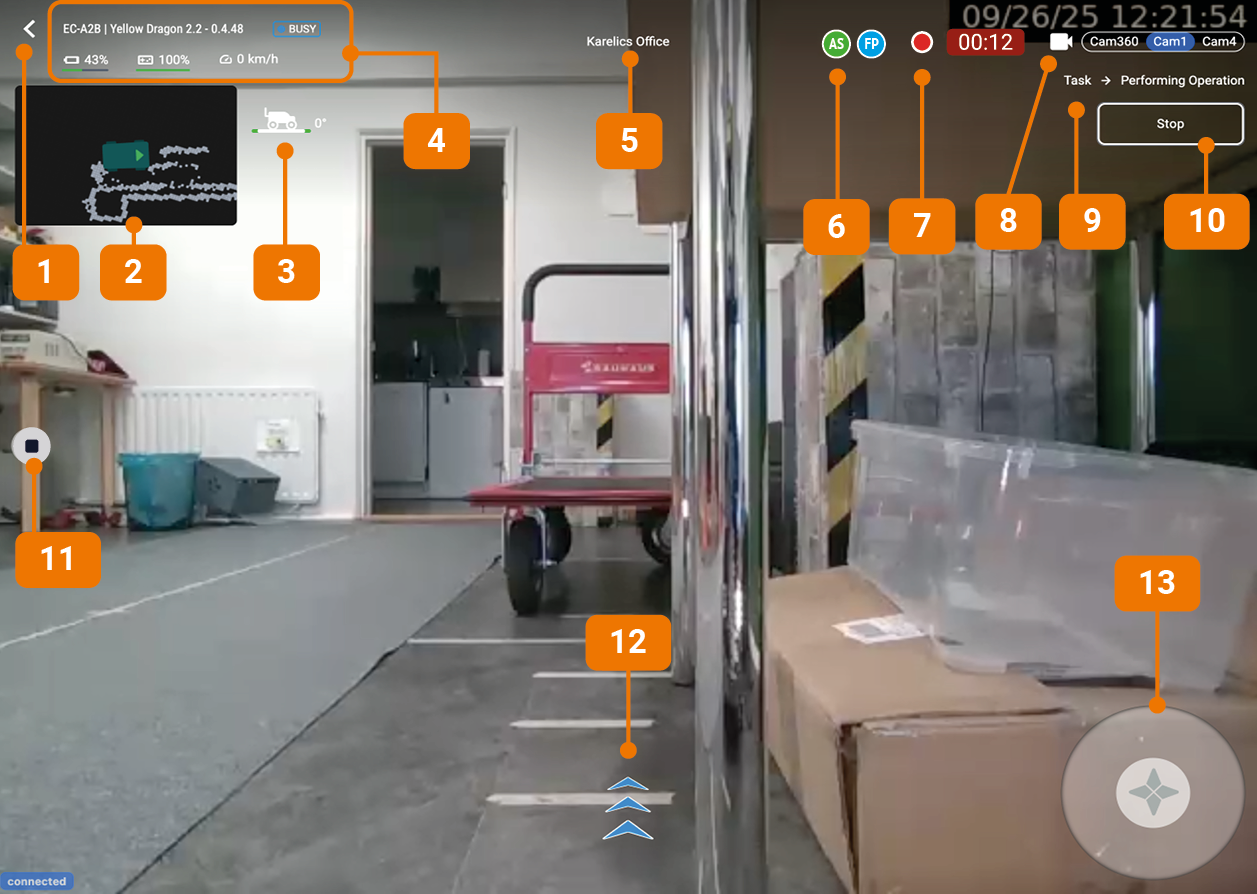
Interface
- Back button - Return to previous screen
- Mini-map - Shows robot location
- Robot tilt indicator - Shows forward/backward tilt in degrees
- Robot status:
- Robot ID
- Robot name
- Health status: Online / Offline (shows how long ago it was online) / Busy / Unhealthy
- Robot battery charge
- Controller charge
- Speed
- Map - The map where the robot is located
- Connected users - Users connected to remote control
- Recording status and duration - Video recording status and duration
- Camera switcher - Switch between available cameras
- Highlights streaming camera with blue background
- Marks recording camera with red dot
- Active Tasks - Shows what tasks the robot is currently working on
- Emergency stop - Pressing the red Stop button will immediately interrupt all current tasks and bring the robot to a halt
- Video recording button - Start/stop video recording
- Artificial Horizon indicator - Shows robot tilt left/right
- Robot controller - Virtual controller for robot operation
How to operate
- Make sure you have selected the Correct map [5]. Recorded video will be attached to the selected map.
- Press the Video Recording [9] button. The Status and Duration [7] of the recording will appear.
- Conrol the Robot remotely using virtual Controller [11] on the screen.
- After driving through the map press the Stop Video Recording [9] button.
- If necessary, Change the map [5] and start a new recording.