Cloud Release 2026.40
Briefly: This release adds road surface inspection, a Go to base station mode for pipe seam missions, and file-type filters for photo documentation and the gallery map.
New Features
Road Surface Inspection
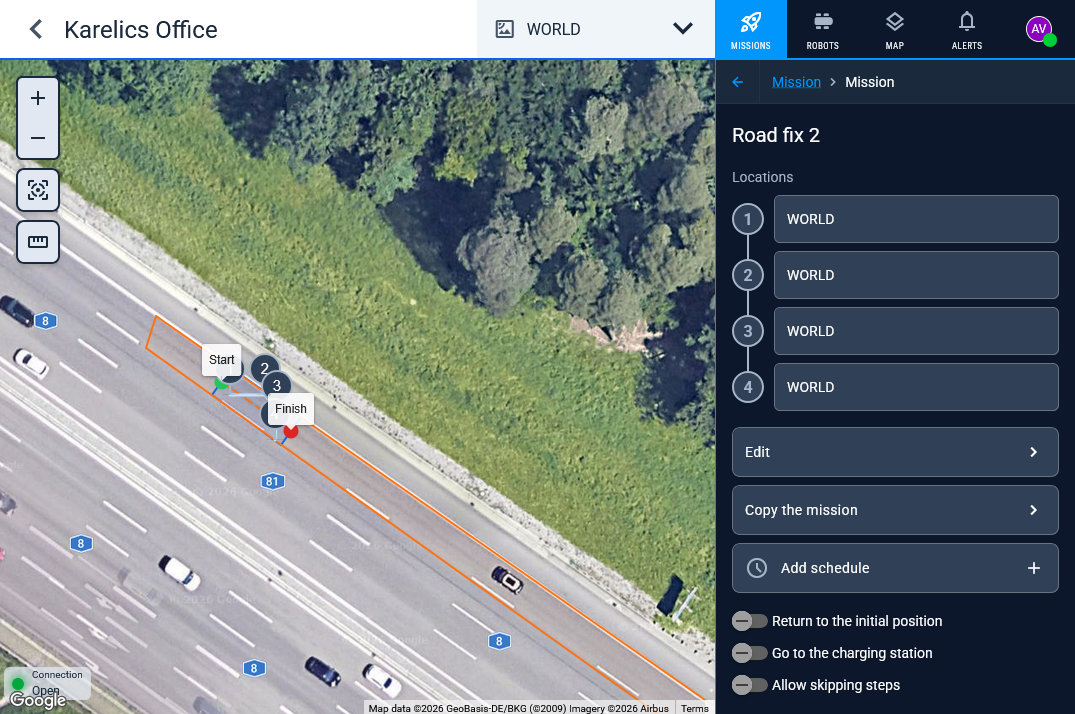
Road surface inspection is available as a project mission. A saved mission shows the inspection strip on the GNSS map, with Start, Finish, and the numbered points.
Go to Base Station
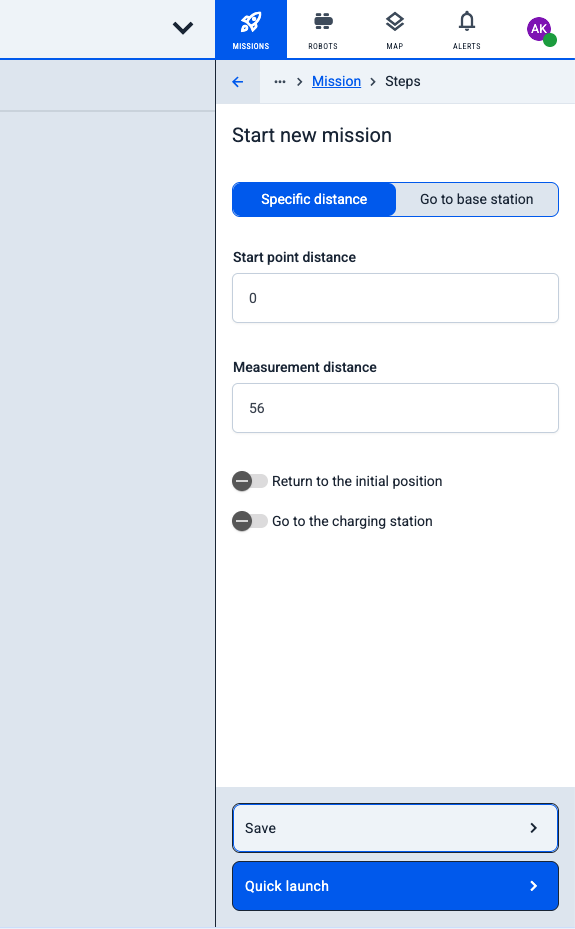
Pipe seam inspection can start in Go to base station as well as Specific distance.
Enhanced Features
File Type Filter
Photo Documentation can be filtered by file type. The chips include All, 360° Photo, and Photo.
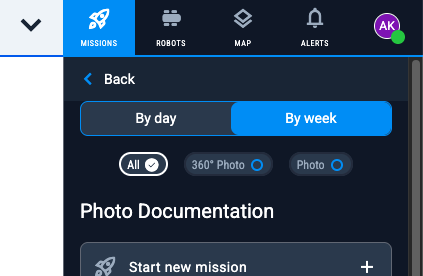
The gallery map has the same kind of file-type filter.
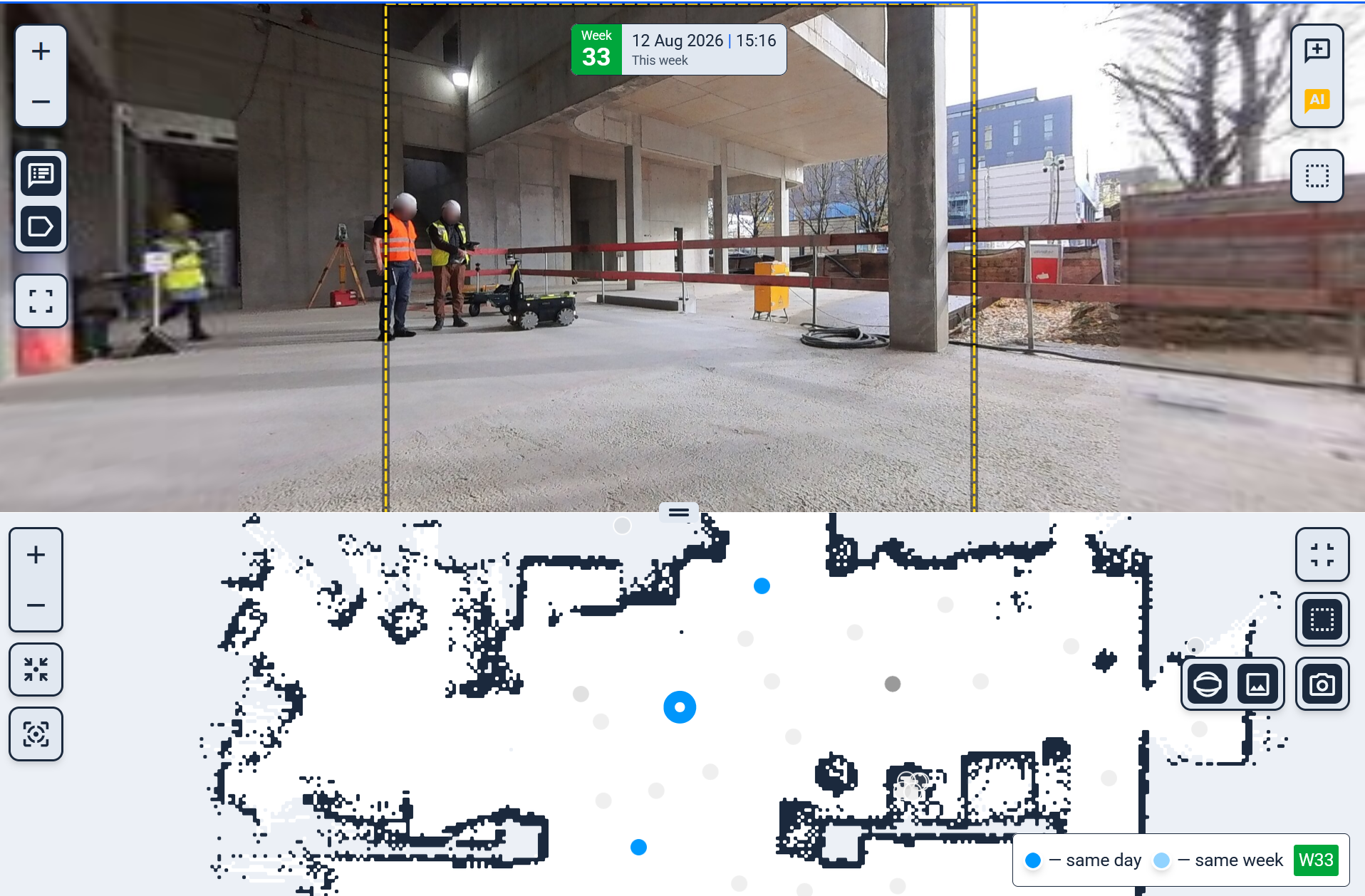
Panorama Dates
The Operator panorama date chip has left and right arrows to open the previous and next photo from the same place. The comparison pane uses the same control. The arrows stay available when a panorama fails to load.
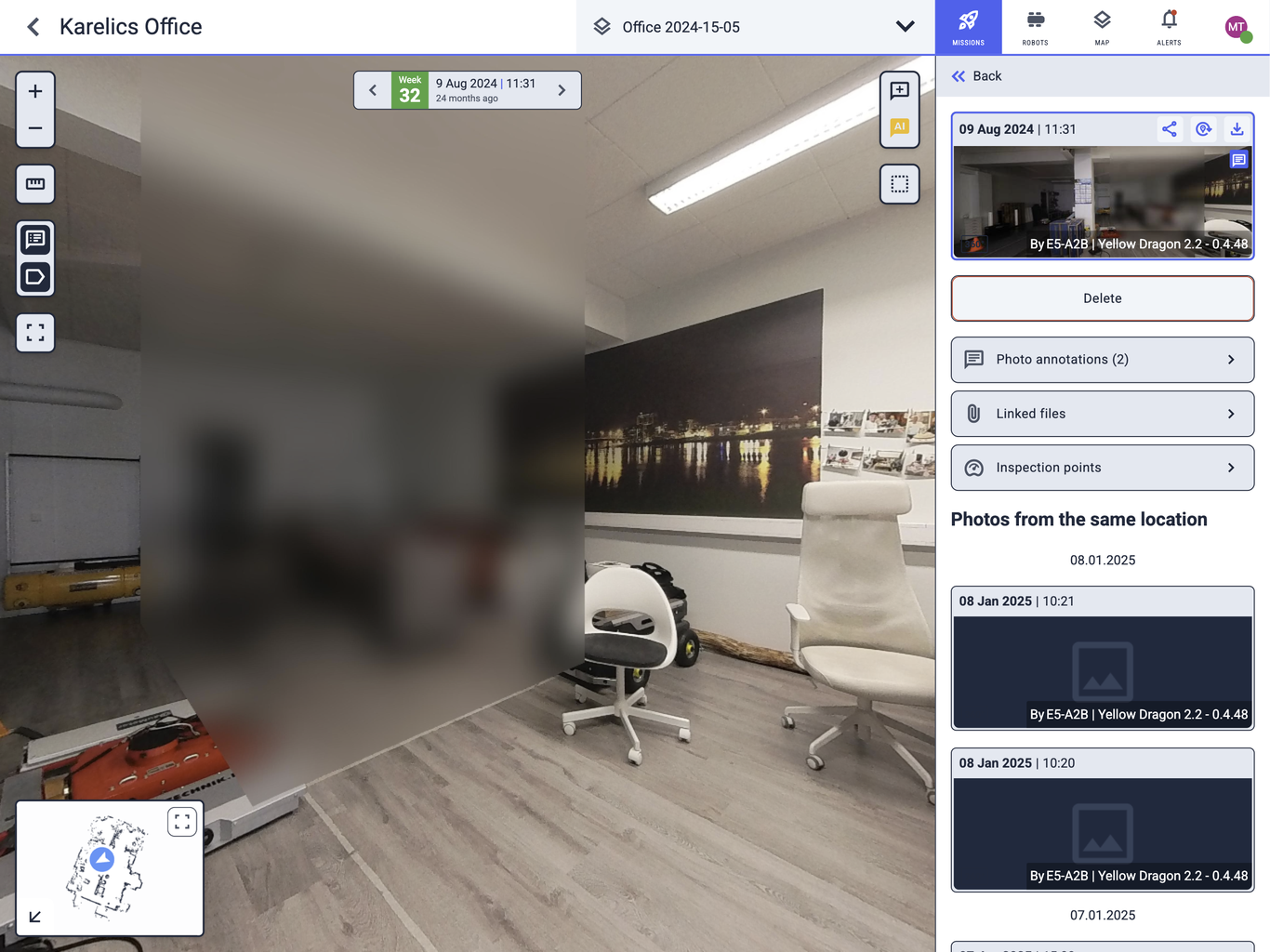
Switch to the Current Map
On the robot sidebar, Switch to current map is the first action when the open map is empty or is not in the same map group as the robot's map. Mapping stays Activate Mapping and Localization.
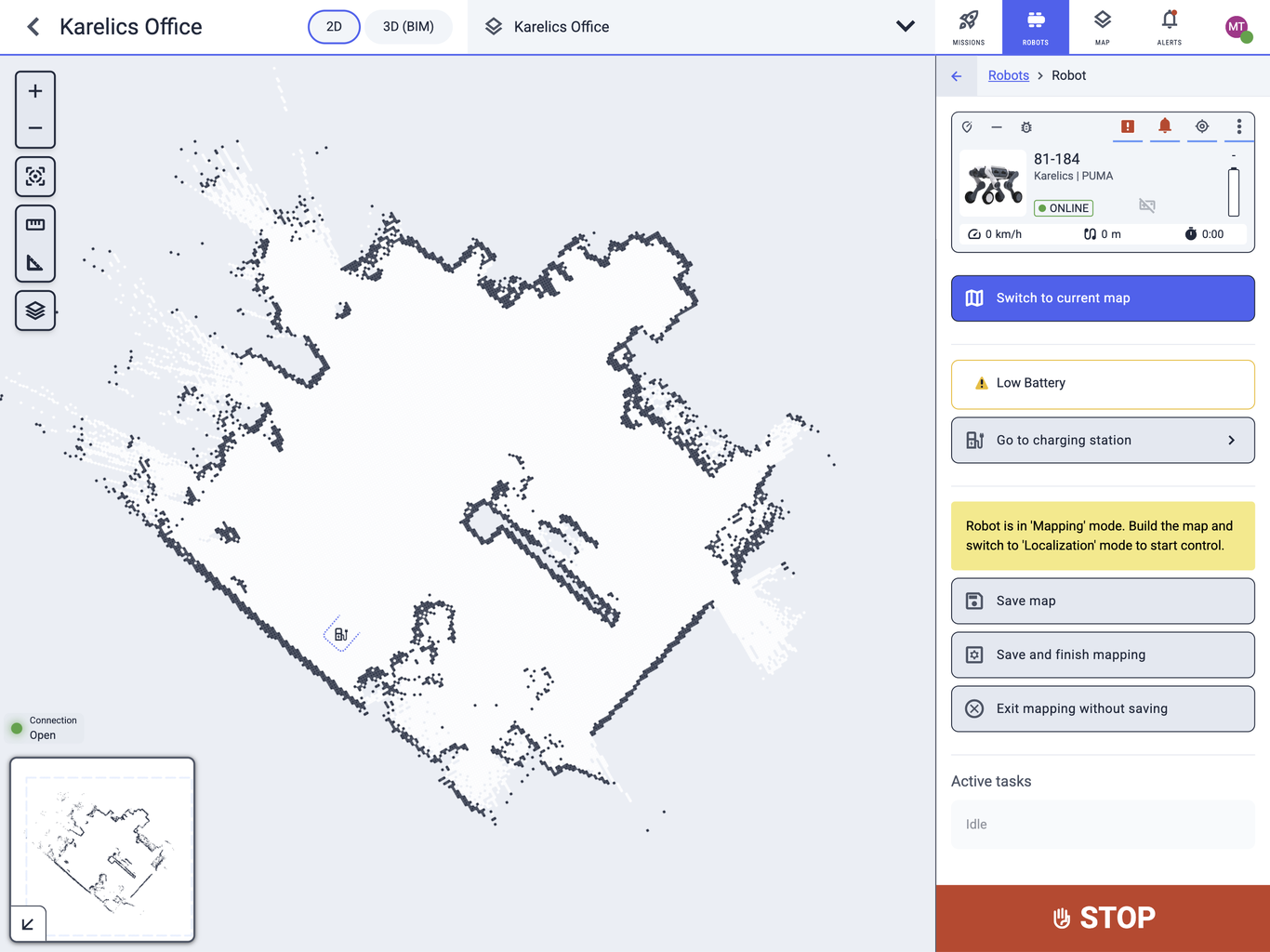
Mapping Controls on the Robot's Map
Save map, Save and finish mapping, and Exit mapping without saving stay hidden unless the open map is the robot's current map.
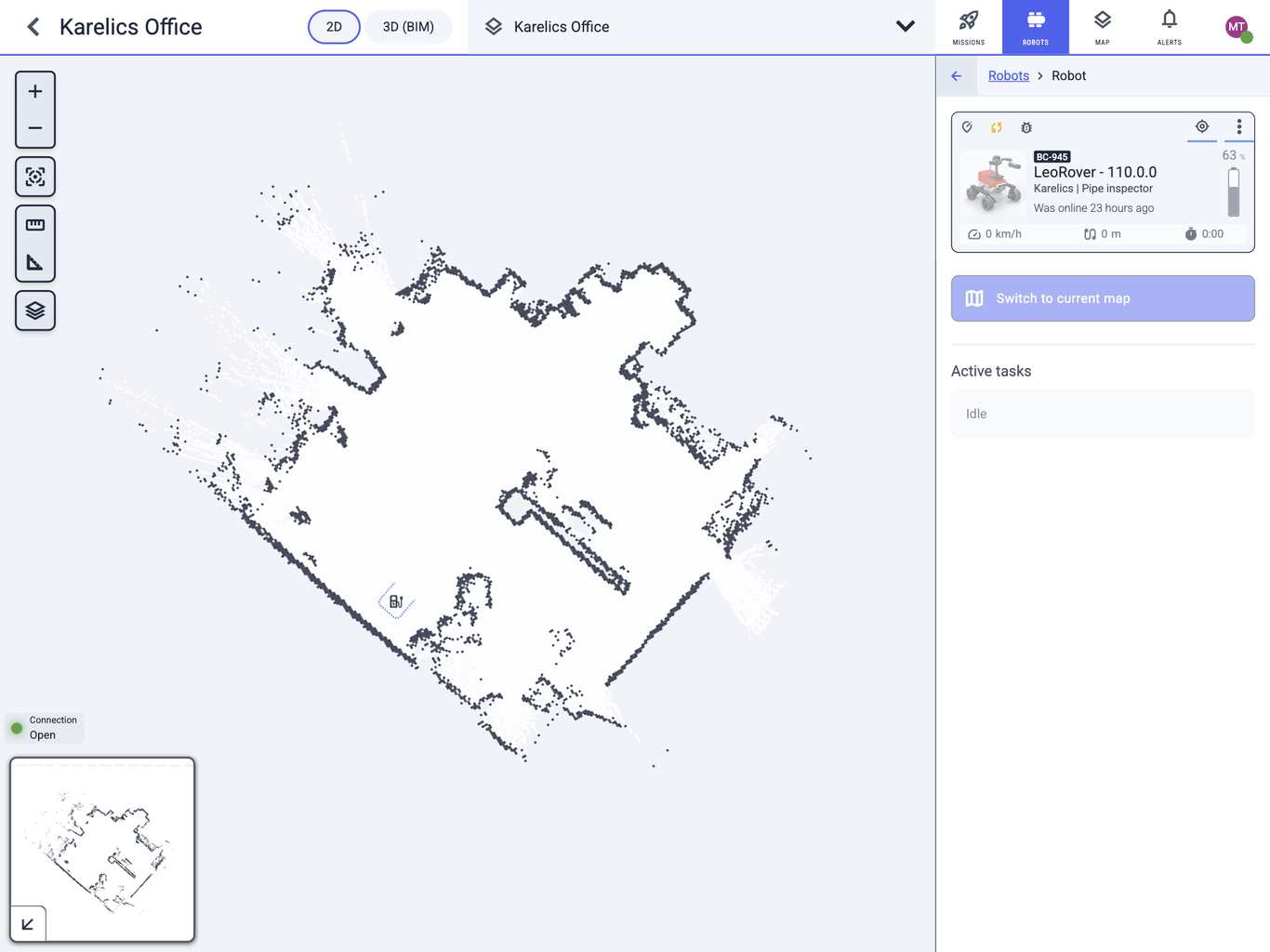
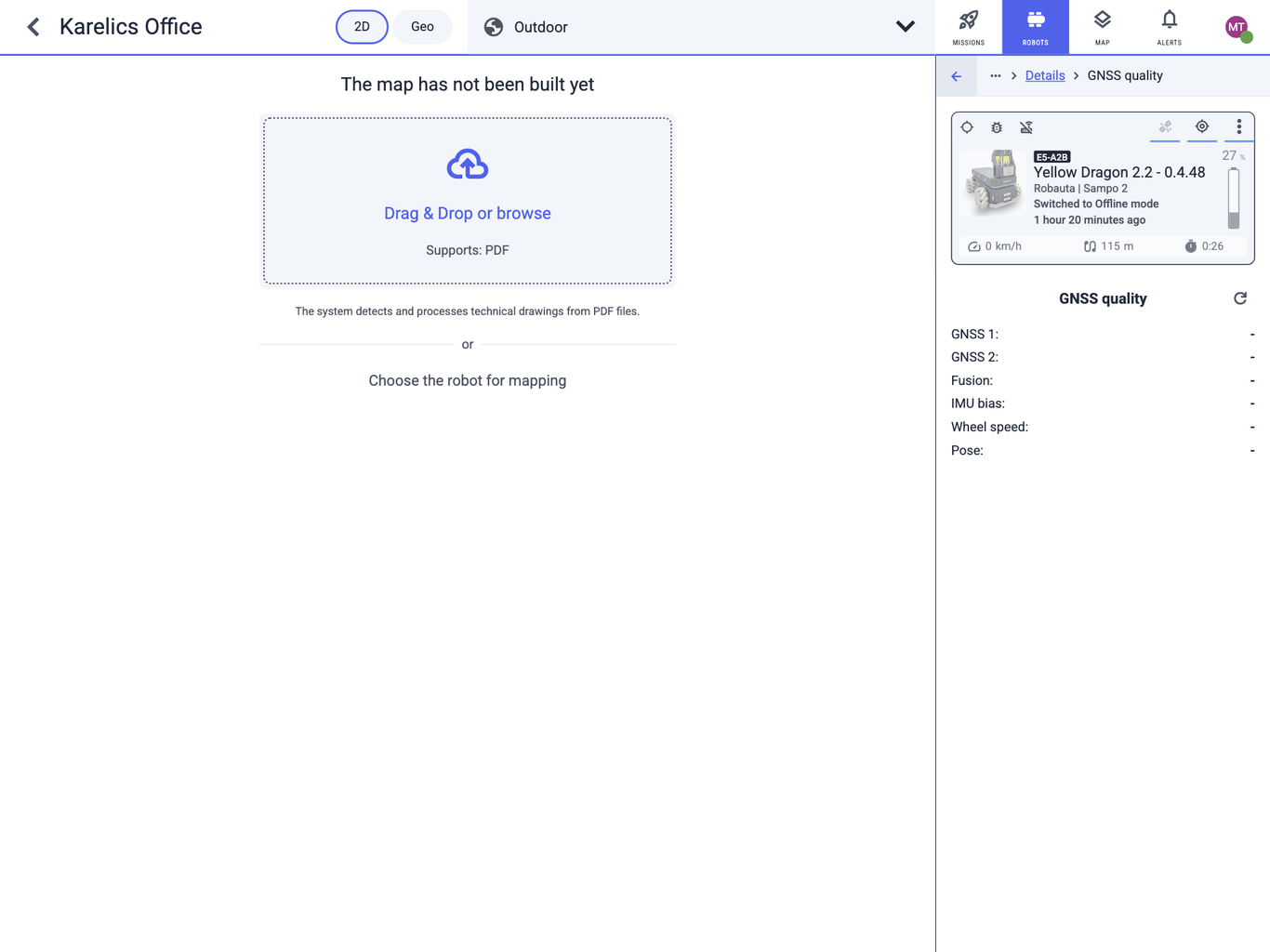
GNSS Quality
GNSS quality opens from a button on the robot card toolbar, next to Health. It is shown on Outdoor and GNSS maps when a GNSS quality value is available.
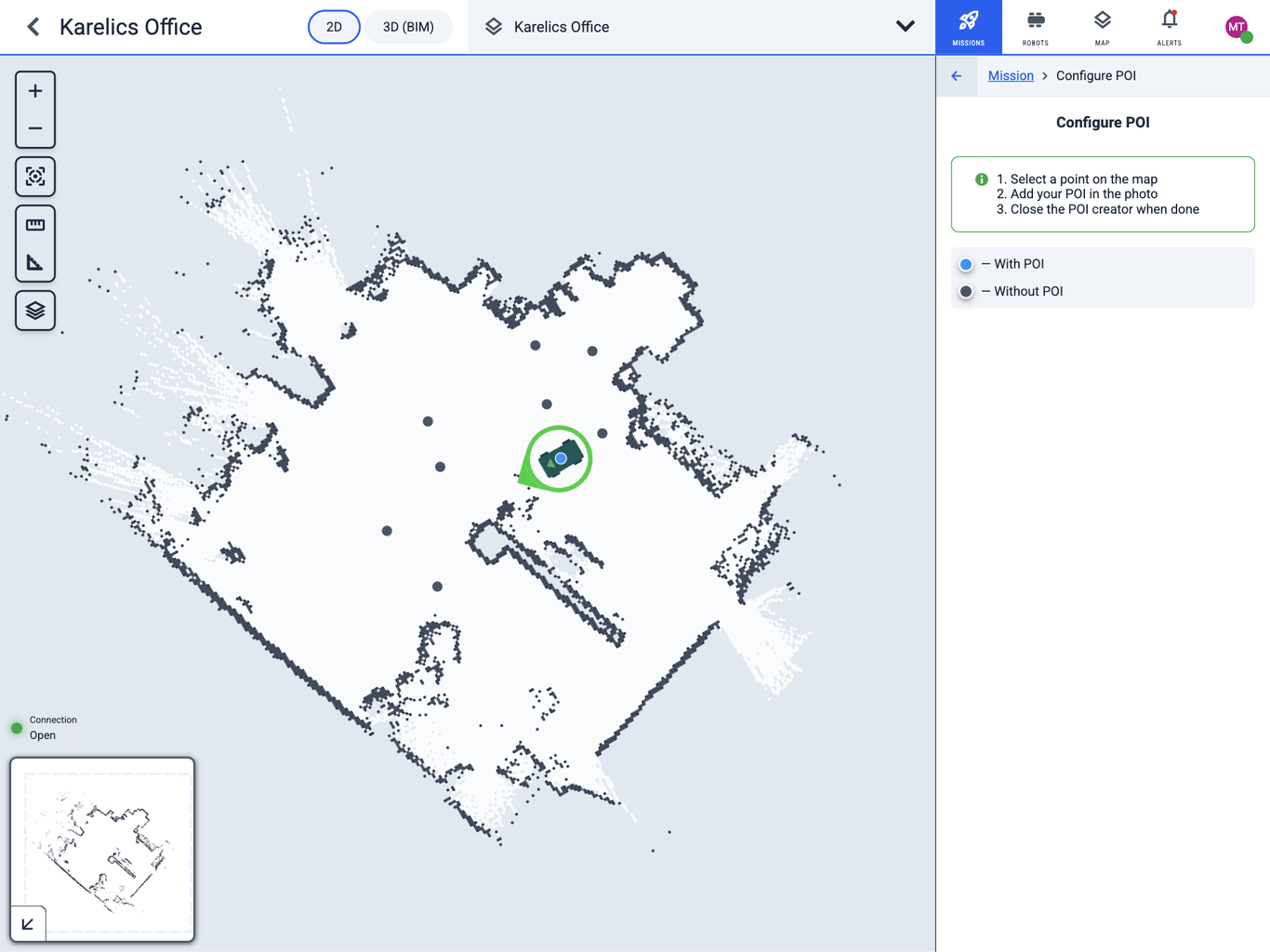
POI Markers
Configure POI points on industrial inspection maps draw above the robot, so they stay selectable. The hover photo stays on the point.
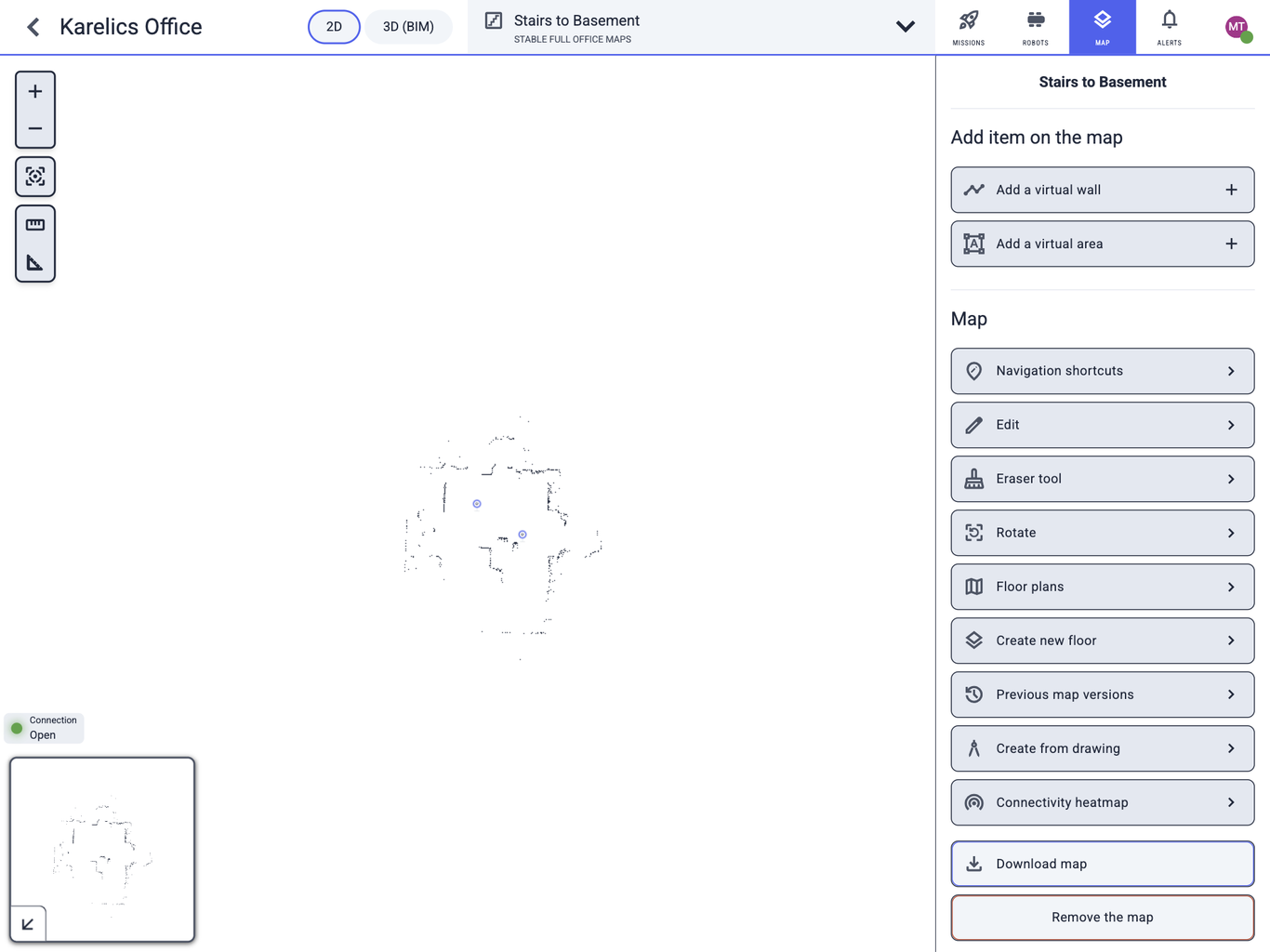
Stairs Maps
A Stairs map does not take navigation goals. GO, Add navigation point, the shortcut toggle, and lift placement are hidden, and right-click is disabled.
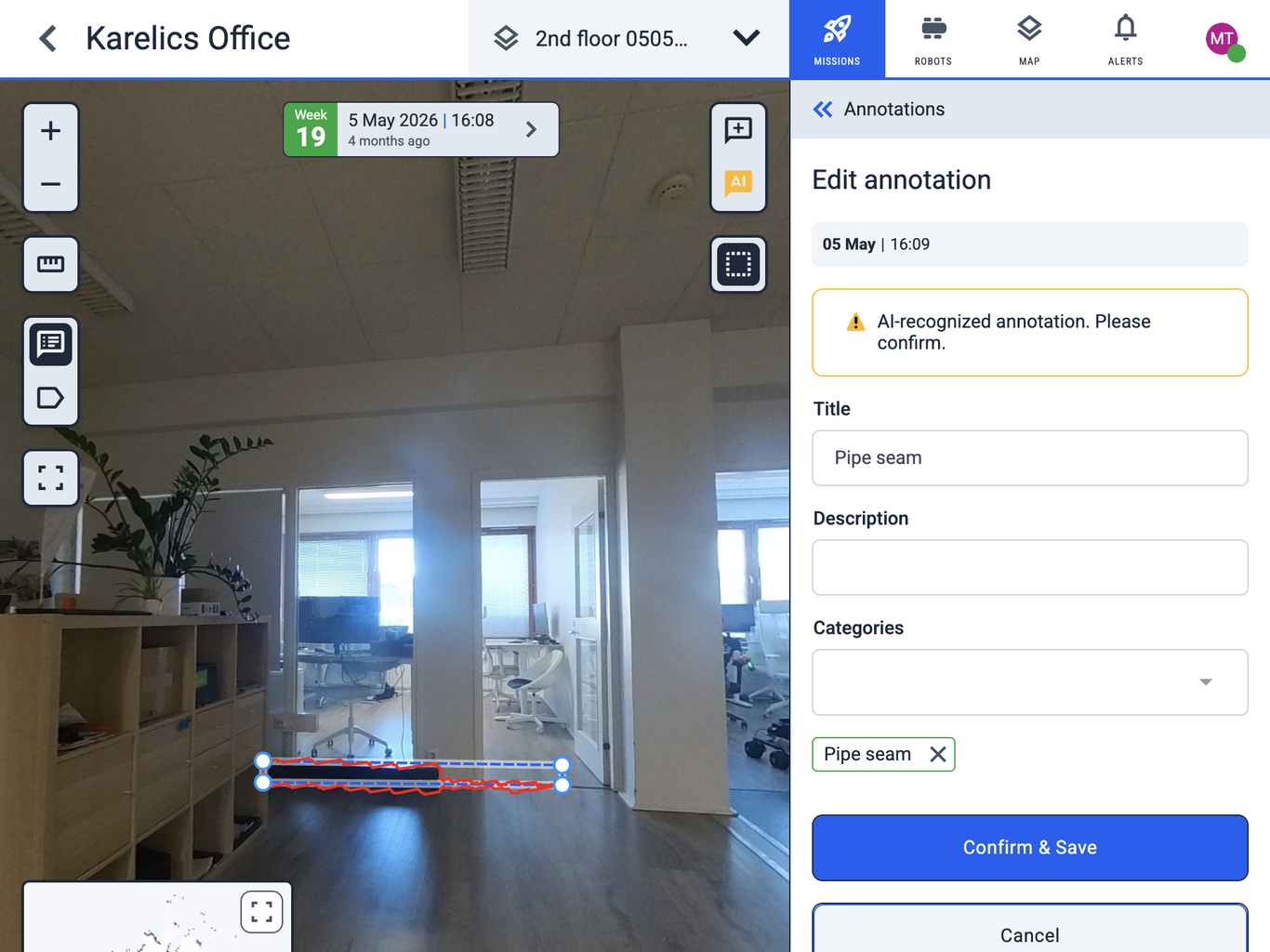
Annotation Editing
While an annotation frame is being edited, or a new frame is added, only that frame and its handles stay on the photo. Labels, other frames, nearby images, locations, and POI stay hidden until Save, Cancel, or Back.
Reality Twin Points
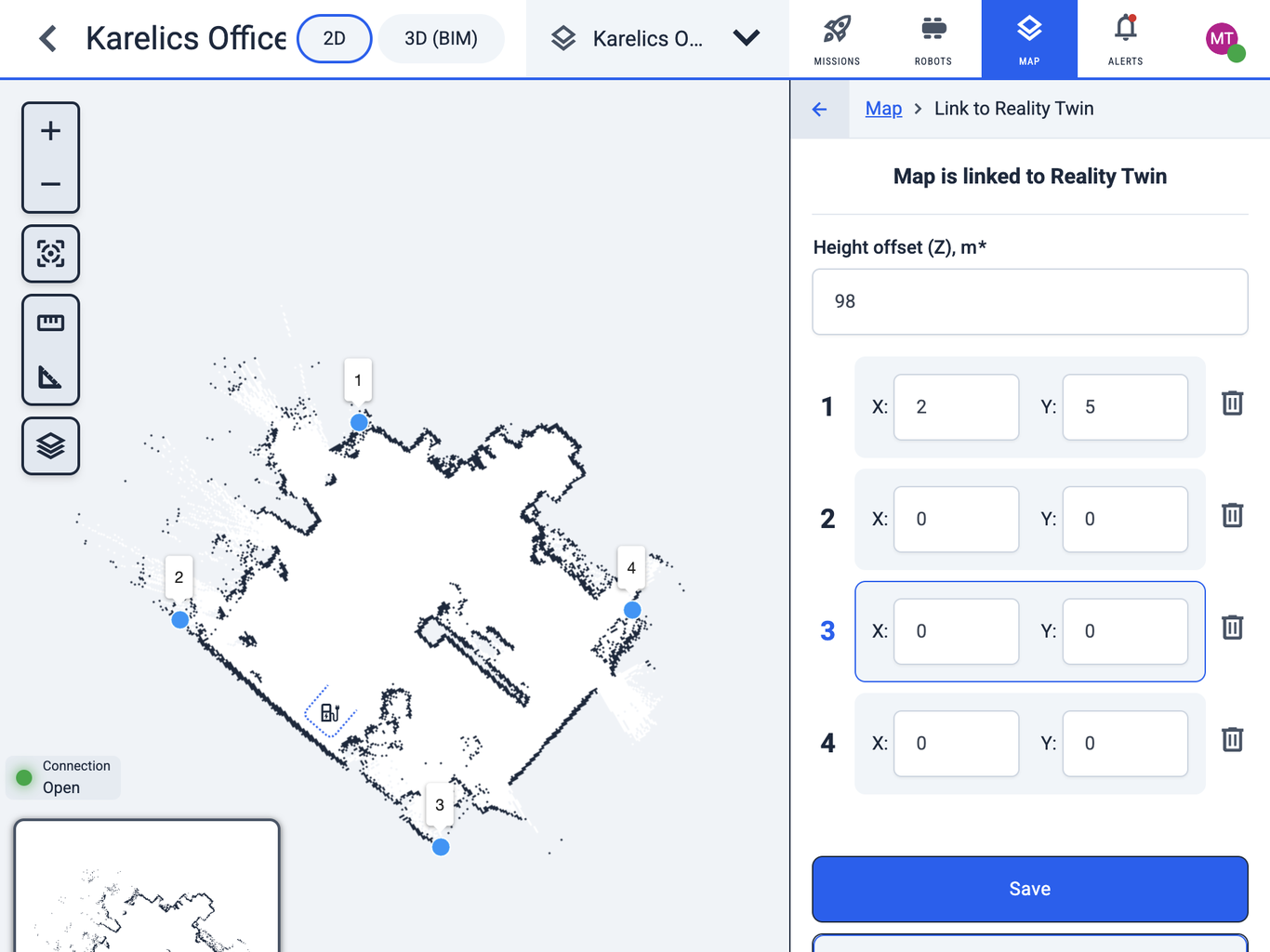
On Link to Reality Twin, the X/Y form is shown only for the selected point. Other points stay numbered markers. Sidebar rows can be edited and highlight the selected point. A point can be dragged; the form hides while dragging and returns on drop.
Company Team
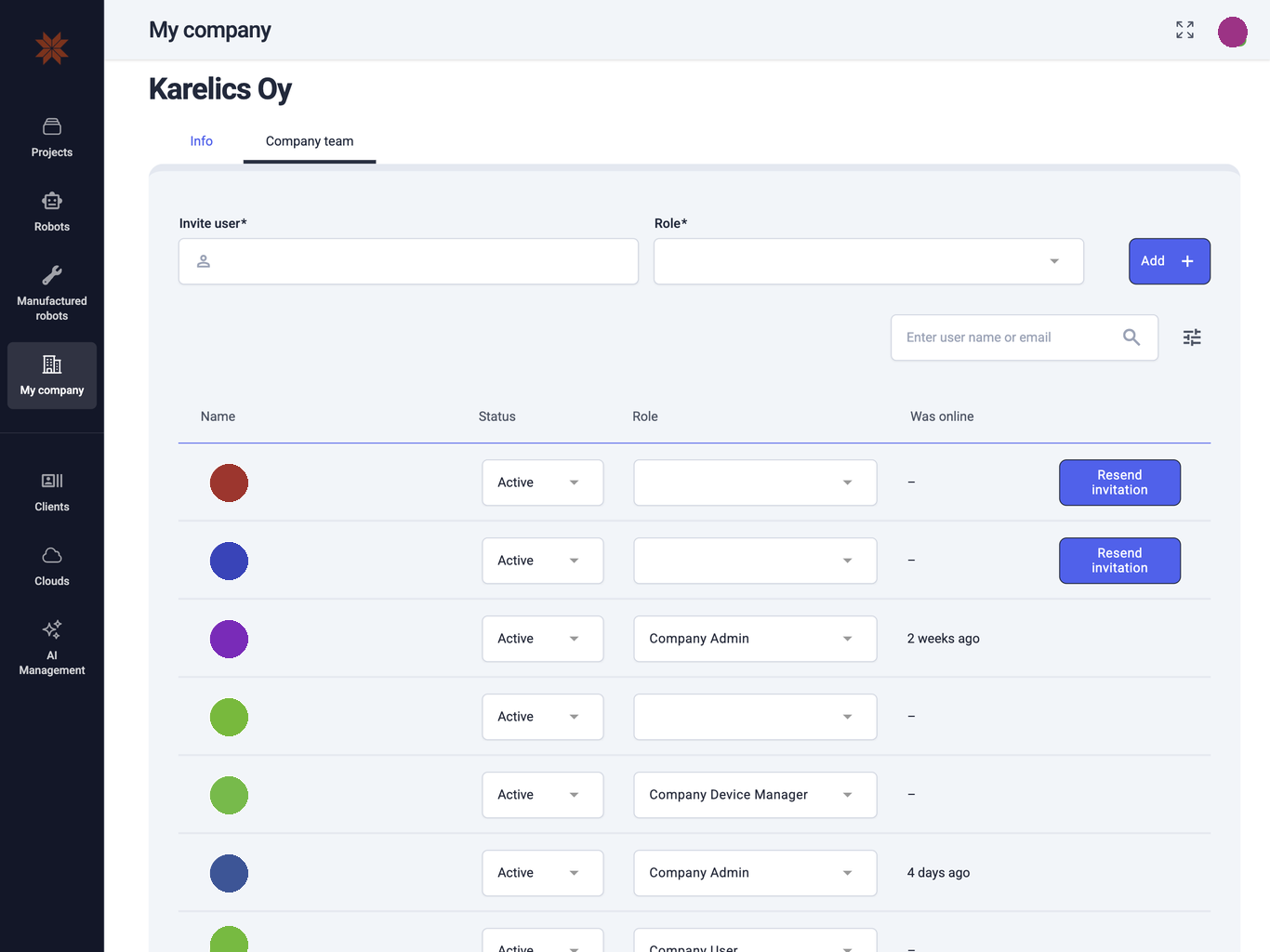
Company team is a tab on My company, next to Info. It is no longer under Settings. The old team address opens My company.
Other Changes
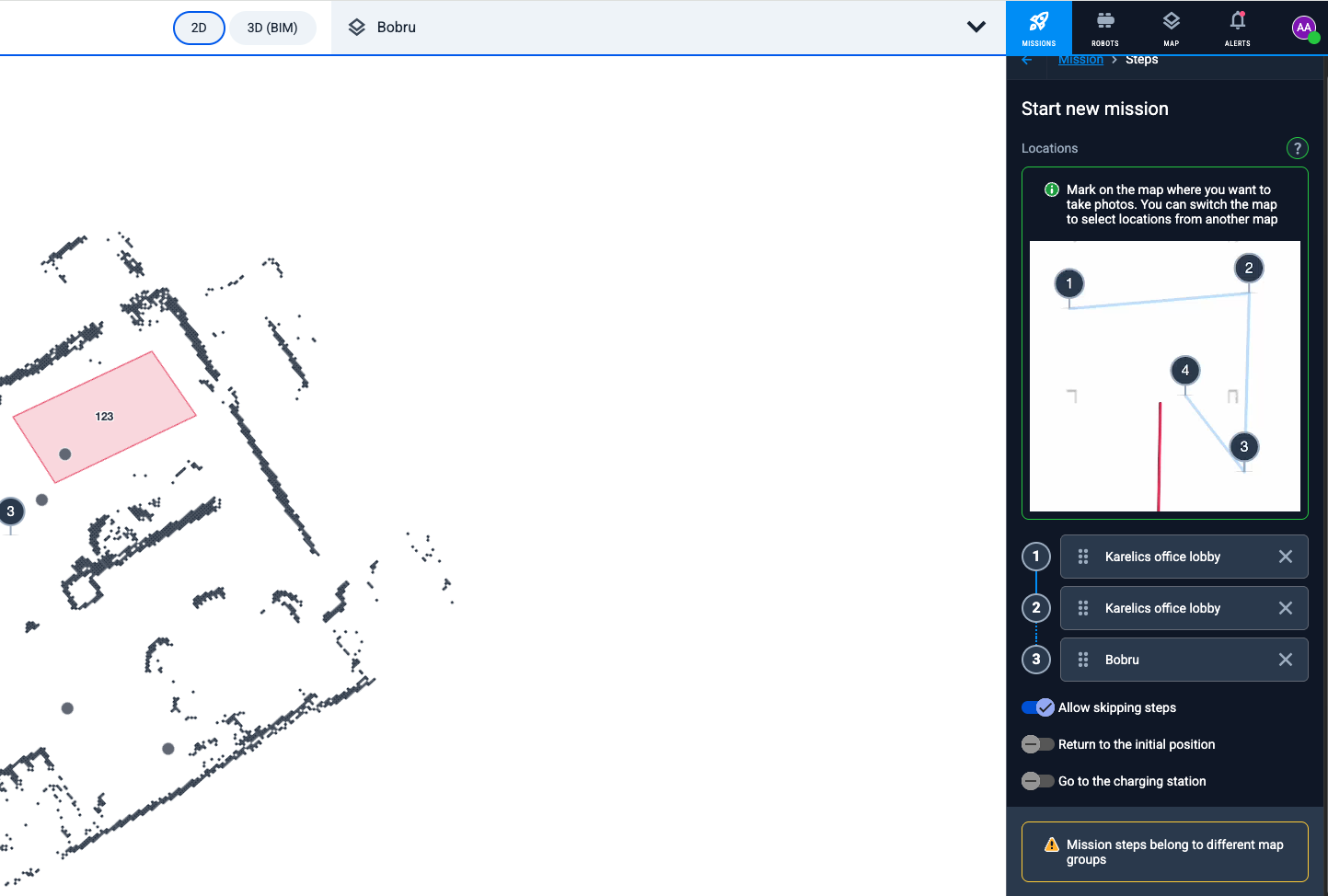
A mission cannot be created when its points sit on different map groups.