Integrations → Software → Digital Twin
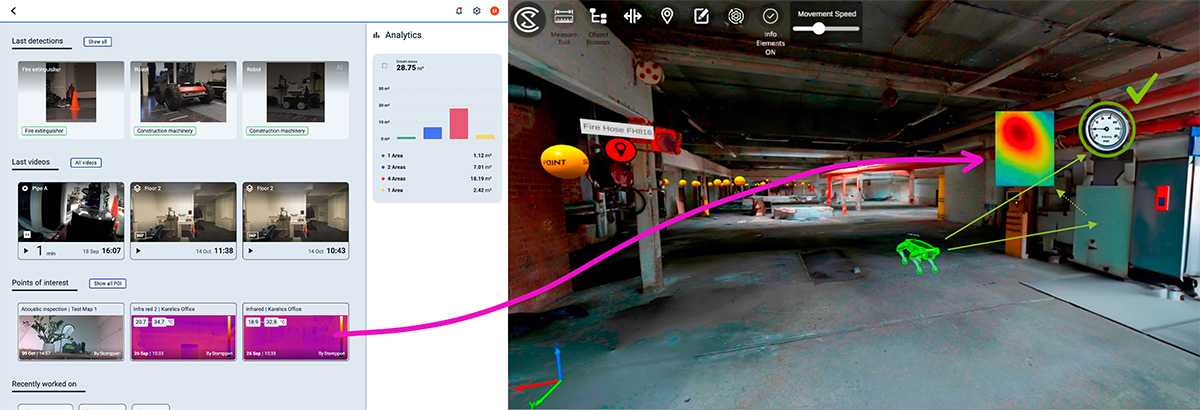
SolidComp provides Digital Twin, an industrial digital twin platform for visualising, managing, documenting, and developing industrial environments in a complete 3D interface.
After integrating Digital Twin with Karelics Cloud, each linked tag in Digital Twin contains the latest POI measurement together with a direct link to the measurement in Karelics Cloud. When critical POI alerts are triggered in Karelics Cloud, a notification is sent to Digital Twin, and 360° photos are synchronised automatically.
1. Connecting in Karelics Cloud Admin Hub
Navigate to the following path:
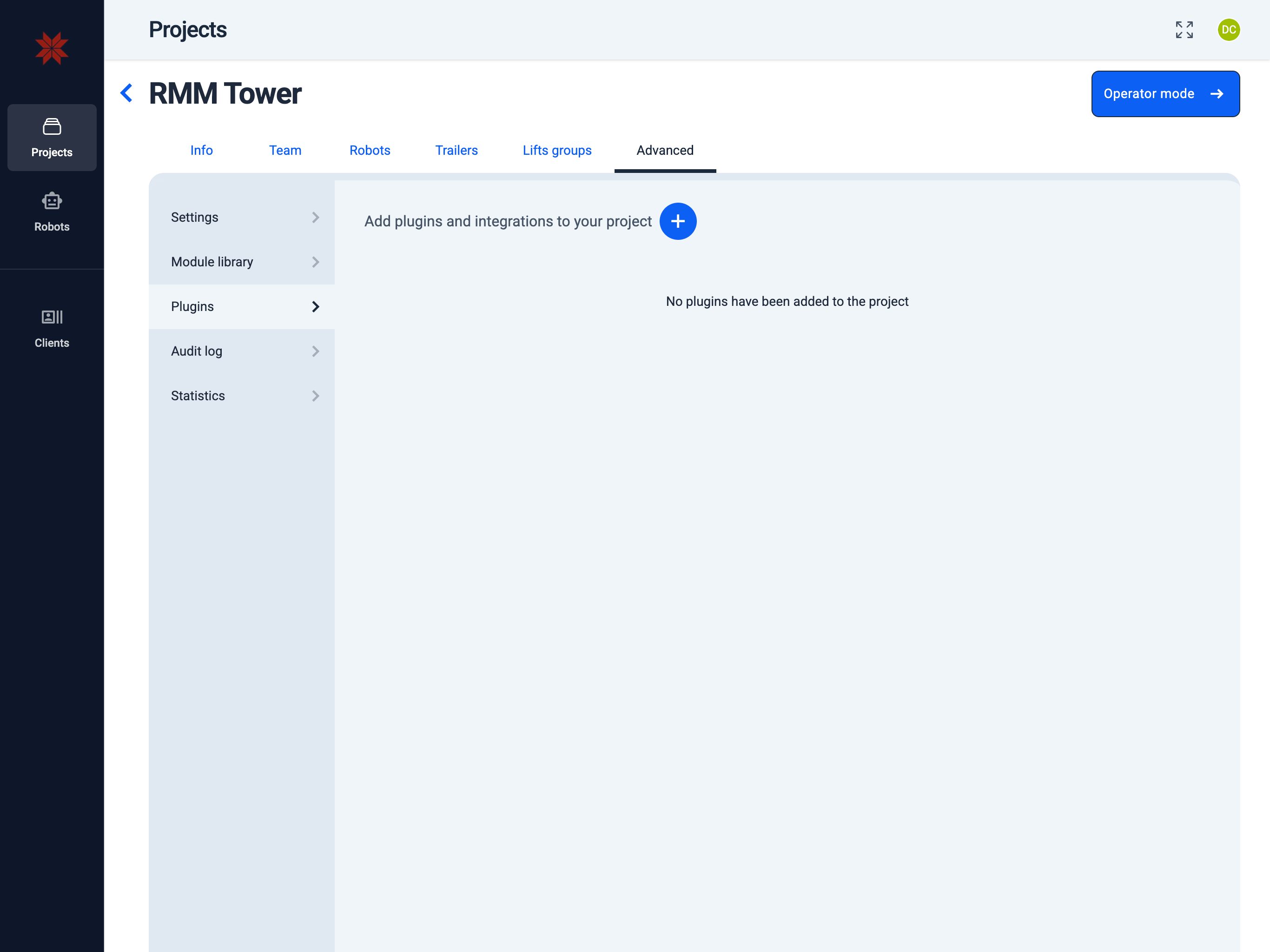
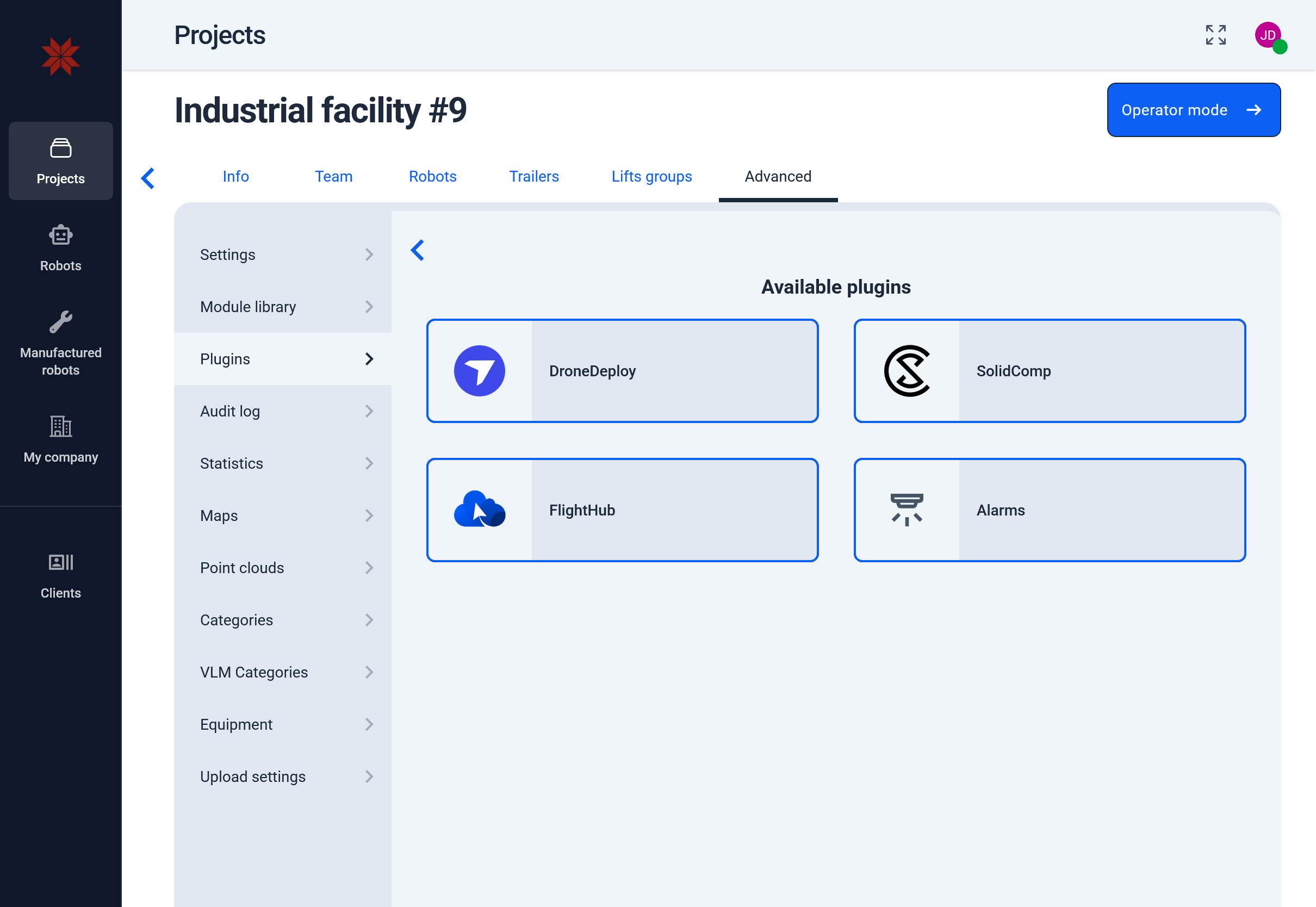
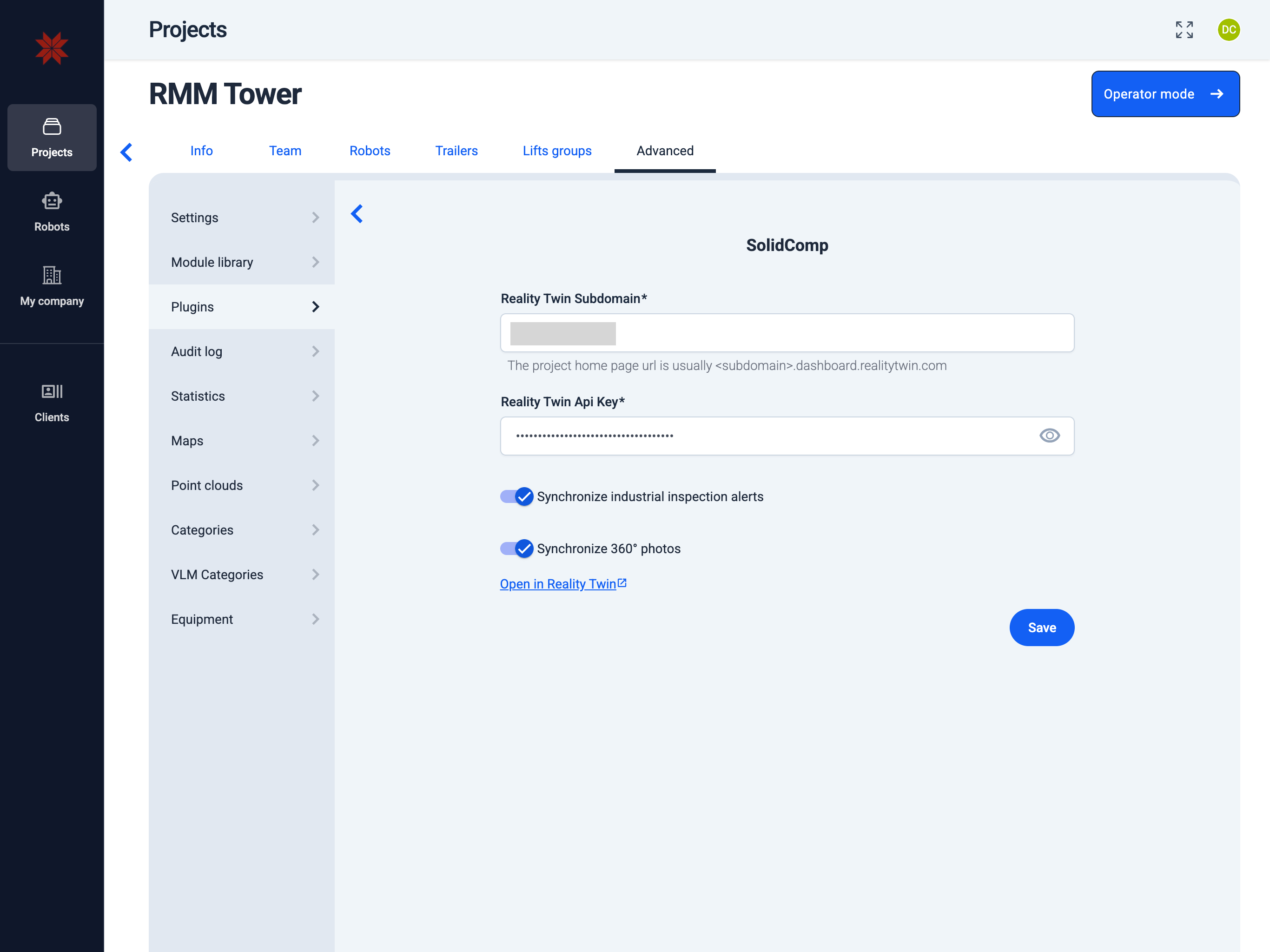
Admin Hub → Projects → Current Project → Advanced → Plugins
2. Add API Key and subdomain
Admin Hub → Projects → Current Project → Advanced → Plugins → Digital Twin Plugin
-
Enter the Digital Twin subdomain.
Info: The project home page URL is usually subdomain.dashboard.realitytwin.com.
-
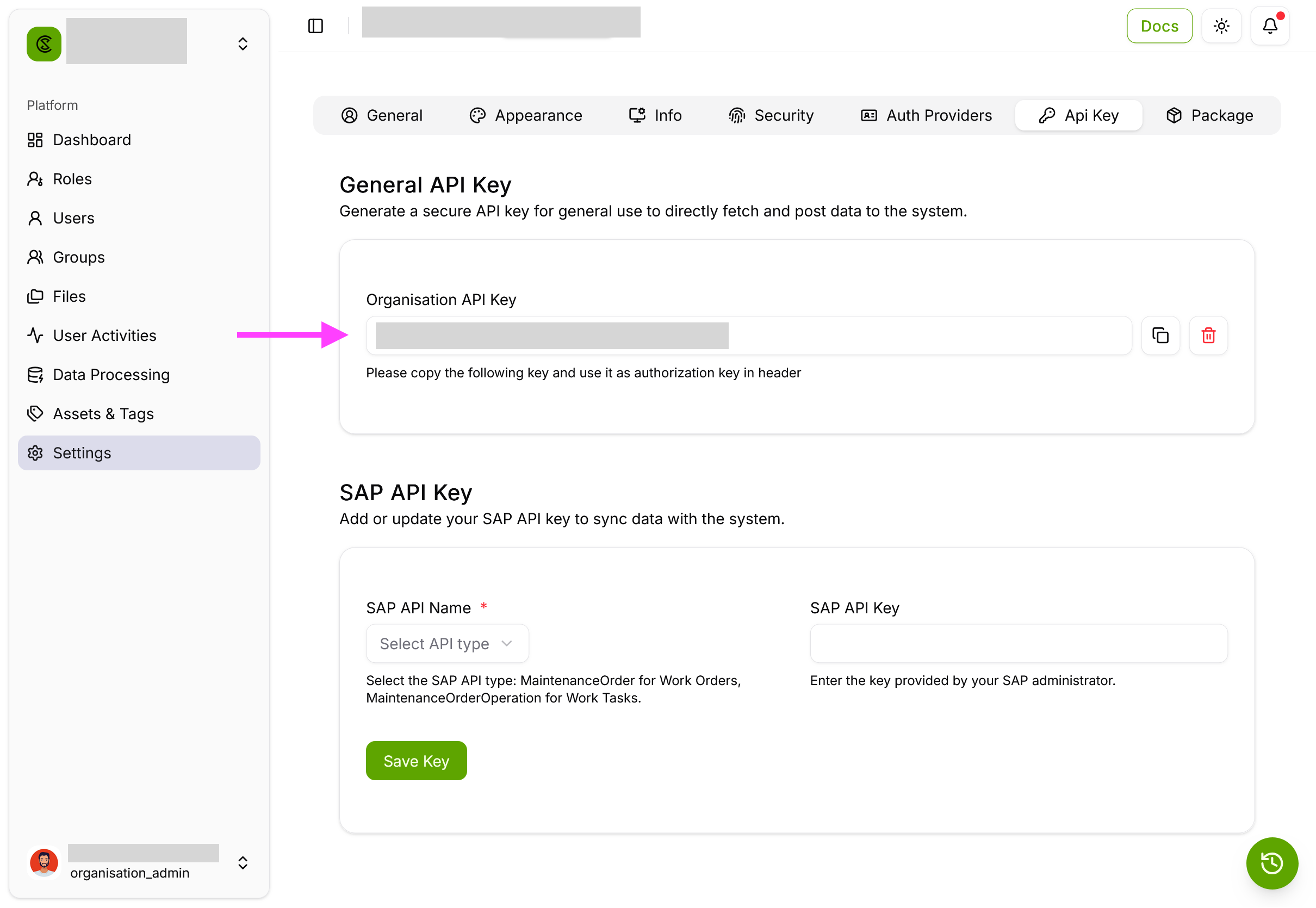
Enter the Digital Twin API key.
Info: Only users with the Administrator role have access to the API key.
Where to find the API key
-
Select the "Synchronize industrial inspection alerts" option.
-
Select the "Synchronize 360° photos" option.
-
Click the "Save" button.
3. Equipment list
Admin Hub → Projects → Current Project → Advanced → Equipment
Create and manage equipment and equipment categories. Equipment lists can also be imported from CSV files or integrated applications.
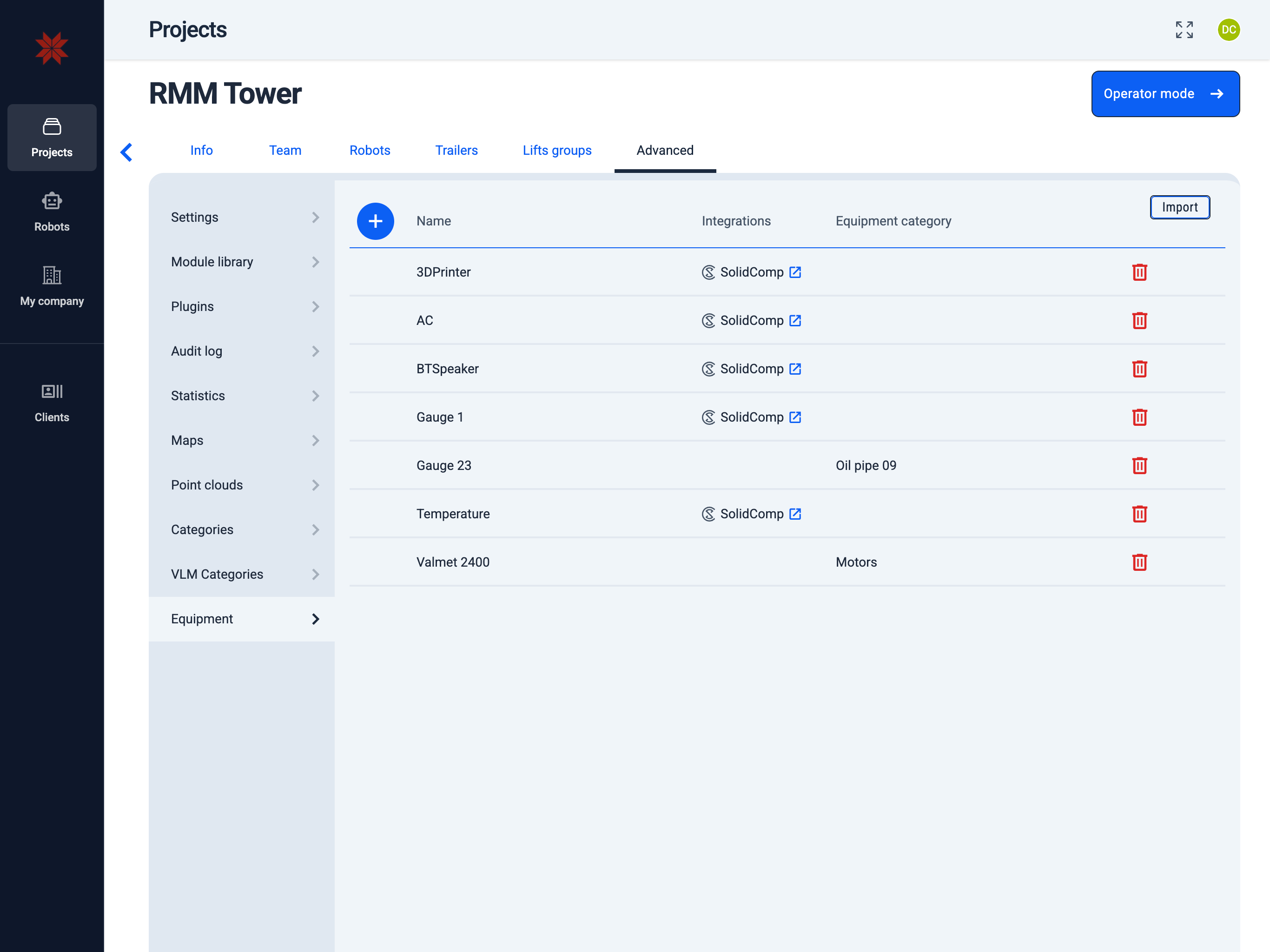
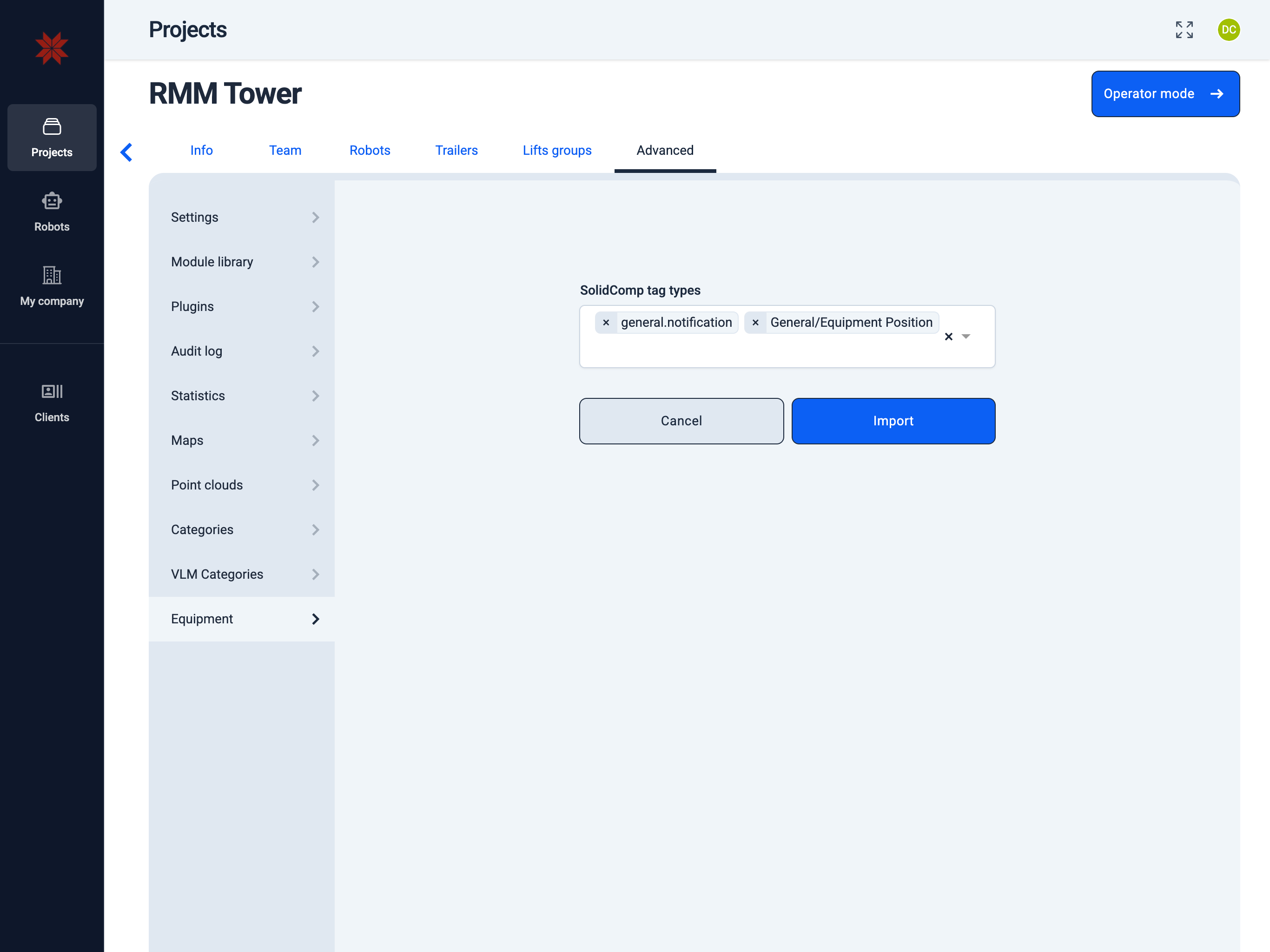
- Import Equipment
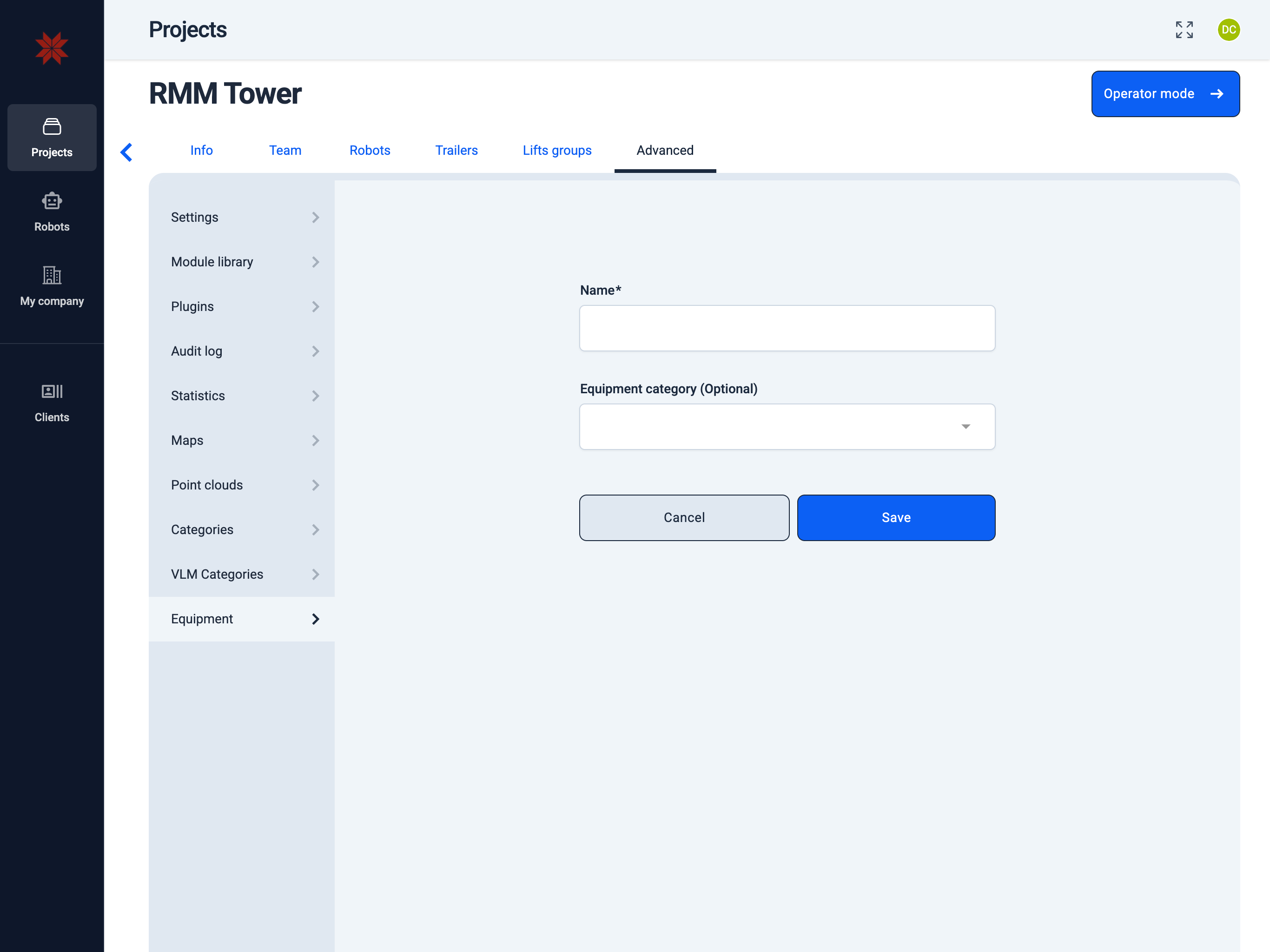
- Create Equipment
- Click the
Import button and choose where you want to import the list from.
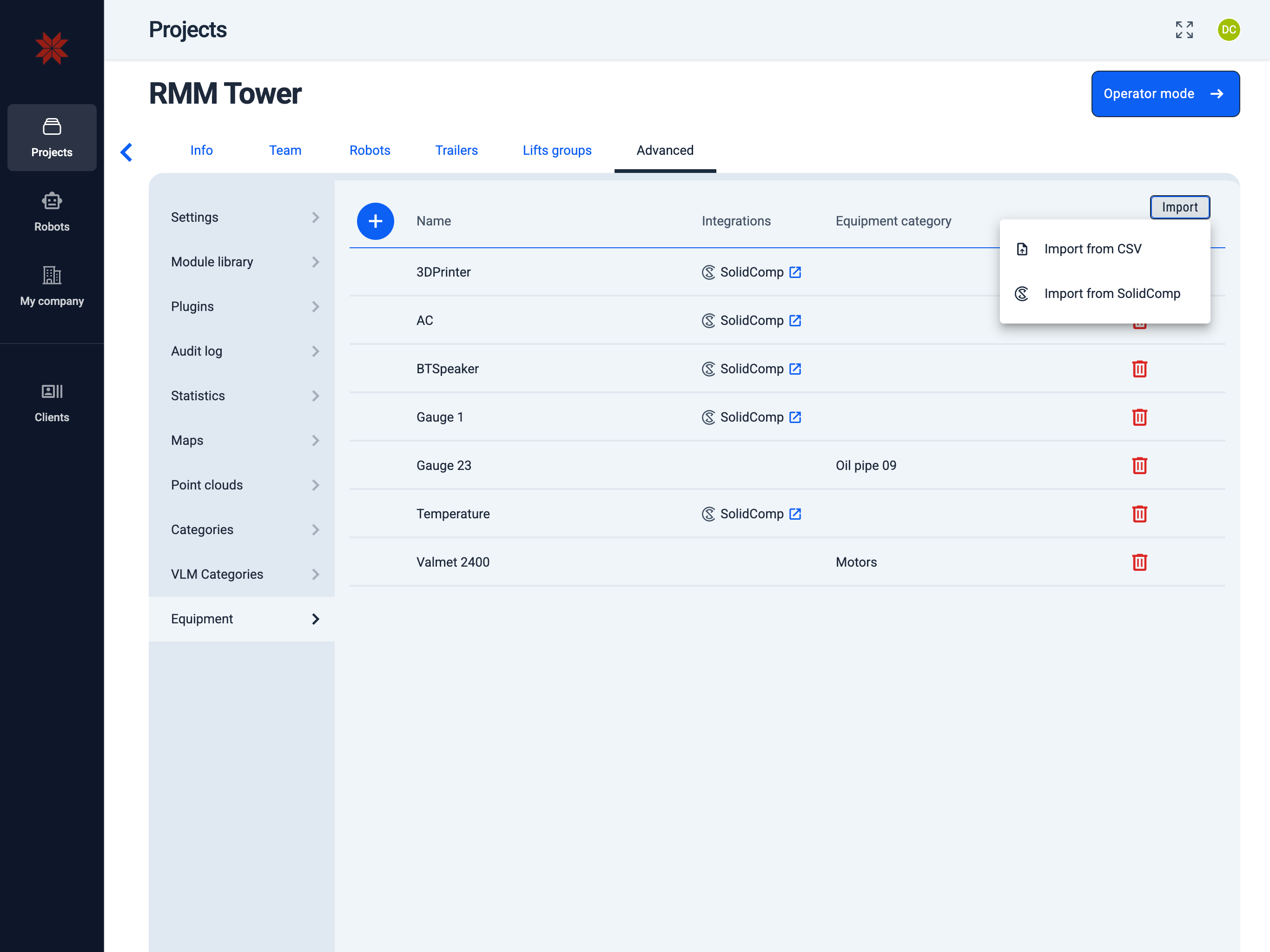
- When importing from integrated applications, you may need to select which database or tag type to import from.
- Click the
+ icon.
- Enter the name.
- Select an existing equipment category or create a new one (optional).
- Save the equipment.
4. Link a POI to a Digital Twin Tag Type
-
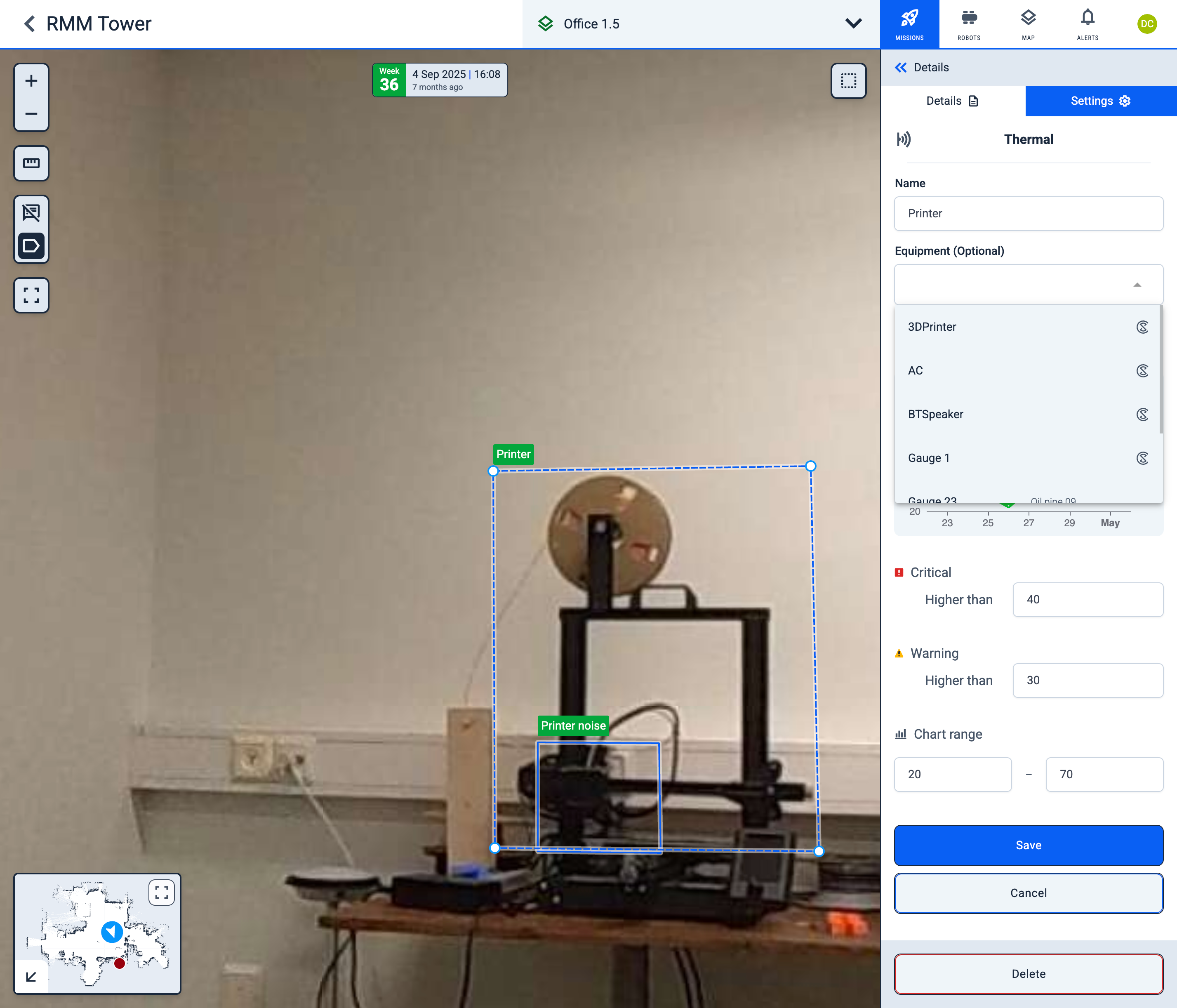
Open the POI settings.
-
In the Equipment dropdown, select the Digital Twin Tag Type that corresponds to the POI.
Info: The Digital Twin logo is displayed next to each Digital Twin Tag Type.
-
Save the changes.
-
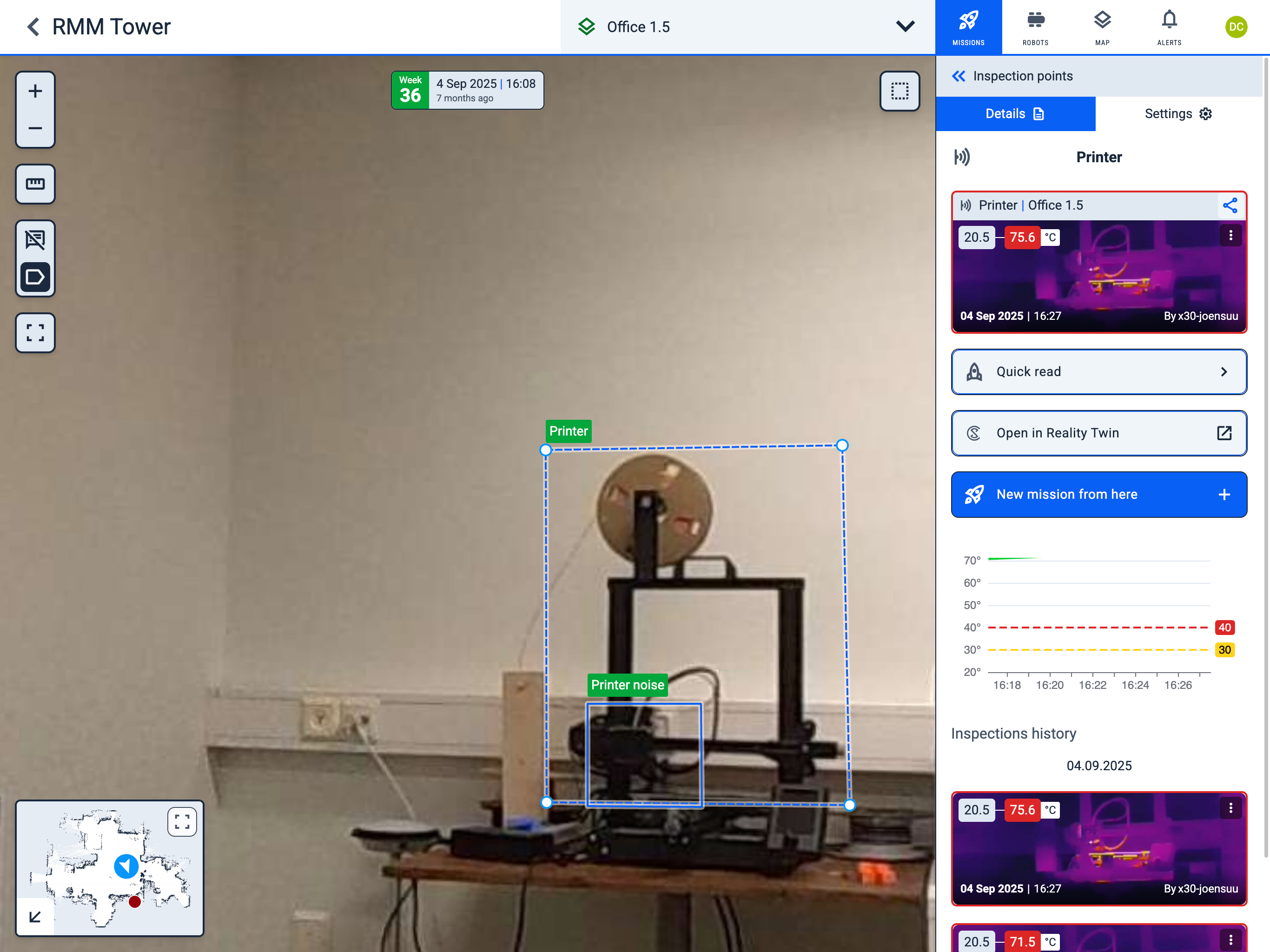
When viewing the POI, you will see an Open in Digital Twin button. It opens the linked Tag Type directly in Digital Twin.
5. Map synchronisation
Operator Hub → Current Project → Workspace → Map → Sync with Digital Twin
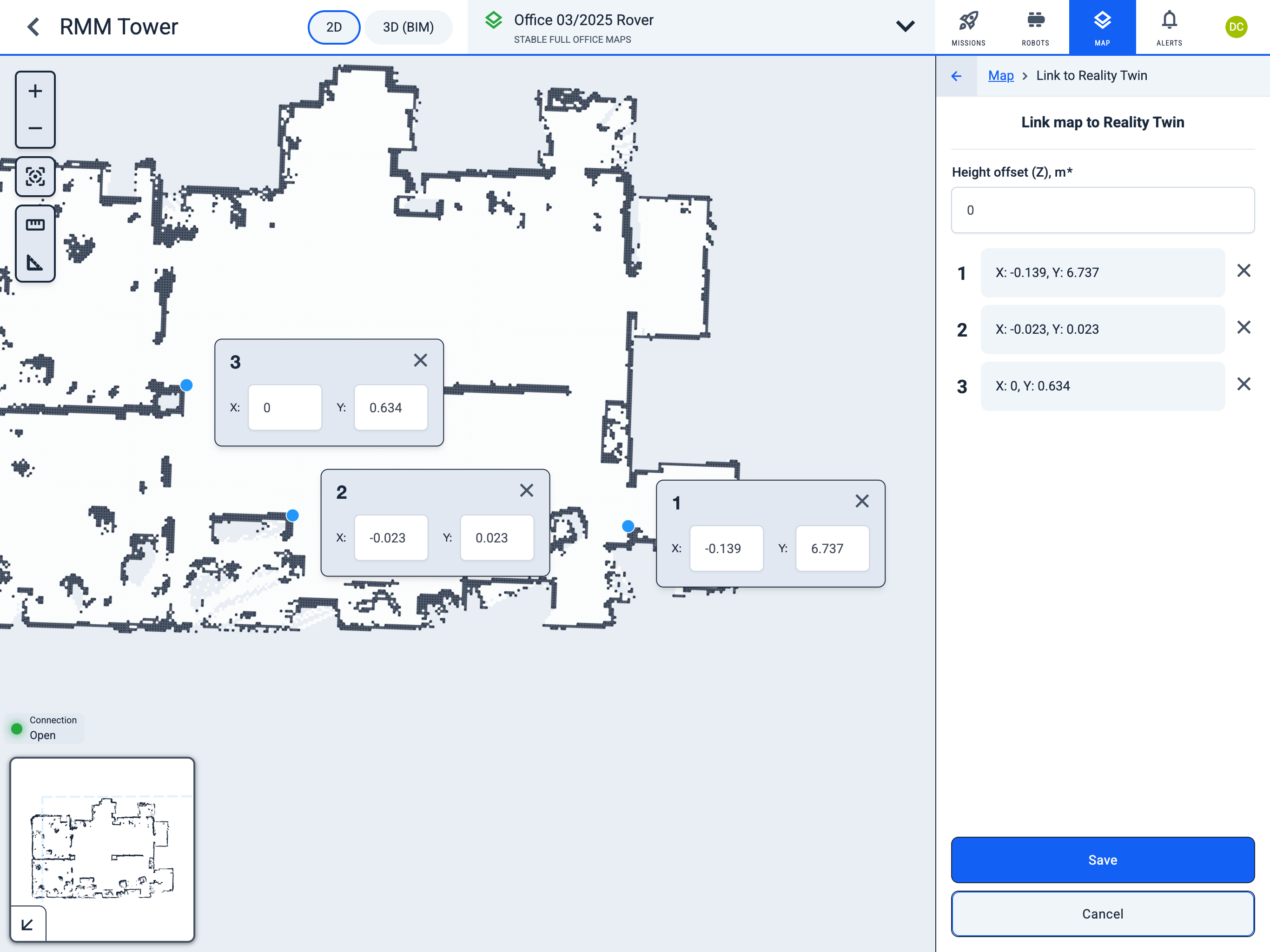
Map synchronisation is done by transferring the coordinates of at least three points from Digital Twin to a map in Karelics Cloud.
-
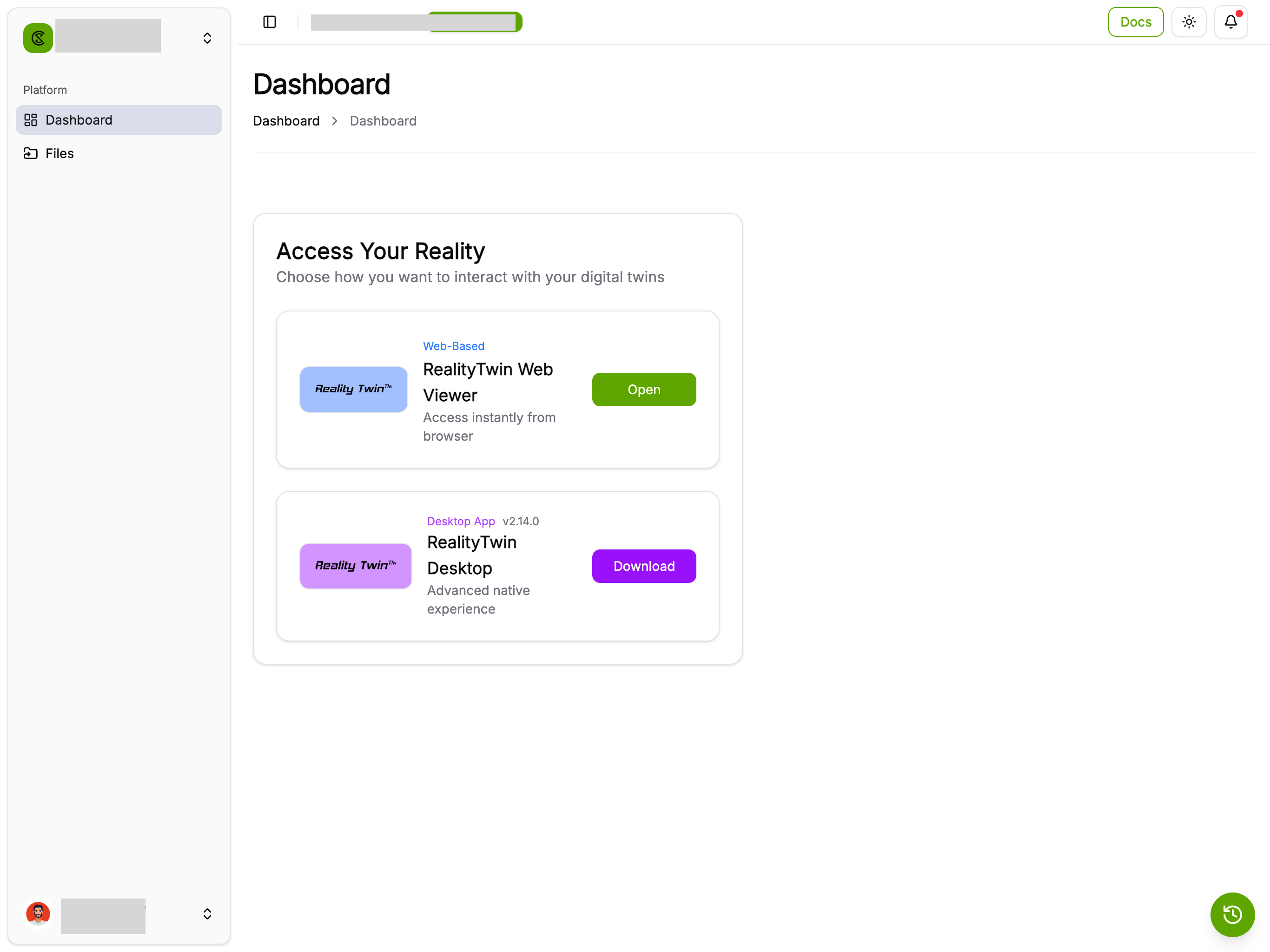
In the Digital Twin application, open Your Reality.
-
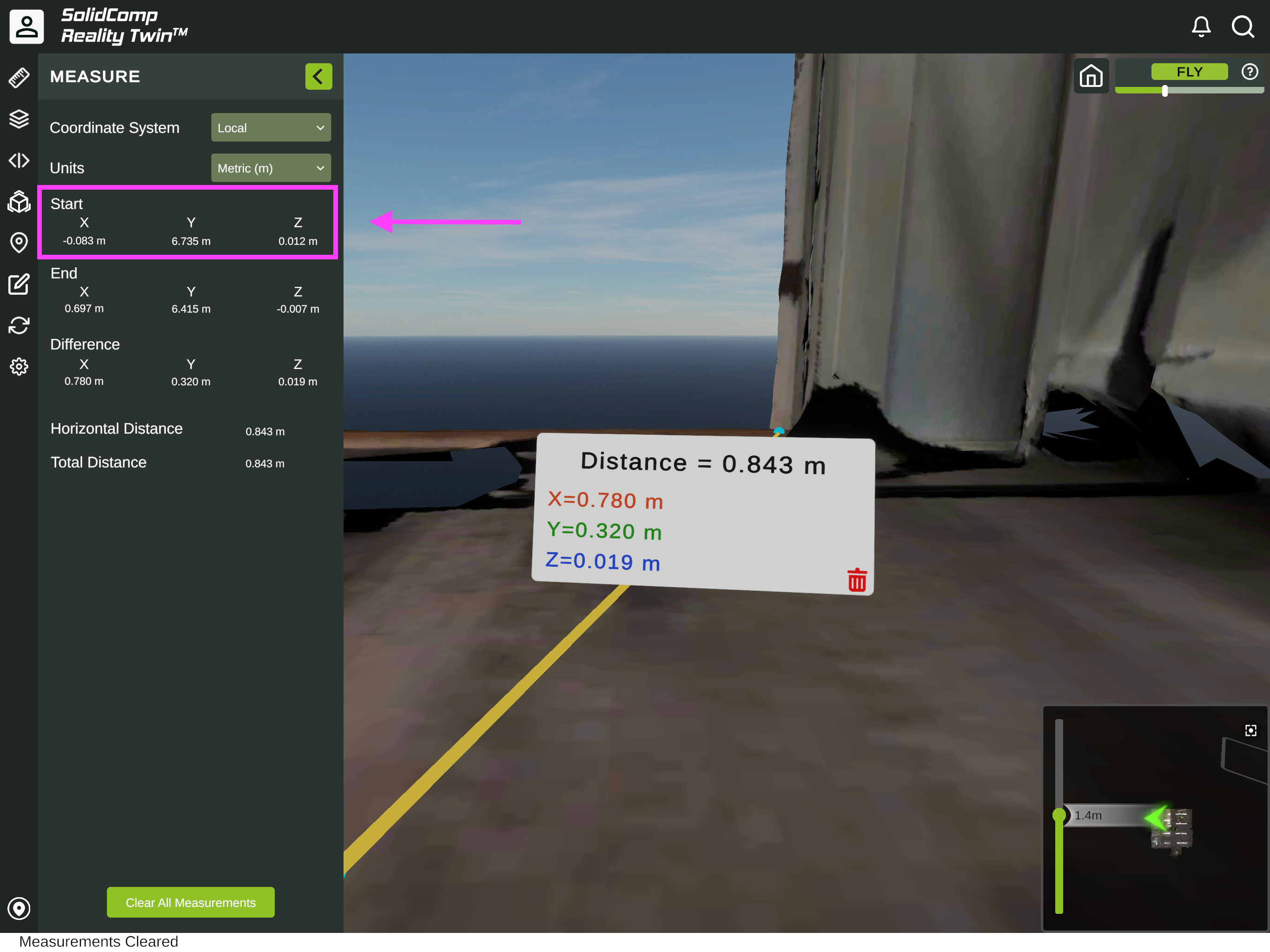
Select the Measure tool.
-
Select a point on the floor and draw a line from it.
-
In the Measure sidebar, copy the X, Y, and Z coordinates of the Start point.
-
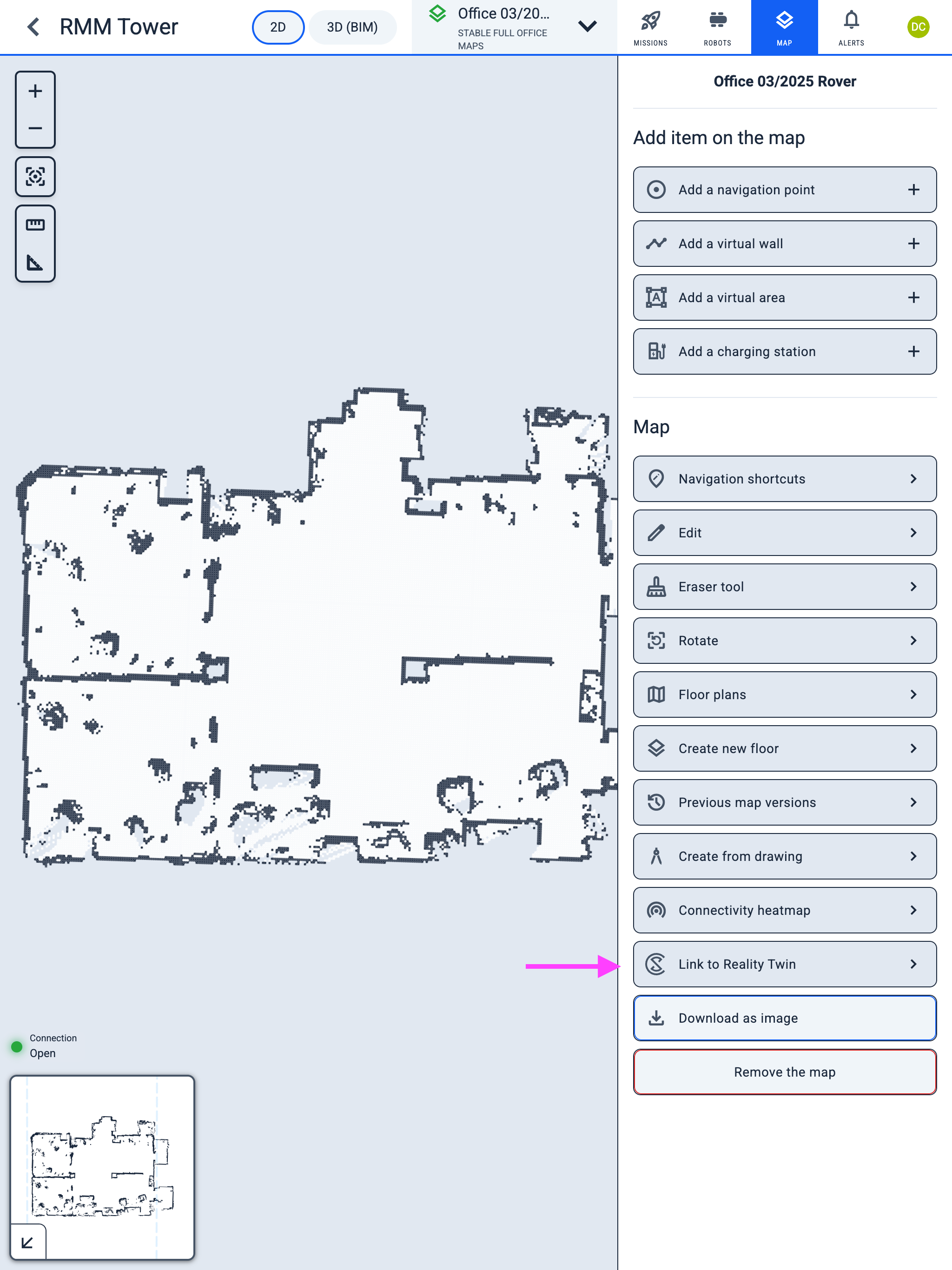
In Karelics Cloud, open the map page and click the Link to Digital Twin button.
-
Select a reference point on the map and enter its X and Y coordinates.
-
Use the same Z coordinate value for all points, because it represents the floor height of the room.