FlightHub Plugin
Admin Hub → Projects → Current Project → Advanced → Plugins → FlightHub Plugin
-
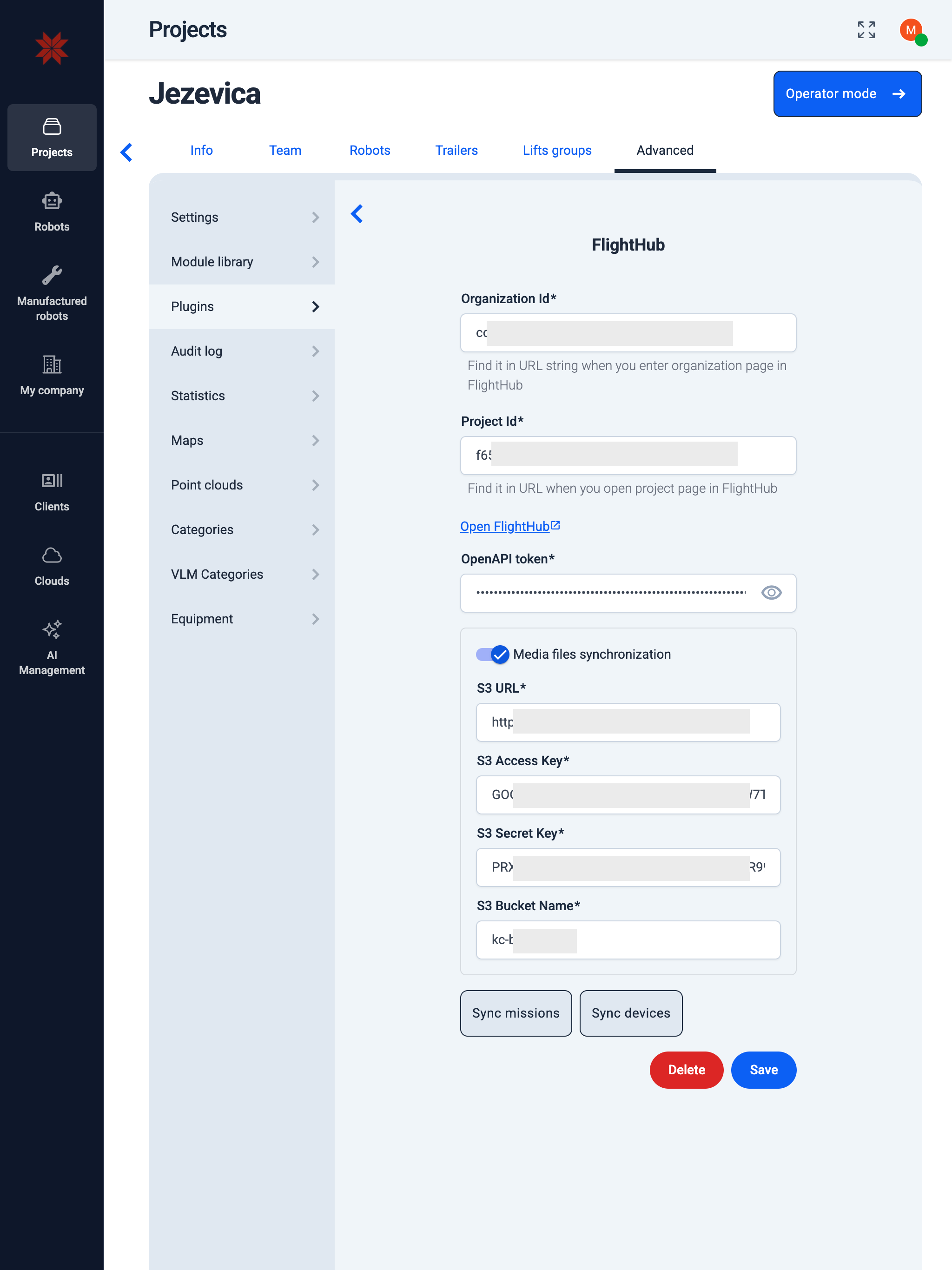
Enter the OpenAPI token.
Info: Open My Organization in FlightHub 2, select Organization Settings for the target organization, and copy the OpenAPI token from the dialog.
-
Enter the Organization ID.
Info: You can find the organization ID in the URL on the FlightHub website: For example, in
fh.dji.com/organization/a1b2c3d4-e5f6-7890-abcd-ef1234567890/project-list#/, the organization ID isa1b2c3d4-e5f6-7890-abcd-ef1234567890. -
Enter the Project ID.
Info: You can find the project ID in the URL on the FlightHub website: For example, in
fh.dji.com/organization/a1b2c3d4-e5f6-7890-abcd-ef1234567890/project/f1e2d3c4-b5a6-9870-fedc-ba0987654321/..., the project ID isf1e2d3c4-b5a6-9870-fedc-ba0987654321. -
Click the Save button.
-
If needed, configure synchronization of media files to your S3 storage.
-
Synk missions from FlightHub to Karelics Cloud by clicking the Sync missions button.
-
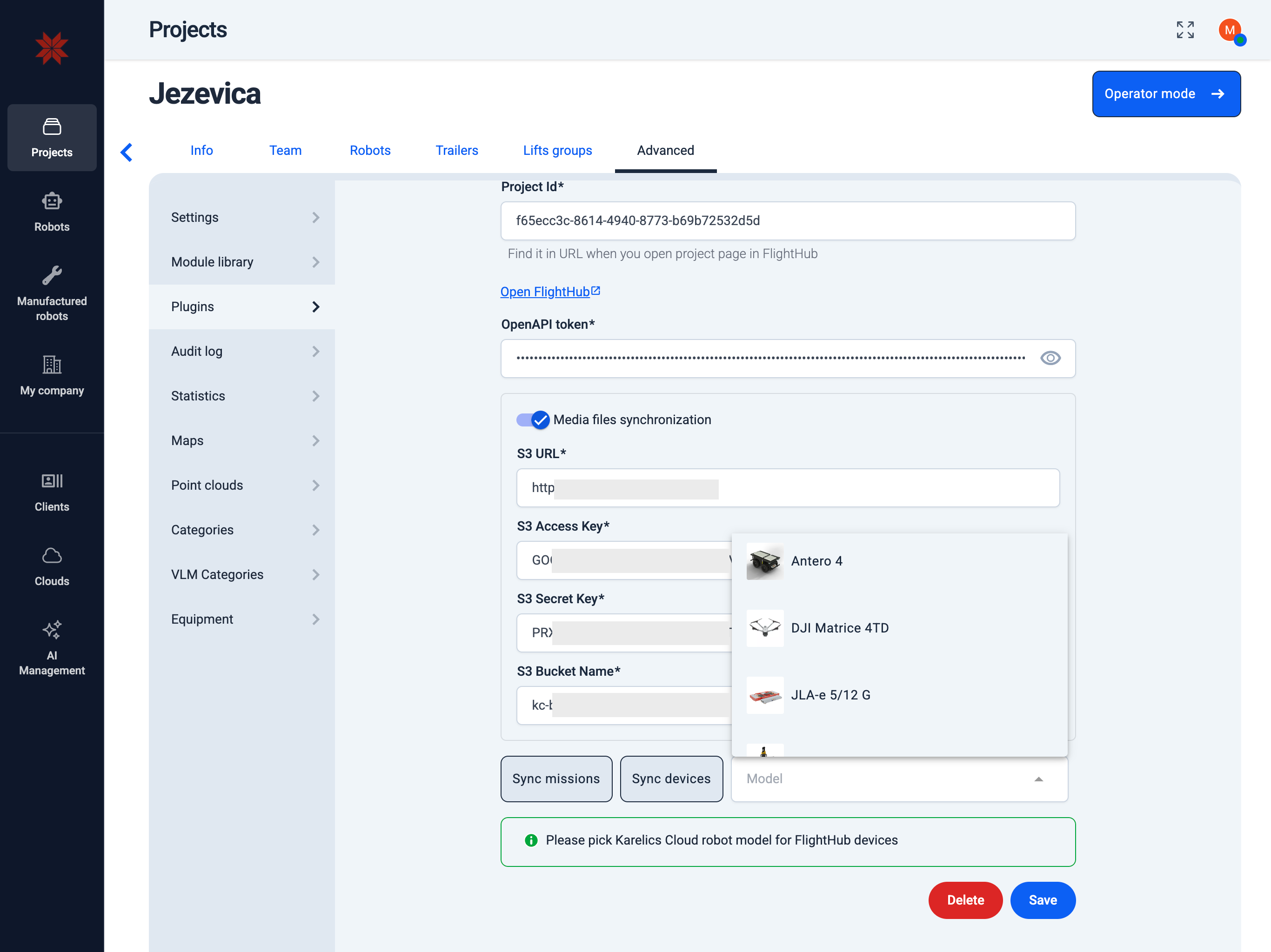
Synk robots from FlightHub to Karelics Cloud by clicking the Sync robots button and select model of the robot.
-
Click the Save button.
For complete instructions on how to fully integrate with FlightHub, see FlightHub Integration.